KDP Author Dashboard Practical Guide for Self-Publishing
kdp author dashboard: A practical guide for self-publishing authors
Estimated reading time: 12 minutes
Key takeaways
- The kdp author dashboard is your control center: Bookshelf, Reports, Marketing, and Community are where day-to-day work happens.
- Use the Bookshelf for edits and distribution choices; use Reports to spot trends and protect earnings.
- When you publish at scale, automate uploads and distribution—BookUploadPro makes multi-platform publishing practical and repeatable.
Table of Contents
- How the KDP author dashboard works
- Manage books and daily workflows
- Reports, royalties, and what to track
- Scale distribution: multi-platform publishing that saves time
- Frequently asked questions
- Sources
How the KDP author dashboard works
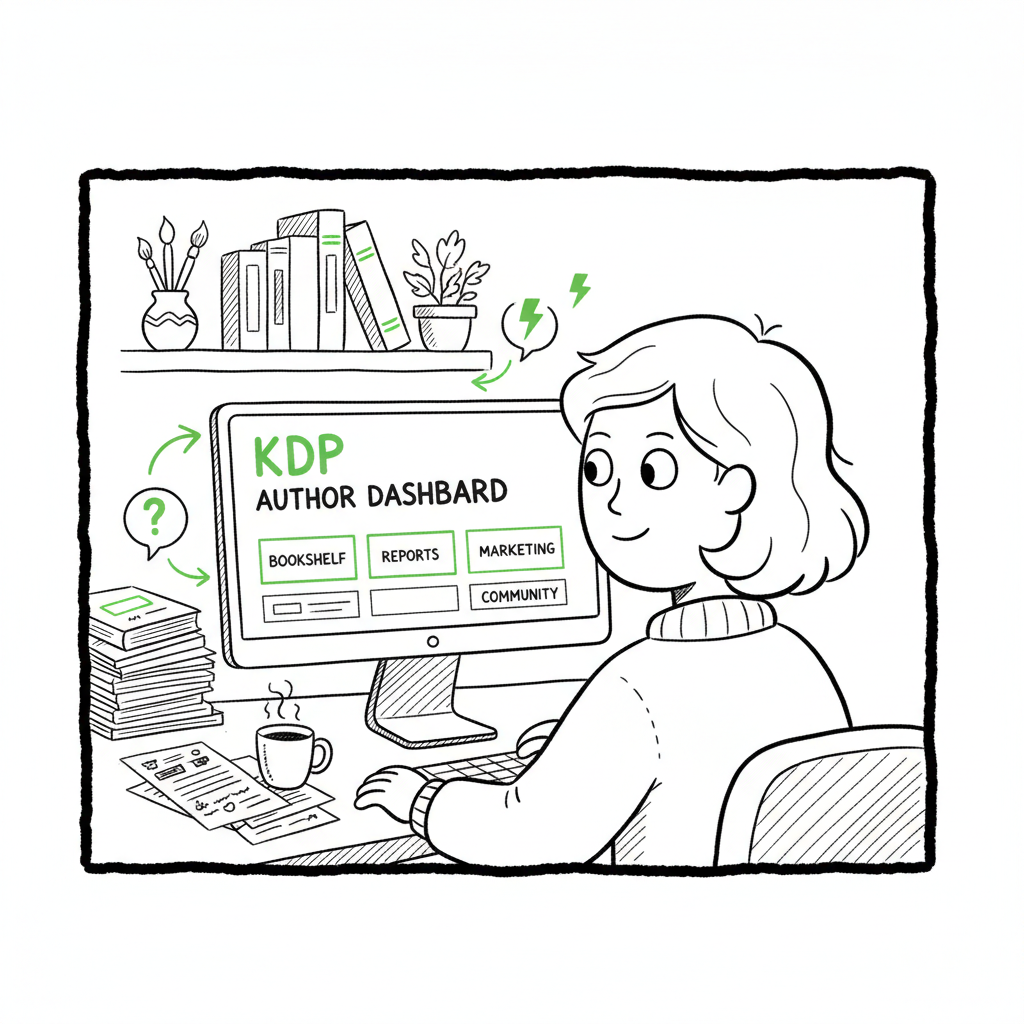
The kdp author dashboard is the central place Amazon gives authors to manage everything they publish on Kindle Direct Publishing. It’s simple on the surface: Bookshelf, Reports, Marketing, and Community. Spend time in the dashboard and you’ll see where books are published, how sales behave, and which marketing tools are available.
Start at Bookshelf to add a new title or edit an existing one. The dashboard walks you through the basic publishing fields: title, description, contributors, categories, keywords, file uploads, and pricing. If you are new, follow the steps to upload your manuscript and cover. If you create both ebook and paperback, the Bookshelf is where those formats are listed and managed.
A practical note for authors who want a walkthrough of setup and first uploads: our focused guide Amazon KDP for Authors covers the full upload flow and common pitfalls you’ll hit during your first few releases. Use that if you prefer a step-by-step companion while you work in the dashboard.
Navigation is straightforward if you use it the same way every time. The top-level areas you’ll visit most are:
- Bookshelf: where drafts and published books live.
- Reports: sales, KENP reads, and royalty estimates.
- Marketing: KDP Select enrollment, promotions, and links to Amazon Ads and Author Central.
- Community/Help: forum links and documentation.
The dashboard shows basic validation rules and immediate warnings. If a file won’t upload or a metadata field fails, the error messages are usually actionable. That’s important for productivity: fixing one field now saves repeated rejections later.
If you are building covers, converting manuscripts to ebook formats, or generating paperback-ready files, it’s worth using reliable tools rather than doing everything by hand. For example, if your workflow includes converting to EPUB, a dedicated epub converter streamlines the step and avoids formatting errors that block uploads. If you need a cover generator or to process cover assets quickly, those tools cut trial-and-error time and produce files that meet Amazon’s specs. And if you create the paperback or ebook files frequently, consider a service that supports both ebook and paperback creation to standardize output.
Manage books and daily workflows
Most authors visit the Bookshelf dozens of times. Make those visits efficient by standardizing how you name drafts and how you store final files. A consistent naming system helps when you manage many books or run batch updates.
Bookshelf essentials
- Edit metadata: Choose titles, subtitles, and descriptions that match your market. Descriptions can be long and should include the main selling points near the top.
- Update pricing: Change prices quickly in the Bookshelf. For wide distribution, maintain a price sheet with your target prices per platform.
- Manage files: Upload the manuscript and cover. For ebooks, confirm the EPUB or MOBI uploads; for paperbacks, confirm PDF interior and PDF cover.
- Territory and rights: Set worldwide or selected territories depending on your agreements and distribution plan.
- Look inside and proofing: Order a proof copy for paperbacks or use Amazon’s previewer to check formatting.
When you publish both ebook and paperback, it helps to keep versions and ISBNS documented. A simple CSV or spreadsheet with titles, formats, ASIN/ISBN, and publish dates saves time and prevents duplicate entries.
If you rely on conversions or a cover process, integrate those tools into your upload routine. For EPUB conversion, use a tested converter that preserves layout and images. A good EPUB converter handles chapter breaks, image resizing, and table of contents generation cleanly. When you need a quick cover, especially for series consistency, use a cover generator or processing service that outputs Amazon-ready files.
Practical file tips
- EPUB vs PDF: Amazon accepts EPUB for ebooks and PDF for paperback interiors. Export your ebook to EPUB from your editor or use a trusted converter.
- Cover sizes: Paperback covers require spine and back cover art sized to page count and paper type. Use a reliable generator or a template from your design tool.
- Proof early: Upload proof copies and check pagination, margins, and image quality. Proofing minimizes re-uploads.
A predictable Bookshelf routine avoids errors and reduces wasted time. If you publish frequently, batch-prepare all metadata and files before you start the upload sequence. That prepares you for fast, repeatable uploads.
Reports, royalties, and what to track
The Reports area is where the numbers live. Understand what each report shows and how often it updates.
Key report types
- Sales and Royalties: Shows units sold, returns, and estimated royalties by marketplace. Royalties are estimates until Amazon finalizes payouts.
- Orders and Returns: Useful for spotting sudden spikes or returns that can affect a book’s financials.
- KENP (Kindle Edition Normalized Pages): If your book is enrolled in KDP Select, KENP reads are how pages read translate to payments from the Kindle Owners’ Lending Library and Kindle Unlimited funds.
- Top-earning titles: A quick look at which books drive most revenue.
Update cadence and expectations
Sales and KENP stats update frequently, but there is a delay: print orders may take up to 24 hours to appear. Royalties move through validation before they are finalized in your payout. If you run promotions or enroll in KDP Select, expect to watch both units and KENP to measure impact.
How to use reports productively
- Set routines: Check totals weekly and drill into titles monthly. Weekly checks catch metadata or pricing errors; monthly reviews reveal trends.
- Compare channels: If you publish wide, compare Amazon reports to platform reports elsewhere to find gaps.
- Protect earnings: Look for unusual spikes that might indicate exploitative returns or accidental price glitches.
Reports are also the place to confirm that a title is available in a market. If a book shows zero orders in a market where you expect sales, check the Bookshelf settings for territories and pricing.
Scale distribution: multi-platform publishing that saves time
KDP covers Amazon distribution well. But most authors who want steady income and discoverability publish beyond KDP. Wide distribution means Apple Books, Kobo, Draft2Digital, and Ingram. Doing this well is a repeatable process, not a one-off.
Why go wide
- Different readers use different stores. Apple and Kobo can be significant channels by themselves.
- Ingram expands print reach into bookstores and libraries.
- Relying only on a single marketplace limits reach and creates single-point dependency.
The operational challenge is the upload and metadata repetition. Each platform asks for similar fields but with slightly different rules. That’s where automation becomes crucial.
If you publish multiple books, batch uploads and platform-specific intelligence reduce time and errors. Automation that handles CSV batch uploads, manages platform-specific requirements, and catches common errors saves roughly 90% of the manual time compared to doing every upload by hand. That’s not an estimate pulled from marketing—it’s the kind of efficiency observed when publishers move from single uploads to a proper batch process.
How to organize multi-platform uploads
- Centralize metadata: Keep a master CSV or database with title, author, description, keywords, categories, pricing, and file paths for each format.
- Standardize files: Produce a single EPUB and a print-ready PDF per title. Use the same cover assets with platform-specific exports when necessary.
- Validate per platform: Use a preflight check to catch common issues like image resolution, missing metadata, or incorrect spine size.
- Track versions: When you update a book, update the master record and push changes across platforms in a controlled release window.
Automate the routine
This is where BookUploadPro fits naturally. For authors who publish seriously, a simple upload page is not enough. BookUploadPro automates repetitive uploads to Amazon KDP, Kobo, Apple Books, Draft2Digital, and Ingram. It uses CSV batch uploads, platform-specific intelligence, and error checking to make wide distribution practical.
Key automation benefits
- Unified multi-platform publishing from one interface.
- CSV batch uploads that take a spreadsheet and push many titles at once.
- Platform-specific intelligence that adapts metadata and file settings to each store’s rules.
- Reduced errors and consistent outputs across stores.
- Affordable pricing and a free trial so you can test the workflow.
When you move from occasional self-publishing to publishing at scale, automation is an obvious upgrade. It frees time for writing and marketing instead of manual uploads. Automate the upload. Own the distribution.
Frequently asked questions
Q: What is the first place I should go in the kdp author dashboard?
A: Start with the Bookshelf. It lists your drafts and published books. Use it to add a new title or to update metadata and files for an existing title.
Q: How often do reports update in the KDP dashboard?
A: Sales and KENP reports update frequently, but there can be short delays. Print orders may show within 24 hours. Royalties shown are estimates until Amazon finalizes payouts.
Q: Can I publish ebooks and paperbacks from the same dashboard?
A: Yes. The Bookshelf supports multiple formats per title. Upload the ebook file (EPUB) and the paperback interior (PDF) and cover. Proof check the paperback before final release.
Q: Do I need special tools to make EPUB or paperback files?
A: You can create files manually but a conversion tool saves time and reduces errors. For EPUB conversion, a dedicated converter preserves formatting and table of contents. For cover processing and paperback creation, generator tools help produce properly sized and validated files.
Q: How does BookUploadPro help with multi-platform publishing?
A: BookUploadPro automates repetitive uploads across Amazon KDP, Kobo, Apple Books, Draft2Digital, and Ingram. It supports CSV batch uploads, platform-specific settings, and error checking that reduces manual work and mistakes.
Q: Where can I learn a step-by-step guide to uploading to KDP?
A: If you want a focused, hands-on walkthrough for first-time uploads, the Amazon KDP for Authors guide covers the practical steps from manuscript to live listing.
Sources
- https://help.selfpublishing.com/en/5-things-to-know-about-your-kindle-direct-publishing-kdp-dashboard
- https://rubenstomdesign.com/blogs/news/getting-started-with-self-publishing-a-comprehensive-guide-to-kindle-direct-publishing-kdp
- https://kdp.amazon.com/help/topic/G200644310
- https://kdp.amazon.com/help/topic/GX7EGDFGS9CZCA2F
- https://kdp.amazon.com/help/topic/GVTTXHKHVPAPBEDQ
- https://www.youtube.com/watch?v=N7d8Dci_KVs
Final thoughts and next step
If you publish more than a title or two, move toward a repeatable, automated workflow. Use reliable converters for EPUB, a proven cover processing tool to meet specs, and a batch upload system to push multiple titles to multiple stores. When you’re ready to try automation and multi-platform distribution, visit BookUploadPro.com and start the free trial.
kdp author dashboard: A practical guide for self-publishing authors Estimated reading time: 12 minutes Key takeaways The kdp author dashboard is your control center: Bookshelf, Reports, Marketing, and Community are where day-to-day work happens. Use the Bookshelf for edits and distribution choices; use Reports to spot trends and protect earnings. When you publish at scale,…