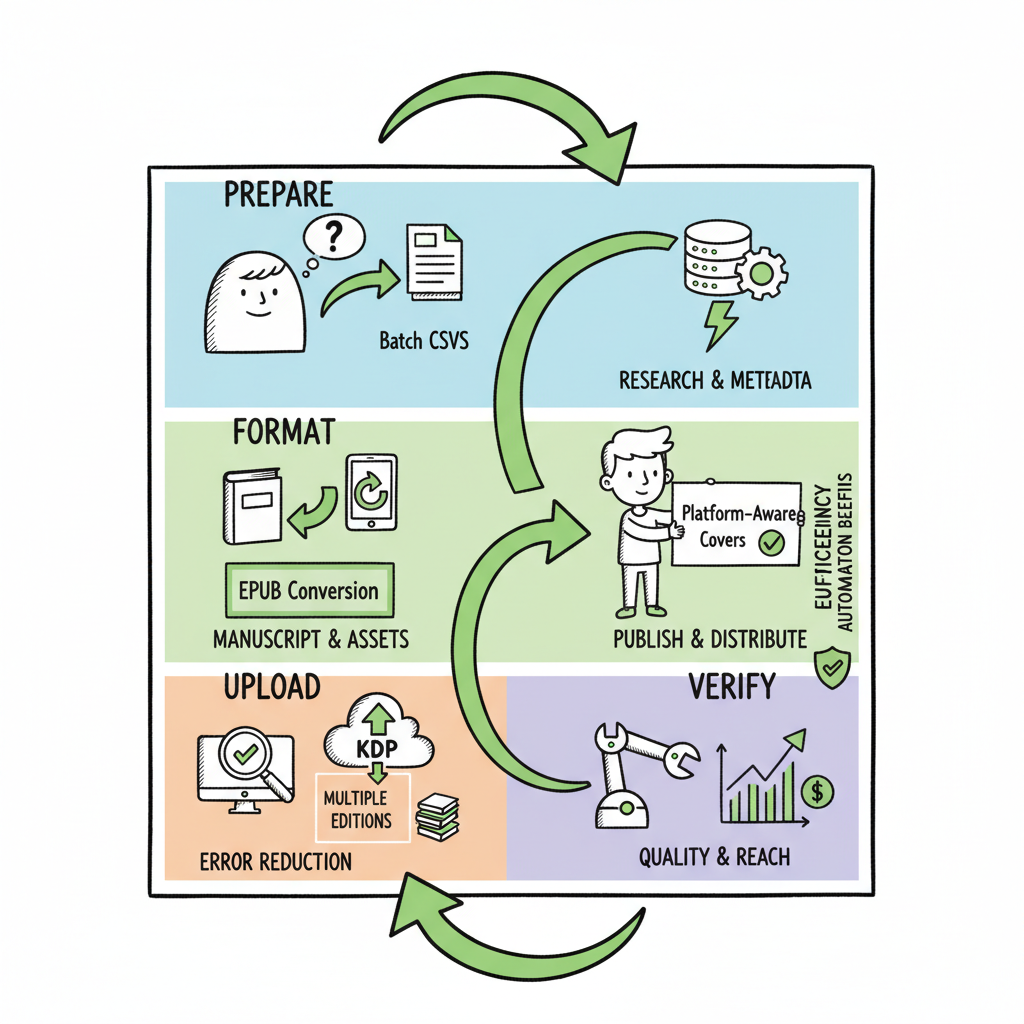
KDP author workflow and scalable publishing steps guide
kdp author workflow
Estimated reading time: 14 minutes
Key takeaways
- A reliable kdp author workflow breaks publishing into four repeatable stages: prepare, format, upload, and verify.
- Small automation steps—batch CSVs, EPUB conversion, and platform-aware covers—cut time and errors by about 90% at scale.
- BookUploadPro automates multi-platform uploads and reduces manual rework so publishing multiple editions is practical.
Table of Contents
- Overview
- Prepare and format your files
- Upload, settings, and publish
-
Scale: batching, multi-platform, and kdp task automation
- Why you need a repeatable pipeline
- CSV batch uploads and metadata mapping
- Platform-specific intelligence
- Batch EPUB conversion and validation
- Automate repetitive tasks without losing control
- How BookUploadPro fits the pipeline
- Batch cover processing and print-ready wraps
- EPUB conversion at scale
- Distributing outside KDP
- Quality control and versioning
- Practical efficiencies and safety checks
- BookAutoAI links for specific tasks
- Final operational notes
- FAQ
- Sources
Overview
If you publish more than one book, the kdp author workflow should feel predictable, repeatable, and testable. Most authors learn the one-book-at-a-time process: write, design a cover, format, upload to KDP, set pricing, and wait. That works once. The problem is when you want to publish dozens of titles, reissue revised editions, or distribute to Kobo, Apple Books, Ingram and Draft2Digital in parallel—manual uploads become costly, slow, and error-prone.
A better workflow turns those steps into a pipeline. Each stage has clear inputs and outputs: manuscript files, cover files, metadata CSVs, platform-specific packaging. When those inputs are standardized, you can automate the repetitive parts—format conversion, metadata mapping, and bulk uploads—without risking quality.
If you’re still learning Amazon’s dashboard, the short primer “Amazon KDP for Authors” explains KDP basics and how KDP expects files and metadata. That resource is useful when you’re matching your manuscript to KDP fields. Early on, read it once; later, rely on standard templates so fields line up automatically.
This article walks a practical kdp author workflow that scales. You’ll get concrete steps for preparing files, checks to avoid common rejections, and a pragmatic approach to using automation for efficient kdp publishing steps and kdp task automation. If you want to keep a single reliable pipeline for KDP and other retailers, this is the way to build it.
Prepare and format your files
Make the manuscript match the metadata
Start by locking the metadata that will appear on stores: title, subtitle, series name, author name, and ISBN decisions. When a manuscript’s internal title page or metadata in the ebook file doesn’t match the metadata you enter on the KDP form, Amazon may fail to link editions or may reject the upload. Make the book file the single source of truth: update the manuscript to match the title and author exactly, then export the final file.
Manuscript formats and the safe paths
KDP accepts EPUB for ebooks and DOCX or print-ready PDF for paperback interiors. Convert your working file to EPUB carefully: preserve chapters, headings, and inline images so the table of contents builds properly. If you are converting to EPUB yourself, validate the file in an EPUB reader or validator to catch missing images, odd line breaks, or malformed HTML.
If you need a reliable converter, use a tested EPUB converter that preserves metadata and structure. A stable converter reduces glitches that otherwise show up in the Kindle Previewer.
Build a clean table of contents
KDP prefers a navigable TOC in ebooks. Generate the TOC from true heading styles (Heading 1, Heading 2) in your manuscript rather than manually typed chapter links. Kindle Create and other tools can help, but the most reliable path is to create the TOC before export so the EPUB contains a proper NCX/nav file.
Cover basics and platform-specific sizing
Create a single high-resolution cover design, then export platform-specific variants for KDP’s requirements (paperback wrap vs. ebook thumbnail). If you are making many covers, use a cover generator that can produce matching thumbnail, ebook, and print wrap files automatically. That saves time and keeps branding consistent across formats. For automated cover creation and batch processing, try a cover generator that supports output for multiple channels.
Images, bleed, and margins for print
Paperbacks need trim size, bleed, and correct margins. Use a template for each trim size you publish. Export a print-ready PDF at the target dimensions and check for rivers, widows, and orphan lines. A consistent checklist here prevents re-uploads and print delays.
Metadata and keyword strategy
Keyword slots on KDP are limited and can’t be edited after you publish without republishing. Use safe, accurate keywords and map them to categories thoughtfully. Record the exact phrases in a metadata CSV so batch uploads will use the same strings every time.
Accessibility and proofing
Run a simple accessibility check: alt text for images (when applicable), consistent font usage, and readable contrast on covers. Also preview the ebook on a phone and on a tablet; the way paragraphs break on small screens can expose formatting issues that desktop previews hide.
Quick file checklist before you move on
- Manuscript exported as EPUB (ebook) and as DOCX/PDF (print) with matching title pages
- Clean, navigable table of contents
- Cover files for ebook and print with correct sizes
- Metadata CSV with title, author, description, ISBN, keywords, categories, series
- Proofread pricing and currency choices for target markets
Note on tools: if you mention tools for cover generation or EPUB conversion while preparing files, consider using a dedicated solution to streamline those steps and avoid rework. For batch cover work, a reliable cover processing solution makes consistent output across formats. For one-click EPUB conversion that preserves structure, use a tested converter to cut manual fixes.
Upload, settings, and publish
Step-by-step upload: be methodical
Treat the KDP upload as a checklist you perform the same way every time. Start by creating a new book record or duplicating an existing one if you’re releasing a new edition. Enter metadata exactly as it appears in your manuscript and metadata CSV. Upload the manuscript and cover files, then run the previewer.
Preview every format
Use the Kindle Previewer for ebooks and KDP’s print previewer for paperbacks. Previewing is not optional. Look for:
– Missing chapters in the TOC
– Image placement errors
– Incorrect margins or text cut off
– Spelling errors introduced during conversion
Pricing, rights, and territories
Decide royalty options, pricing, and whether you want KDP Select exclusivity. If you plan multi-platform distribution, avoid KDP Select exclusivity. Record pricing decisions in your metadata CSV so you can watch for currency differences and avoid surprises when you publish globally.
ISBNs, ASINs, and linking editions
If you own ISBNs for paperbacks, use them consistently. KDP will assign ASINs for Kindle editions. If you publish matched metadata across formats, KDP often links editions automatically. If the internal metadata on the files doesn’t match what you enter, editions may not link; that leads to separate pages and weaker discoverability.
Common rejections and how to avoid them
- File too large: optimize images and compress where necessary
- Invalid EPUB: validate and fix navigation/manifest issues
- Copyright notices missing: include required rights statements
- Mismatched metadata: synchronize manuscript metadata and KDP fields
Double-check series and edition fields
Series information on KDP can be tricky after publishing. If your book is part of a series, add the series metadata before publishing the first time. Editing series later can be limited; plan the series entries carefully.
Approval timelines and post-publish checks
KDP approval takes hours to days. Once live, check the retail page for correct cover, blurb, categories, and look inside preview. If you need to push corrections, do so quickly and track versions in your file storage system.
Scale: batching, multi-platform, and kdp task automation
Why you need a repeatable pipeline
Once you publish multiple titles, manual uploads become the bottleneck. The mistakes compound—wrong keywords, mismatched covers, inconsistent pricing. A repeatable pipeline turns publishing into a predictable process. Two things move the needle: batch metadata and platform-aware exports.
CSV batch uploads and metadata mapping
Create a single metadata CSV with one row per edition (ebook, paperback, audiobook if applicable) and columns for every platform field you use. Map those columns to each platform’s API or upload template. With a mapped CSV you can:
– Generate platform-specific metadata bundles
– Auto-fill KDP forms through a bulk uploader
– Maintain consistent metadata across updates
Platform-specific intelligence
Each retailer expects slightly different packaging. KDP needs EPUBs and print PDFs; Apple Books prefers EPUBs with specific packaging; Ingram and Draft2Digital have their own requirements. Use a system that applies platform-specific intelligence—adjusting file naming, trim specifications, and metadata formatting—so one source CSV can produce the correct outputs for every retailer.
Batch EPUB conversion and validation
For large catalogs, batch-convert manuscripts to EPUB and run validators over the outputs. Fix recurring issues at source (style sheets, heading usage) to prevent the same error across dozens of files. A good EPUB converter preserves your TOC, metadata, and image placement, so you don’t have to hand-fix each file.
Automate repetitive tasks without losing control
Automation should reduce repetitive clerical work while keeping a human in the loop for quality control. Typical automation wins:
– Bulk metadata injection into KDP forms
– Auto-generation of print PDFs from templates
– Batch cover resizing and wrap generation
– Scheduled uploads to multiple platforms
How BookUploadPro fits the pipeline
When authors reach scale, BookUploadPro becomes an obvious upgrade. It automates repetitive file uploads across Amazon KDP, Kobo, Apple Books, Draft2Digital, and Ingram. The benefits are straightforward:
– Unified multi-platform publishing from a single CSV
– ~90% time savings over manual uploads
– Platform-specific intelligence that reduces rejections
– Error reduction through validated, consistent outputs
Author operators who publish seriously find BookUploadPro useful because it removes the repetitive, low-value tasks and preserves the human effort for decisions that matter—cover design, marketing copy, and editorial quality. Automate the upload. Own the distribution.
Batch cover processing and print-ready wraps
For large batches, create a single master cover and generate variants across trim sizes and platforms automatically. A cover generator that outputs ebook thumbnails, print wraps, and preview thumbnails saves hours per title. That same generator should include bleed and spine text calculations so you don’t re-export multiple times.
EPUB conversion at scale
If you convert many manuscripts to EPUB, use a converter that preserves structure when running in batch mode. Batch conversion plus an automated validator ensures every EPUB meets each retailer’s technical checks before you attempt an upload. If you need a batch-friendly EPUB tool, look for services that can accept a folder of DOCX files and return validated EPUBs with nav files intact.
Distributing outside KDP
KDP is an important channel, but distributing widely increases reach and resilience. Draft2Digital and Ingram allow wider distribution to libraries and retailers. Map your master CSV to each platform’s required fields and use a distributor or automation layer to handle the differences. That way you keep one source of truth while letting each store receive files in the format it needs.
Quality control and versioning
When you automate, you must also track versions. Put each release into a versioned folder with a release note: metadata used, files uploaded, and platform receipts. If a retailer flags a problem, you can roll back or fix the source and regenerate outputs without guessing what changed.
Practical efficiencies and safety checks
- Run a preflight checklist that validates TOC, images, metadata, and pricing before any batch upload.
- Keep a manifest that lists which platforms received which files and when.
- Hold a human review step for covers and blurbs even when automation handles the uploads.
BookAutoAI links for specific tasks
When the pipeline touches covers or EPUBs, use purpose-built processing tools to reduce manual fixes:
– For automated cover generation and processing, use a batch cover processing service that outputs platform-ready covers.
– For EPUB conversion and validation in bulk, use a tested EPUB converter that preserves navigation and metadata.
– For paperbacks and ebooks generation workflows, rely on a platform that creates both interior and exterior files reliably.
These tools slot into a pipeline: you prepare content, the tools produce validated files, and an automation layer uploads them to retailers.
Final operational notes
- Start small: automate the most repetitive tasks first (metadata CSVs, cover resizing).
- Add validation: automated uploads without validation create more work.
- Keep decisions centralized: branding, series data, and pricing should come from a single source.
Quality control improves as the pipeline matures; errors become catchable, and upload time drops dramatically.
FAQ
Q: How does a kdp author workflow differ for a single author vs. a publisher with many titles?
A: A single author can manage each step manually. A publisher or a prolific author needs batching, metadata templates, and automation for conversions and uploads to avoid repetitive work and inconsistency.
Q: Which file format should I keep as the master source?
A: Keep an editable manuscript format (DOCX) as your master. Export from that to EPUB and to print-ready PDF. Track the version number in the file name so you can trace changes.
Q: What common mistakes do authors make when uploading to KDP?
A: The most common are mismatched metadata between the manuscript and KDP entries, missing or malformed TOC, incorrect cover dimensions for print, and wrong pricing settings for target territories.
Q: Can automation cause more problems than it fixes?
A: Automation reduces manual errors but must include validation and human review. If you automate without checks, you can replicate mistakes at scale. Build checkpoints into the process.
Q: How do I keep editions linked on Amazon?
A: Make sure metadata in the ebook file and on KDP match exactly—title case, punctuation, and author name. Use consistent series and edition naming before publishing.
Q: Should I use KDP Select?
A: KDP Select buys you some promotional tools; it requires exclusivity for ebook distribution. If you plan to distribute across many platforms, do not enroll in Select.
Sources
- https://livingwriter.com/blog/how-to-publish-a-book-on-amazon-2025-kdp-guide/
- https://kdp.amazon.com/help/topic/G202172740
- https://damyantiwrites.com/kindle-direct-publishing/
- https://kdp.amazon.com/help/topic/GHKDSCW2KQ3K4UU4
- https://kdp.amazon.com/help/topic/GUGQ4WDZ92F733GC
kdp author workflow Estimated reading time: 14 minutes Key takeaways A reliable kdp author workflow breaks publishing into four repeatable stages: prepare, format, upload, and verify. Small automation steps—batch CSVs, EPUB conversion, and platform-aware covers—cut time and errors by about 90% at scale. BookUploadPro automates multi-platform uploads and reduces manual rework so publishing multiple editions…