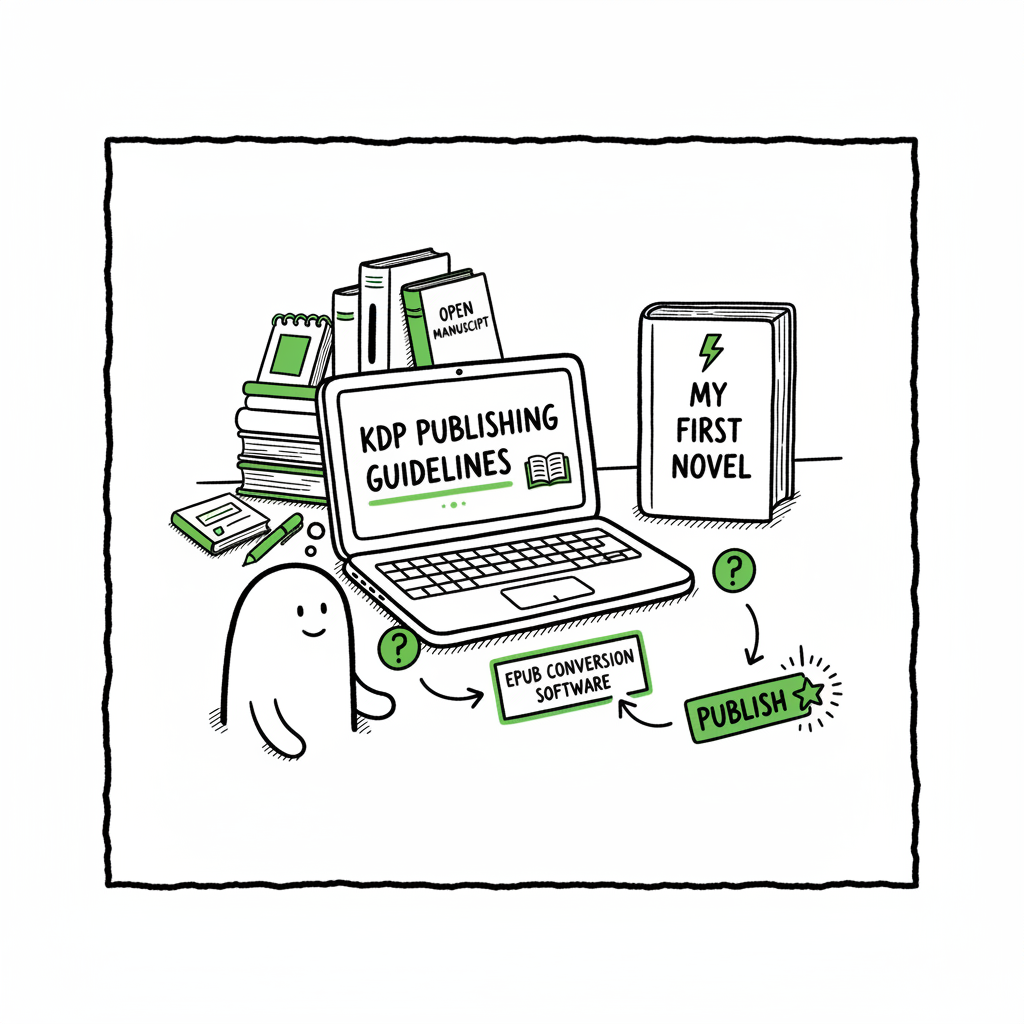
Beginner KDP Author Publish Your First Book and Scale
Beginner KDP Author: How to Publish Your First Book and Scale Efficiently
Estimated reading time: 14 minutes
Key takeaways
- Start simple: finish one clean manuscript, format it to KDP specs, and publish to learn the workflow.
- Prepare assets (cover, EPUB, metadata) correctly; use tools that convert and validate to avoid rework.
- When you publish more than a few books, automate uploads and distribution to save time and reduce mistakes.
- A multi-platform approach makes wide distribution practical; CSV batch uploads and platform-specific intelligence are the operational keys.
Table of Contents
- Getting started as a beginner kdp author
- Manuscript formatting, EPUB, and cover assets
- Uploading your first book and the first kdp book steps
- Automate multi-platform publishing and scale
- FAQ
- Sources
Getting started as a beginner kdp author
If you are a beginner kdp author, the simplest useful goal is clear: get one book from manuscript to live so you understand the full cycle. You will learn a lot by finishing a small project: how metadata affects discovery, how formatting shows up on devices, and how returns or fixes are handled after launch. That practical experience beats perfect planning.
Start with the basics
- Choose the right format for your book: ebook, paperback, or both. If you’re unsure, publish an ebook first—delivery is fast and the barrier is low.
- Set realistic scope: a novella, a short how-to, or a focused nonfiction guide works well for a first project.
- Finish, revise, and proofread. Publishing mistakes usually come from rushing the final file, not from the upload process itself.
KDP account essentials
Create your Kindle Direct Publishing account, complete your tax and payment information, and keep a clear folder for each book project. When you fill out your KDP listing later, you’ll need title, author name, description, keywords, categories, and rights statements. Those fields are small but important—get them ready before you click Upload.
Where to learn the detailed steps
If you want a straight, step-by-step walkthrough of the KDP dashboard and fields, see Amazon KDP for Authors — it covers the workflow you’ll repeat for each new title. That guide is useful once you’re ready to move past the basics and want task-level instructions for every field in KDP.
Manuscript formatting, EPUB, and cover assets
Formatting is the part most beginner kdp author guides skip or gloss over, but it’s a frequent source of rework. A clean, correctly formatted file makes the previewer behave, keeps layout consistent, and prevents surprise rejection for technical issues.
Decide your primary file type
- For an ebook, KDP accepts EPUB or a properly formatted Word DOCX. EPUB is the modern standard; it gives better control and compatibility.
- For print (paperback), you’ll supply a print-ready PDF with the correct trim size and margins.
If you need to convert your manuscript to EPUB, use a reliable converter that preserves structure and embeds fonts correctly. A tested tool can save hours of fiddling—try a dedicated epub converter to handle table of contents, image flow, and metadata automatically.
Cover: make it work at thumbnail size
Your cover’s thumbnail is the real ad on most stores. Keep titles legible at small sizes and avoid fat copy or busy images. For print, you’ll also need a back cover and spine layout sized to your page count.
If you do not have a cover designer or prefer fast generation, try a book cover generator that produces print and ebook versions with correct dimensions and bleed. A good cover tool will export the exact files KDP expects.
Technical checklist for manuscript and cover
- EPUB: valid EPUB 3 or properly structured DOCX -> EPUB conversion
- Internal links and table of contents work on device
- Images are compressed for web and embedded
- For print: PDF with bleed, correct trim size, and embedded fonts
- Cover: both ebook and print versions, spine width matched to final page count
Tools that reduce risk
Modern book tools not only convert files but also validate them against store requirements. For example, a cover generator that outputs KDP-ready files avoids manual resizing mistakes. Likewise, an epub converter that checks the manifest and navigation prevents previewer errors later.
BookUploadPro brand mention
In the course of discussing tooling, you’ll sometimes see the brand name BookUploadPro referenced. It appears as a practical option for managing publishing tasks at scale.
Uploading your first book and the first kdp book steps
Uploading your first title is the best training step. Expect to spend time on metadata and on the KDP previewer—the latter will show how your book looks on Kindle devices and apps. Here are the operational steps and the common places new authors pause.
Step-by-step at a glance
- New Title: choose Kindle eBook, Paperback, or both.
- Enter book details: title, subtitle, contributors, description, language.
- Choose categories and keywords intentionally—this affects discoverability more than many new authors realize.
- Upload manuscript and cover files. Use the previewer and fix any issues it flags.
- Set rights and pricing. Decide territory distribution and royalty option.
- Publish and monitor the dashboard for status changes.
Common checklist items that save time
- Use plain, consistent naming for files to avoid uploading the wrong version.
- Keep a simple metadata template in a spreadsheet for each title: title, subtitle, author name, ISBN (if you use your own), short description, long description, keywords, categories.
- If you plan to enroll in KDP Select or set timed exclusivity, decide that before publishing—you may need to remove your ebook from other stores.
First KDP book steps that matter
New authors often underestimate how much the metadata and description drive early traction. Think of the description as a short ad—front-load it with the promise and the target reader. Your categories and keywords should match actual reader searches; a little research into similar books helps.
Previewer and proof copies
Use the ebook previewer to test navigation, images, and how tables or code snippets render. For print, order a physical proof copy before committing to a wide launch. Paperbacks can look different in hand: margins, gutters, and image quality show up only in print.
Automate multi-platform publishing and scale
After you publish a few books, the manual upload process becomes a recurring operational cost. If you plan to publish at scale, automation isn’t a luxury—it’s the obvious upgrade. Manual uploads multiply time, errors, and platform-specific tweaks. A unified, automated workflow saves you significant effort and reduces mistakes.
Why multi-platform matters
Relying on one storefront limits reach. Readers use different stores and library services. Distributing to Amazon KDP, Kobo, Apple Books, Draft2Digital, and Ingram covers most channels and formats. Each platform has slightly different requirements; a good automation tool understands those nuances and applies platform-specific intelligence when assembling files.
What automation should do
- CSV batch uploads: push metadata and files for many titles at once.
- Platform-specific intelligence: set trim sizes, metadata fields, and pricing rules per store.
- Error reduction: validate files and flag issues before submission.
- Centralized reporting: see where each title lives and the status per store.
What a serious tool looks like in practice
A proper automated publishing service can save roughly 90% of the time it takes to do the same work manually. It handles CSV batch uploads, applies store rules automatically, and retries submissions when a platform returns a transient error. For authors publishing multiple titles, this changes publishing from a series of short projects into a repeatable operation.
BookUploadPro in that workflow
If you reach the point where you publish several books a year, a dedicated automation tool becomes practical. BookUploadPro automates repetitive uploads across Amazon KDP, Kobo, Apple Books, Draft2Digital, and Ingram with CSV batch support and platform-specific intelligence. That reduces errors and makes wide distribution practical. For teams and volume publishers, it’s an obvious upgrade once authors start publishing seriously.
Practical rules for scaling publishing
- Standardize project folders and naming conventions so CSV imports map cleanly.
- Keep a master metadata spreadsheet that exports to the automation tool.
- Test one title through the automation flow before batch-publishing a catalog.
- Use platform previews and order proofs when required; automation must be checked on a sample basis.
Pricing and trial
Automation services vary in price. Choose tools that offer transparent pricing, a free trial, and straightforward CSV templates. A short trial will quickly demonstrate time saved and fewer submission errors.
Final operational notes
Publishing at scale is not creative work—it’s execution. Treat the publishing pipeline like fulfillment: clear steps, automated checks, and predictable outcomes. Automate what is repetitive. Reserve human attention for edits, cover art, and marketing.
FAQ
Q: How long does it take to publish my first ebook on KDP?
From finished manuscript to live ebook, it can take as little as a few hours if files are ready. Expect several hours to a couple of days to prepare assets, set metadata, and pass the previewer checks. Print books take longer because of proofs and layout checks.
Q: Should I publish my ebook exclusively on Amazon first?
Exclusivity (KDP Select) is a strategic choice. It can help on Amazon if you want Kindle Unlimited exposure, but it prevents wide distribution. If you plan to sell widely or through libraries and other stores, avoid exclusivity.
Q: Do I need an ISBN?
Amazon provides a free ASIN for ebooks and offers free ISBNs for paperbacks, but you may prefer buying your own ISBN if you want consistent control across platforms or plan to use your own publisher imprint.
Q: What file format should I upload for ebooks?
KDP accepts EPUB and DOCX for ebooks; EPUB is preferred because it is the modern, widely compatible format. If you are converting, use a reliable epub converter and validate the EPUB file.
Q: How do I create a cover that works for both ebook and print?
Design separate files. Ebook covers are simple rectangular images; print covers must include bleed, spine, and back cover layout sized to page count. If you don’t want to design covers manually, use a book cover generator that outputs KDP-ready files for both ebook and print.
Q: When should I consider automation?
If you publish more than two or three titles per year, automation starts to pay off. Automation becomes essential once you need predictable, repeatable uploads across multiple stores.
Sources
- Amazon KDP Help: https://kdp.amazon.com/help
- BookUploadPro: https://bookuploadpro.com
- BookAutoAI cover tool: https://www.bookautoai.com/book-cover-generator-processing
- BookAutoAI EPUB tool: https://www.bookautoai.com/epub-converter
- BookAutoAI main site (ebook/paperback processing): https://www.bookautoai.com
Beginner KDP Author: How to Publish Your First Book and Scale Efficiently Estimated reading time: 14 minutes Key takeaways Start simple: finish one clean manuscript, format it to KDP specs, and publish to learn the workflow. Prepare assets (cover, EPUB, metadata) correctly; use tools that convert and validate to avoid rework. When you publish more…