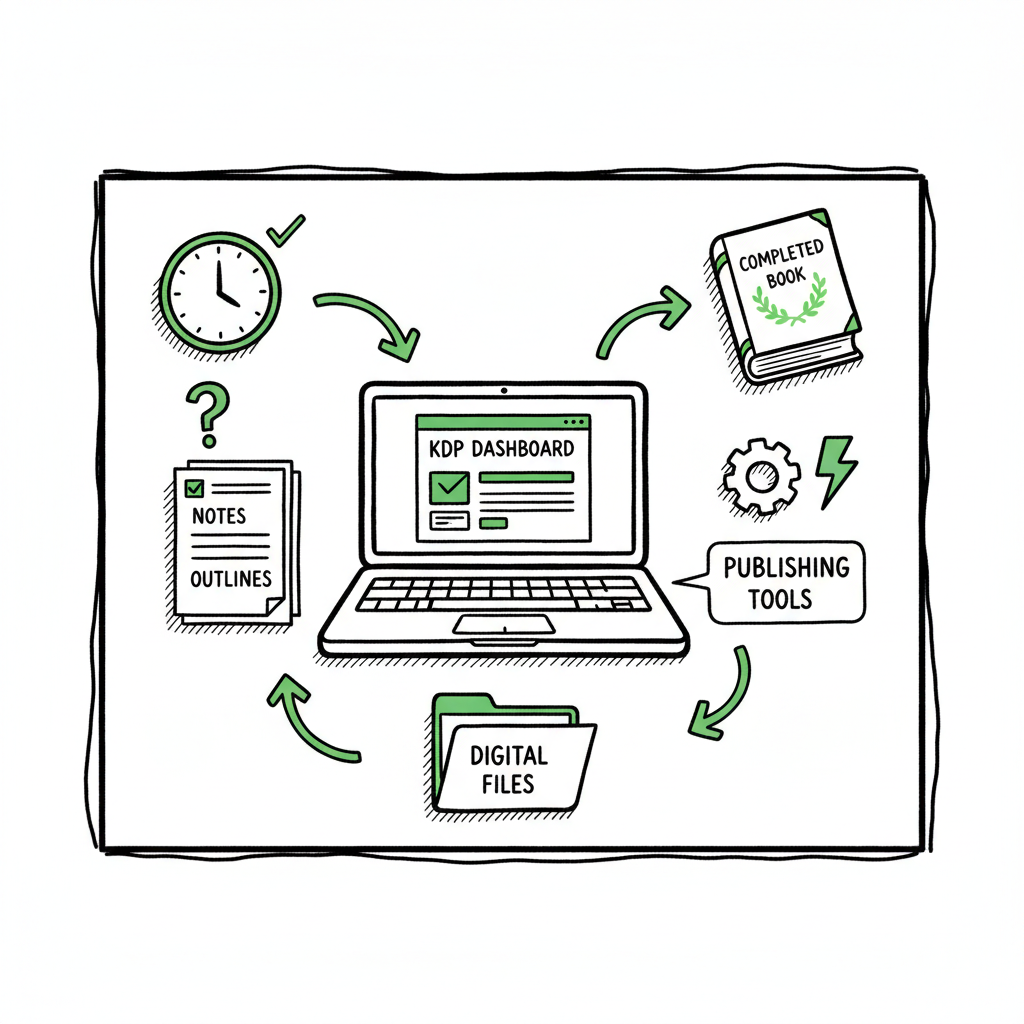
KDP author workflow to publish faster and avoid rework
kdp author workflow — how to publish faster and avoid rework
Estimated reading time: 15 minutes
Key takeaways
- A reliable kdp author workflow reduces rework, prevents listing errors, and saves weeks when you publish repeatedly.
- Prepare files, metadata, and distribution decisions before you touch the KDP dashboard; use tools to convert, preview, and validate once.
- When you outgrow one-off uploads, automation and batch tools (CSV uploads, platform-aware checks) make multi-platform distribution practical and consistent.
Table of Contents
- Why a clear workflow matters
- A practical kdp author workflow that scales
- Scaling beyond KDP: multi-platform publishing without the busywork
- Final thoughts
- FAQ
- Sources
Why a clear workflow matters
Every published title is a small project. The kdp author workflow is the sequence of steps you repeat for each book: preparing the manuscript, designing the cover, filling metadata fields, uploading files, previewing, and setting pricing and distribution. That sounds simple on paper. In practice, it’s where most authors lose time: mismatched titles, wrong ISBNs, missing front matter, or a problematic EPUB that breaks the TOC. Those mistakes cost hours or days while you fix files and wait for another review cycle.
A deliberate workflow turns those random failures into predictable work. It forces you to make decisions at the right time, so the KDP dashboard becomes a final step—not a staging area for last-minute fixes. If you want a compact walkthrough of what Amazon expects on the platform itself, see Amazon KDP for Authors. That resource is useful when you need Amazon-specific steps tied to the KDP dashboard.
When you publish one book, manual uploads are tolerable. When you publish five, twenty, or a hundred, inconsistent processes mean inconsistent listings and a lot of manual labor. A clear workflow reduces errors, keeps your brand consistent, and makes it possible to scale without burning time on routine tasks.
A practical kdp author workflow that scales
This section lays out a practical, repeatable workflow you can follow every time you publish. The steps assume you’re focused on efficiency and quality: files formatted correctly, metadata entered accurately, and previews checked before you hit publish.
1. Decide editions and distribution before you start
Begin by deciding which editions you’ll publish: ebook, paperback, hardcover, and whether you’ll distribute wide (Kobo, Apple Books, Draft2Digital, Ingram) or exclusive to KDP Select. Making this decision up front avoids redoing covers, resizing files, or entering conflicting metadata later.
2. Organize a project folder and naming conventions
Create one folder per book with subfolders for manuscript, interior files, covers, metadata, audio (if any), and rights. Use consistent file names: Author_LastName_Title_Ebook.epub, Author_LastName_Title_Paperback.pdf, etc. Consistent names reduce confusion when you move files between dashboards.
3. Prepare the manuscript for both ebook and print
Ebook: Validate an EPUB compliant with Amazon’s requirements. If you convert from DOCX, use a reliable converter and then check the EPUB in multiple readers. Good EPUBs have a clean table of contents, consistent chapter breaks, and no stray page numbers or running headers.
Print: Create a PDF for interiors with the correct trim size, margins, gutter, and embedded fonts. Confirm page count and that images meet DPI requirements.
If you need a reliable EPUB conversion step as part of your pipeline, use an EPUB converter that preserves structure and generates a clean TOC. A focused EPUB converter can save hours by reducing failed uploads and preview issues.
4. Design and validate the cover for each format
Cover requirements differ by product: a paperback cover must include bleed and back cover text, while an ebook cover is a standalone image. Keep a master design and export format-specific files from that master. If you’re creating covers programmatically or using templates, a cover generator helps maintain correct dimensions and spine calculations.
5. Lock metadata early and keep it in a single source of truth
Metadata includes title, subtitle, author name, contributors, description, keywords, categories, language, ISBN/ASIN, publication date, and edition notes. Store this in a simple spreadsheet or database so you can copy/paste without typos. Metadata alignment matters: Amazon links ebook and paperback editions when titles and author names match the corresponding manuscript metadata. Mismatches trigger errors or confusion.
6. Do a local preview before uploading
Open your EPUB in at least two readers and your print PDF in a PDF viewer. Check TOC entries, chapter breaks, running headers, and the first page of each chapter. For print, check margins and that no content falls outside the safe area. A consistent internal preview habit prevents most KDP preview failures.
7. Upload and use the previewer carefully
When you upload to the KDP dashboard, use Amazon’s previewer for a final check. The previewer is strict; some things pass local readers but fail on KDP. If the previewer flags issues, fix the source file and re-export—don’t try to fudge settings on the dashboard.
8. Pricing and territories
Set your list price using KDP’s calculator to understand royalties (35% vs 70% options for ebooks). Decide whether you’ll enable expanded distribution for print. Remember that pricing affects perceived value and international conversions; set a primary price in your main currency and use KDP to auto-adjust others unless you have a strategy to set regional prices manually.
9. Proofing and final checks
For print, order a physical proof if possible. If you can’t, at minimum use a high-quality PDF check for page order, headers/footers, and image quality. Proofing catches layout issues that digital previews miss.
10. Publish, log, and monitor
Once live, log the ASIN/ISBN, the KDP dashboard link, and the expected review timing. Monitor early sales reporting and page content (especially front matter like author bio and categories) so you can fix anything that slipped through.
Practical tips for common failure points
- Title/author mismatches: Copy metadata from your master file directly to KDP. Don’t retype.
- TOC errors in ebooks: Ensure chapters are proper headings in the source file before export.
- Cover spine miscalculations: Recalculate spine only after final page count is locked.
- Rejected uploads: Read KDP error messages fully and fix the source file, then re-upload. Repeated trial-and-error on the dashboard wastes time.
When to stop manual uploads and start batching
If you publish more than a handful of titles a year, batching and automation pay for themselves. CSV batch uploads and multi-platform upload tools remove repetitive mouse clicks and let you apply consistent metadata across channels. Batch processes also help you control variant data like pricing tiers, territories, and distribution options in a single place.
Scaling beyond KDP: multi-platform publishing without the busywork
Most serious authors eventually want their books in more than one store. Each store has its own upload quirks: EPUB vs. DOCX, cover dimensions, metadata fields, and distribution rules. Doing each store by hand multiplies the same work across platforms. This is where a unified, automated approach changes the economics of publishing.
What a multi-platform strategy should solve
- Single source of truth for metadata so titles are consistent across stores.
- One place to manage files and export platform-specific versions.
- Batch operations for multiple titles—upload once, distribute many.
- Error detection tuned to each store’s rules so you don’t waste time on repeated fixes.
How automation changes the math
Automation doesn’t remove the author’s judgment—it removes repetitive labor. At scale, automation can produce roughly 80–90% time savings on routine uploads. It handles the boring parts: resizing a cover, embedding the right ISBN, generating EPUBs, and pushing files to multiple stores. What you keep doing by hand is the creative and strategic work: storytelling, cover concept, pricing strategy, and marketing.
Practical automation considerations
– CSV batch uploads: They’re simple and reliable for metadata and file pointers. If you use CSVs, enforce consistent column names and validation scripts to catch bad values.
– Platform-specific intelligence: A good system flags that a file will fail a specific store’s check before you upload it. For example, it should warn if your paperback PDF lacks bleed or if your EPUB has no TOC.
– Error reduction: Automation that validates files against store rules dramatically reduces time waiting for reviews and re-submitting corrected files.
– CSVs and templates: Build templates for different types of books (novel, illustrated, workbook) so third-party contractors or your own team can prepare packages consistently.
Practical integrations you should look for
– EPUB conversion and validation built into the pipeline so you don’t have to use separate tools.
– Cover processing that exports format-specific covers (ebook square, paperback with spine and back cover).
– Direct push to stores like KDP, Kobo, Apple Books, Draft2Digital, and Ingram, or at minimum export packages formatted for those stores.
– Batch pricing rules so you can set a base price and have platform conversions applied automatically.
When to use specialist tools versus manual work
Early on, use the simplest tools that produce clean files (a solid EPUB converter, a cover generator, and a reliable PDF exporter). As you scale, move to tools that support CSV batch uploads and platform-aware export. A good middle ground is a service that lets you upload a CSV or single manifest and then handles the rest: file conversion, cover exports, and platform-aware submissions. That’s an obvious upgrade once authors start publishing seriously.
Tooling examples that speed specific steps
– EPUB conversion: A stable EPUB converter reduces format errors and preserves structure.
– Cover generator: Consistent covers across sizes and formats prevent last-minute resizing errors.
Book creation tools that handle paperback and ebook generation from a single source file reduce duplication of work.
We mentioned book creation tools for convenience; you can explore those at the linked resource.
The role of a publishing automation service (what it should do)
If you choose an automation service, expect it to:
– Accept a CSV manifest and source files.
– Generate platform-specific files (EPUB, print-ready PDF, covers).
– Validate files against each store’s checks.
– Queue uploads to multiple stores and report back success or failure.
– Keep a searchable history and links to live listings.
BookUploadPro’s automation model: what it solves
BookUploadPro automates repetitive uploads across Amazon KDP, Kobo, Apple Books, Draft2Digital, and Ingram. It uses CSV batch uploads and platform-specific intelligence to flag errors before you push files. The result: predictable uploads, fewer failed reviews, and big time savings—often around 90% compared to manual uploads. That makes wide distribution practical for authors who publish frequently. Automate the upload. Own the distribution.
Final thoughts
A kdp author workflow is both discipline and toolkit. The discipline is the checklist you repeat: finalize editions, prepare clean files, validate locally, enter clean metadata, preview, and publish. The toolkit is the set of converters, generators, and distribution layers that reduce busywork and failure points.
When you publish seriously, the right move is not more dashboards—it’s fewer manual steps. Systems that handle EPUB conversion, print file preparation, cover processing, and batch uploads allow you to stay focused on writing and marketing. If you find yourself repeating the same uploads, mismatching metadata, or fixing the same errors, it’s time to standardize and automate.
Practical next steps you can take today
- Build a simple project folder template and naming convention.
- Keep metadata in a single spreadsheet and use it as the source of truth.
- Add a validated EPUB check to your pre-upload routine.
- If you publish multiple titles per year, test a batch upload on one or two books to evaluate time savings.
FAQ
Q: What are the most common reasons KDP rejects an upload?
Common issues include incorrect EPUB structure (no TOC or broken navigation), print PDFs with incorrect trim/margins, title/author mismatches between metadata and manuscript, and covers that don’t meet dimensions or bleed requirements. Fixing the source files and validating locally before upload is the fastest way to resolve these.
Q: Do I need separate covers for ebook and paperback?
Yes. Ebook covers are a single image at a specified ratio; paperback covers must include front, back, and spine at the correct dimensions for the chosen trim size and page count.
Q: Can I reuse the same metadata across platforms?
You can and should reuse core metadata (title, author, description, keywords, categories). Some platforms have unique fields or limits, so keep one master version and create platform-specific derivatives as needed.
Q: How accurate are automated prices across international stores?
Automated conversions are a starting point. They’re generally accurate, but you may want to set region-specific prices for marketing strategy or currency rounding reasons.
Q: When should I consider using an automation service?
Consider automation once you publish more than a few books per year or when you distribute across multiple stores. The break-even point is low if you value time and consistency.
Sources
- How To Publish A Book On Amazon – 2025 KDP Guide – LivingWriter
- Create a Book – Kindle Direct Publishing
- A 101 Guide to Kindle Direct Publishing Basics: Insider Secrets – DamyantiWrites
- Start publishing with KDP – Amazon.com
- Getting Started with Kindle Create
- cover generator
- EPUB converter
- book creation tools
kdp author workflow — how to publish faster and avoid rework Estimated reading time: 15 minutes Key takeaways A reliable kdp author workflow reduces rework, prevents listing errors, and saves weeks when you publish repeatedly. Prepare files, metadata, and distribution decisions before you touch the KDP dashboard; use tools to convert, preview, and validate once.…