KDP Author Dashboard Guide for Self-Publishing Authors
kdp author dashboard: Practical guide for self-publishing authors
Estimated reading time: 12 minutes
Key takeaways
- The kdp author dashboard is the operational hub for managing your books, tracking sales, and running promotions across eBook and print formats.
- Learn how to navigate kdp dashboard sections—Bookshelf, Reports, Marketing—and use platform data to prioritize tasks that move the needle.
- When you scale to multiple stores, BookUploadPro automates uploads, cuts repetitive work by ~90%, and makes wide distribution practical.
Table of Contents
- Overview — What the dashboard does
- Bookshelf management — Keep your titles healthy
- Reports and royalties — Read the numbers, act on them
- Publishing across platforms — Why you should automate
- FAQ — Common dashboard questions
- Sources
Overview — What the dashboard does
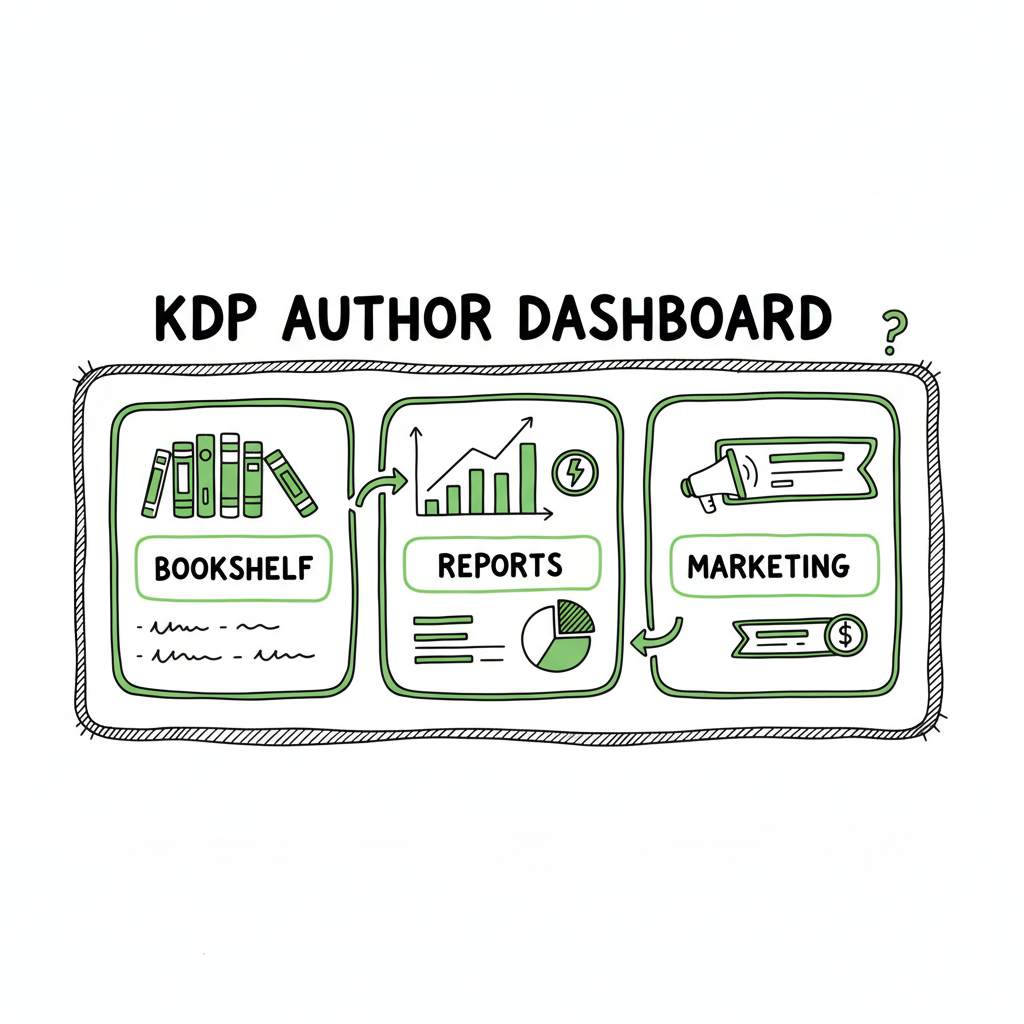
If you log into kdp.amazon.com you’ll land at the kdp author dashboard, the central control panel Amazon provides for self-publishing authors. The dashboard groups everyday work into a few predictable places: Bookshelf for the titles you manage, Reports for sales and royalty detail, Marketing for promotions and ads, and Community resources for learning. Early on, focus on learning where things live and what actions are available—status flags (live, draft, pre-order), edit controls, and quick links for pricing and author copies.
If you want a focused walkthrough for starting with Amazon, see the Amazon KDP for Authors guide. That resource explains the step-by-step flow you’ll use most days: add a new title, check formatting and cover, set pricing and territories, and watch the status change from processing to live.
Why this matters: the dashboard is not just a place to store files. It’s a live operations screen. When a detail is wrong—incorrect price, missing metadata, or a bad cover—you’ll see its effect in visibility and sales. Treat the dashboard like a small business console: keep it tidy, measure performance, and delegate repetitive uploads when volume grows.
A few practical points to remember up front
- Bookshelf is where you edit book details and upload new versions. Think of it as the inventory manager.
- Reports is where you reconcile estimated royalties and spot trends—KENP reads for KU titles, units sold, and month-to-month movement.
- Marketing and Author Central are separate services with links from the dashboard; use them to control your author page and paid promotions.
For a broader view, see Amazon KDP for Authors.
Bookshelf management — Keep your titles healthy
The Bookshelf is the most-used area for active authors. It’s where you see each title’s status, launch date (if on pre-order), and quick actions. The full record gives you editable fields for description, categories, contributors, and the file uploads themselves.
Practical workflow for kdp bookshelf management
- Scan status: Start by scanning the status column every morning. “Live” is fine; anything else—“Processing,” “Draft,” or “Error”—needs attention.
- Edit details with intent: When you click the ellipsis (…) next to a title you can choose Edit eBook Content or Edit Paperback Content. Edit with a plan: update the description to match current campaigns, refresh keywords after a promotion, or tweak pricing for a sale.
- Update files safely: Replace interior or cover files only when you have version control. Keep a dated local copy; Amazon will accept new uploads but won’t store your historical versions in a convenient way.
- Price and royalty checks: Adjust list price from the Book Pricing screen. Remember digital royalties change by territory and price band; always preview the royalty estimate before publishing changes.
Creating book assets and formats
- Books on KDP can be eBook, paperback, and hardcover. If your workflow includes converting manuscripts to EPUB for wide distribution, use a reliable converter to maintain layout and metadata integrity. Many authors also handle cover production separately—if you want an automated option, consider a dedicated book cover generator to speed iterations and ensure specs match retailer requirements. For multi-format publishing, prepare a printable PDF for paperbacks and a validated EPUB converter or MOBI for eBooks.
- Tip: keep your metadata consistent across editions. Matching ISBNs, consistent author names, and aligned descriptions reduce confusion in retailer catalogs and help reporting.
When Bookshelf edits cascade across platforms
If you publish on multiple storefronts, changing price or description in KDP doesn’t update other stores. That’s where a unified upload process becomes valuable. BookUploadPro automates CSV batch uploads and platform-specific adjustments so a metadata change can propagate without repeating the same manual steps in five dashboards. For a serious publishing program, automation is an obvious upgrade once authors start publishing at scale.
Reports and royalties — Read the numbers, act on them
Reporting is where the dashboard rewards your attention. The Reports section provides an overview and downloadable detail so you can reconcile sales, estimate royalties, and analyze performance.
What you’ll see in the kdp reports overview
- Sales by marketplace: Track units sold per country and SKU.
- Royalties and payments: View estimated royalty earnings by period and payment schedule.
- KENP reads: For KDP Select titles, KENP pages read are separate from unit sales and can be a primary revenue source.
- Historical performance: Compare time windows to detect seasonality or the impact of promotions.
Practical reporting workflow
- Start weekly, then monthly: Use weekly checks for immediate issues (a drop in sales or a processing error), and monthly reconciliations to compare bank deposits with Amazon statements.
- Export CSVs for analysis: Download the reports to validate numbers in your accounting system or to feed a simple spreadsheet that tracks trends.
- Use trends to prioritize: A clear trend—declining page reads or a falling bestseller rank—tells you where to spend your time. If a title is consistently underperforming, test a new cover or blurb; if a title spikes, check what triggered it and repeat the successful action.
Common report trouble spots
- Delayed updates: Amazon processes some data overnight. Don’t panic if a sale doesn’t show instantly.
- Attribution confusion: Promotions and price changes can cause reporting anomalies. Note the timing in your spreadsheet when you run discounts or ads.
- Multiple editions: If you have several editions or formats, reconcile them by ISBN or ASIN, not by title alone.
Practical example: decide what to do with a weak-performing book
If a mid-list title shows stagnating sales and low KENP reads, prioritize the highest-leverage change. Usually that’s cover-first—covers influence click-through far more than keywords—and then description and categories. Use an A/B testing window with a short promo to measure lift. Small, measurable tests are better than sweeping changes without a hypothesis.
Publishing across platforms — Why you should automate
Amazon is central, but most authors should be where readers are: Amazon, Apple Books, Kobo, Draft2Digital, and Ingram. Managing multiple dashboards by hand scales poorly. That’s where business-focused automation tools like BookUploadPro move from “nice to have” to essential.
Why multi-platform distribution matters
- Reach: Different readers prefer different stores; broad distribution increases discoverability.
- Resilience: If a platform policy or ranking drops visibility, other stores can sustain sales.
- Channel-specific windows: Apple and Kobo have their own promotional calendars and storefront algorithms—being present lets you take advantage.
How automation changes the work
- CSV batch uploads: Instead of repeating uploads per platform, upload a single CSV that maps metadata, pricing, and files across retailers.
- Platform-specific intelligence: Good tools know file spec differences (cover bleed, EPUB validation quirks, paperback trim sizes) and apply them automatically to each platform.
- Error reduction: Human copy-and-paste mistakes cause rejected uploads or broken metadata. Automation prevents those errors and frees you to work on content and marketing.
Business realities: time and cost
If you publish more than a handful of titles, manual uploads are a tax on growth. BookUploadPro advertises ~90% time savings by automating repeatable uploads, handling platform requirements, and reducing rejections. The value appears quickly as you scale: instead of spending hours in five dashboards, you manage a single workflow, audit results, and move on to promotions.
Integrating cover, EPUB, and print preparation
- File preparation: Convert final manuscripts into the right formats. If you need a reliable EPUB conversion tool, use an EPUB converter that preserves metadata and layout.
- Cover production: Covers must meet each platform’s technical specs. If you iterate covers often, a book cover generator reduces time between concept and upload.
- Print ready files: For paperbacks and hardcovers, generate and validate PDFs with correct bleed and spine dimensions.
All of these steps feed into the upload process. When done manually, they multiply the time required; when integrated, they become predictable stages in a launch pipeline. Automate the upload. Own the distribution.
Practical rollout plan for multi-platform publishing
- Standardize metadata: Keep a master CSV with titles, descriptions, keywords, contributors, and pricing tiers.
- Validate files: Run EPUB and print checks before uploads.
- Batch upload: Use a tool to push to all platforms, handling the platform-specific adjustments.
- Monitor reports: Pull each platform’s reports into a single spreadsheet for performance comparison.
If you want to test automation, start with one backlist title. Automate its upload to all stores, watch for errors, and measure time saved. Most authors find the ROI obvious after one or two batches.
FAQ
Q: Where do I find my books on the dashboard?
A: Use the Bookshelf. Titles are listed with status (Live, Draft, Pre-order). Click the ellipsis next to a title to edit content, pricing, or cover files.
Q: How do I check royalties and KENP reads?
A: Go to Reports. Use the Overview for quick summaries and the detailed CSV exports for reconciliation and accounting.
Q: Can I change a live book’s cover or file?
A: Yes. Upload a new cover or interior file from the edit flow. Keep versioned local backups and avoid editing during active promotions when possible.
Q: Does KDP update other stores if I change metadata?
A: No. Changes in KDP do not propagate automatically to Apple, Kobo, or Ingram. Use a multi-platform upload tool to synchronize metadata and pricing across stores.
Q: How often should I check the dashboard?
A: A quick daily scan for errors and a weekly review for performance trends is a practical cadence for most independent authors.
Q: Do I need different files for ebook and paperback?
A: Yes. Paperbacks require a print-ready PDF with correct trim, bleed, and spine; eBooks require a validated EPUB or equivalent. Use a reliable EPUB converter and validated print PDFs to avoid rejections.
Sources
- https://help.selfpublishing.com/en/5-things-to-know-about-your-kindle-direct-publishing-kdp-dashboard
- https://rubenstomdesign.com/blogs/news/getting-started-with-self-publishing-a-comprehensive-guide-to-kindle-direct-publishing-kdp
- https://kdp.amazon.com/help/topic/G200644310
- https://kdp.amazon.com/help/topic/GX7EGDFGS9CZCA2F
- https://kdp.amazon.com/help/topic/GVTTXHKHVPAPBEDQ
kdp author dashboard: Practical guide for self-publishing authors Estimated reading time: 12 minutes Key takeaways The kdp author dashboard is the operational hub for managing your books, tracking sales, and running promotions across eBook and print formats. Learn how to navigate kdp dashboard sections—Bookshelf, Reports, Marketing—and use platform data to prioritize tasks that move the…