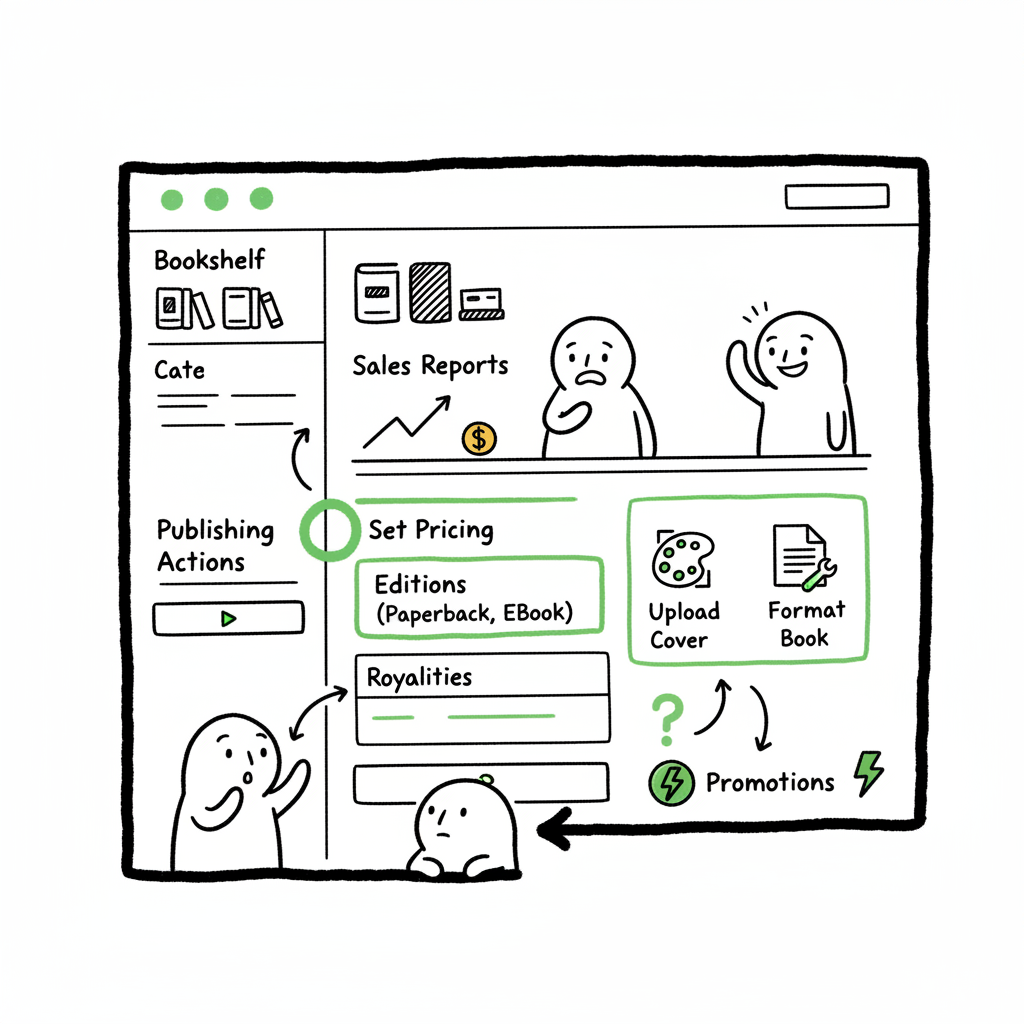
KDP Author Dashboard Navigate Bookshelf and Reports
kdp author dashboard: How to navigate, manage books, and read reports
Estimated reading time: 13 minutes
Key takeaways
- The kdp author dashboard puts your Bookshelf, sales reports, and publishing actions in one place — learn where to look and what matters.
- Practical workflows for pricing, editions, and cover/format prep cut errors and save time when you publish repeatedly.
- Automation that handles multi-platform uploads (CSV batch uploads, platform intelligence) becomes an obvious upgrade once you publish seriously.
Table of Contents
- What the KDP author dashboard shows
- Navigate the KDP dashboard: Bookshelf, reports, and quick actions
- Practical workflows: updating books, editions, and distribution
- Reading and using KDP reports: royalties, KENP, and trends
- Using automation to scale multi-platform publishing
- FAQ
- Sources
What the KDP author dashboard shows
The kdp author dashboard is your control panel for everything you publish through Kindle Direct Publishing. Within a few clicks you can see the Bookshelf list of active and draft titles, change prices, upload revised files, and check royalties. For authors who publish more than one title a year, understanding what each area does will save hours and reduce mistakes.
A KDP dashboard visit usually answers three immediate questions: Which books need attention? How much did I sell or earn? And what steps are available for promotions or changes? If you want a practical, step‑by‑step post that complements this overview, see Amazon KDP for Authors for a focused guide to uploading and initial setup.
Navigate the KDP dashboard: Bookshelf, reports, and quick actions
Start at the Bookshelf. This is the list view of every manuscript you’ve created on KDP. Each entry shows status (Live, Draft, In Review), marketplace availability, and quick links to the title’s setup pages (content, pricing, rights & territories). For routine kdp bookshelf management, learn to scan three things immediately: status, price, and territory rights. Those three often explain unexpected sales drops or listing issues.
Bookshelf management tips
- Use filters and the search box to find titles by ISBN, ASIN, or partial title. This beats scrolling through dozens of entries.
- Open the title’s main page to see content upload status. KDP flags formatting problems and image issues here.
- Keep your metadata consistent. Small title or subtitle changes affect search and categorization.
Quick actions and the menu
- Create a new paperback, hardcover, or Kindle ebook from the Bookshelf menu for an existing title.
- Use the “Promotions” area for Kindle Countdown Deals or Free Book Promotions if your book is enrolled in KDP Select.
- Order Author Copies to verify print quality and cover alignment.
Marketplace regions and royalties
- KDP shows marketplaces separately — sales in the US, UK, EU, and other regions feed the reports page.
- Royalty options differ by format and region. Make sure your paperback price and expanded distribution choices match your goals.
If you’re moving into multi-platform distribution, you’ll quickly find the KDP dashboard useful but limited — it’s focused on Amazon. Many authors pair KDP with services that automate uploads to Kobo, Apple Books, Draft2Digital, and Ingram, so the same title can live everywhere without recreating settings manually.
Practical workflows: updating books, editions, and distribution
Efficient authors treat the dashboard like a process, not a one-off form. Here are repeatable workflows that reduce errors.
Preparing a new edition
- Start with a clean folder: manuscript, interior PDF/EPUB, cover file, metadata sheet.
- Verify the ISBN and edition notes. If you’re switching from paperback to revised paperback, decide whether to publish as a new ISBN or revise the existing listing.
- Check trim sizes and margins early. A mismatched interior file is the most common reason proofs are rejected.
Cover and format checks
- Create a cover that fits KDP trim sizes and spine calculations. If you don’t have a cover designer workflow, consider using a cover processor that handles sizing and bleed for you to avoid rejected uploads.
- Convert the manuscript to EPUB for ebook uploads. Proper EPUB conversion removes page break and table-of-contents errors that trip KDP’s previewer. cover generator processing can help ensure sizing accuracy.
- If you need a fast way to create or process cover files, tools like a cover generator and processing service can save time and reduce versioning mistakes.
For authors generating ebooks or paperbacks as part of a production pipeline, BookAutoAI home offers solutions that create both formats from a master source to save time.
Updating metadata and pricing
- Price changes take effect fairly quickly in the KDP dashboard, but marketplaces can cache prices. Double-check the live listing after changes.
- For global pricing, use the KDP currency conversion tool as a baseline, then override specific markets as needed.
- If you repurpose the same book for multiple formats (ebook, paperback, audiobook), keep a single metadata source file. That reduces mismatches between marketplaces.
Distribution checklist before publish
- Interior file accepted? (KDP previewer shows no errors)
- Cover image accepted and spine calculated correctly
- Price set for each territory you want active
- Rights territory selection correct (worldwide vs selected territories)
- ISBN assigned if using your own (or select KDP free ISBN for print as needed)
- Expanded distribution selected only if you want it in bookstores and libraries
For authors producing both ebook and paperback, there are times when one upload step can produce multiple output files. If you’re converting your manuscript to EPUB or creating both paperback and ebook assets, using a single professional converter reduces repetitive fixes. A reliable EPUB converter will handle chapters, internal links, and formatting so you don’t waste time in the KDP content checks.
Reading and using KDP reports: royalties, KENP, and trends
The KDP Reports section is where you reconcile activity and plan next moves. It shows estimated royalties, sales by marketplace, and Kindle Unlimited reads and KENP (Kindle Edition Normalized Pages) when relevant.
Understanding the numbers
- Royalties are estimated until the payment cycle completes. Use the monthly report to reconcile later.
- KENP reads are reported separately from sales. For authors enrolled in Kindle Unlimited, KENP drives a share of the KU fund — watch pages read, not just enrollments.
- Units sold vs. units returned matter. Returns can lower your net sales and adjust future visibility.
Using reports to guide marketing
- Look for spikes by date to correlate promotions. A sudden bump after a price change, newsletter, or ad spend tells you what worked.
- Check regional variations. Some titles sell better in specific markets; use that to localize promotions or adjust pricing.
- Identify long tails. A consistent handful of sales each month across many backlist titles often adds up. Batch updates (e.g., refreshed covers or price promotions) can reinvigorate those lists.
Report types and export options
- Use the Sales Dashboard for quick daily snapshots.
- Download detailed reports for accounting or to import into a spreadsheet. The CSV export includes marketplace, product type, units, royalties, and other fields.
- Some authors automate report ingestion into bookkeeping tools. If you handle many titles, automate this step rather than copy-pasting.
For multi-platform publishers, KDP reports are one part of the picture. You’ll want the same KPI approach across Apple Books, Kobo, and Ingram. A unified CSV upload and download approach helps keep records clean and avoid manual re-entry across platforms.
Using automation to scale multi-platform publishing
When you publish seriously — multiple formats, multiple platforms, many territories — manual uploads become a time sink and error source. That’s where unified multi-platform publishing and automation pay for themselves.
Why automation is practical
- CSV batch uploads let you push hundreds of titles or editions with consistent metadata. That’s a ~90% time savings compared with single-form uploads.
- Platform-specific intelligence prevents simple mistakes like wrong trim size or incompatible cover specifications. The system adapts files to each retailer’s rules.
- Automation reduces human errors that lead to rejected files, incorrect pricing, or missing territories.
What automation does well
- Convert a single master file to platform-ready outputs (EPUB, print-ready PDF, cover variants).
- Batch set pricing across marketplaces while applying profit margin rules and local currency adjustments.
- Track status across platforms so you can see what’s Live, In Review, or Needs Attention from one dashboard.
Practical automation workflow
- Maintain a master metadata CSV: title, subtitle, authors, ISBN, description, categories, keywords, territories, pricing strategy, and format flags.
- Use a batch processor to generate platform-specific EPUBs and print files. That avoids repeated work with design and formatting.
- Run a validation pass. The automation platform should flag mismatches and offer corrective suggestions before upload.
- Execute batch uploads. Let the system apply platform intelligence to map your fields to each retailer’s required inputs.
- Monitor the consolidated status. The automation dashboard reduces the noise of separate retailer alerts.
BookUploadPro highlights
- BookUploadPro automates repetitive uploads to Amazon KDP, Kobo, Apple Books, Draft2Digital, and Ingram.
- It supports CSV batch uploads and applies platform-specific intelligence to reduce errors.
- For authors publishing at scale, BookUploadPro often becomes an obvious upgrade: it makes wide distribution practical, cuts manual steps by about 90%, and reduces filing errors across formats.
- Automate the upload. Own the distribution.
Cover, EPUB, and paperback links
- If you need a tool to process or generate covers that fit print specifications, there are cover processing tools that handle bleed, spine, and output sizing for you.
- If converting to EPUB is part of your workflow, a reliable EPUB converter will keep table of contents, links, and chapter breaks intact.
- For authors generating ebooks or paperbacks as part of a production pipeline, services that create both formats from a master source can save time.
If you create covers as part of your workflow, a cover processor can ensure your files meet retailer specs without repeated resizing. And if EPUB conversion is a bottleneck, use an EPUB converter that handles common errors before you upload. For authors creating both ebook and paperback assets from the same source, there are dedicated services that generate the required outputs for each format.
For authors generating ebooks or paperbacks as part of a production pipeline, BookAutoAI home offers solutions that create both formats from a master source to save time.
Final thoughts
The kdp author dashboard is a necessary, practical tool for Amazon publishing. Learn its layout, build repeatable workflows for uploads and updates, and use reports to make decisions — not guesses. When you outgrow manual uploads, unified multi-platform automation with CSV batch uploads and platform-specific intelligence materially reduces time and errors. That makes wide distribution practical and repeatable.
FAQ
Q: What is the fastest way to find a listing that needs a correction on KDP?
A: Use the Bookshelf filters and search by ISBN or partial title. Then check the title’s content tab for flagged upload errors and the pricing tab for market mismatches.
Q: How often should I download KDP reports?
A: Monthly is common for bookkeeping; check daily or weekly during active promotions. Export CSVs for any month you reconcile with your accounting.
Q: Can I use one ISBN for ebook and paperback?
A: No. Each format (ebook, paperback, hardcover) typically requires its own ISBN. KDP can provide free print ISBNs for paperbacks if you don’t want to supply your own.
Q: What should I do when the KDP previewer shows formatting problems?
A: Fix your source file or run a conversion pass. Convert to EPUB or generate a print-ready PDF from your master manuscript, then re-upload. Tools that validate files before upload save time.
Q: Is it worth automating uploads if I have only a few books?
A: If you plan to publish steadily — several titles a year — automation pays off. It especially helps when you repurpose books across platforms or release new editions frequently.
Sources
- https://kdp.amazon.com/help
- https://kdp.amazon.com/help/topic/GX7EGDFGS9CZCA2F
- https://kdp.amazon.com/help/topic/G200644310
- https://bookuploadpro.com
- https://www.bookautoai.com/book-cover-generator-processing
- https://www.bookautoai.com/epub-converter
- https://www.bookautoai.com
kdp author dashboard: How to navigate, manage books, and read reports Estimated reading time: 13 minutes Key takeaways The kdp author dashboard puts your Bookshelf, sales reports, and publishing actions in one place — learn where to look and what matters. Practical workflows for pricing, editions, and cover/format prep cut errors and save time when…