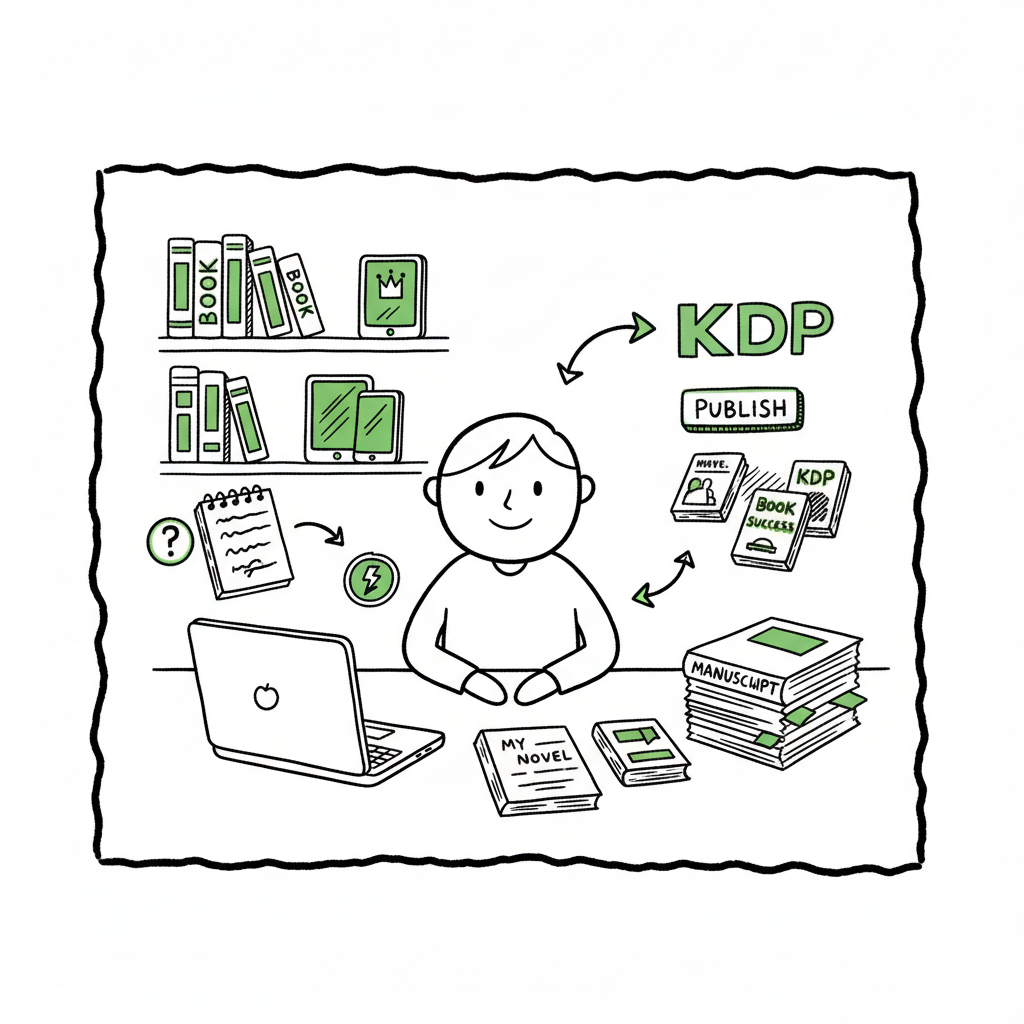
Beginner KDP Author Practical Guide to Your First Book
Beginner KDP Author: A Practical Guide to Your First KDP Book
Estimated reading time: 11 minutes
Key takeaways
- KDP makes publishing an ebook or paperback fast, but preparing a clean manuscript, cover, and metadata saves time and prevents rework.
- Follow a simple workflow: account → manuscript formatting → cover → upload & preview → rights & pricing → publish. Small platform differences matter.
- When you plan to publish across stores, automate uploads and batch tasks to save time—BookUploadPro makes multi-platform publishing practical at scale.
- Maintain consistent metadata and formatting to minimize rework across formats and stores.
Table of Contents
- Why KDP is the right starting point
- Your first KDP book — step-by-step workflow
- Publish broadly without repeating the work
- FAQ
Why KDP is the right starting point
If you’re a beginner KDP author, Kindle Direct Publishing is an obvious place to learn the mechanics of self-publishing. Amazon’s KDP system is straightforward: sign up, enter book details, upload your manuscript and cover, preview, pick territories and royalties, and publish. For most first-time authors the platform publishes quickly and the learning curve is mostly about formatting and metadata, not the portal itself.
That clarity is why many new authors focus on KDP first, then expand. The rules are explicit: file types, trim sizes, margins, and cover dimensions are documented. Knowing these details prevents common errors that delay approval. If you want a short walkthrough focused on Amazon’s interface and fields, the company-side overview is useful; for a walk-through written with authors in mind, see Amazon Kdp For Authors for a step-by-step reference that explains the KDP flow in plain language.
KDP also teaches a few publishing realities early: your book’s discoverability depends on the metadata you choose, pricing choices affect royalties and distribution, and print versions add production requirements you don’t see with reflowable ebooks. Learning those lessons on KDP first gives you skills that transfer to other retailers.
Your first KDP book — step-by-step workflow
This section lays out the practical steps you’ll follow to get a manuscript live on Amazon. Treat this as an operator’s guide: each item is a necessary task, not marketing advice.
-
Create your KDP account and set up tax and payment info
- Sign up at KDP and confirm your Amazon account details.
- Complete tax interview and bank information so you can receive royalties. Skip this step and payments get delayed.
-
Prepare your manuscript
- Choose the right format: reflowable for most ebooks; fixed-layout for illustrated children’s books or complex design.
- Use a clean source file. For ebooks, export a well-structured DOCX or EPUB. For paperback, format to the book’s trim size with correct margins and gutter. Follow KDP’s page and margin rules to avoid soft rejections.
- Include front matter and back matter: title page, copyright, table of contents (for ebooks this improves navigation), author bio, and any acknowledgments. A tidy interior reduces formatting fixes after upload.
-
Create and test your cover
- Covers must meet pixel and bleed requirements for print; eBook covers need a clean, high-contrast spine and readable text at thumbnail size.
- If you’re not outsourcing a designer, use a professional tool or a cover generator to get consistent output. If you want automated processing for covers, consider tools that produce print-ready files and meet KDP bleed and spine specs; a cover generator can save repetitive manual setup when you publish multiple books.
-
Set book details and metadata
- Title, subtitle, author name, and series info must be accurate and consistent across formats if you want Amazon to auto-link versions.
- Write a clear book description and use HTML only for basic formatting (bold, italics, paragraph breaks).
- Pick keywords and categories intentionally; they’re primary drivers of discoverability on Amazon. Don’t stuff keywords—think like a reader choosing search terms.
-
Upload and preview
- Upload your manuscript and cover files. Use KDP’s previewer for both eBook and print to spot layout issues.
- For print books check the printable PDF preview carefully: margins, gutter, page numbering, and image placement are common problem areas.
- Resolve any warnings KDP provides. Warnings often indicate margin or bleed problems that will fail quality checks if ignored.
-
Rights, pricing, and territories
- Declare territorial rights (worldwide or individual territories) and choose royalty options (35% or 70% for ebooks depending on price and territory).
- Price competitively but realistically. You can change price later, but initial pricing can affect early sales momentum.
- Enroll in programs like KDP Select only if the exclusivity fits your long-term distribution plan.
-
Publish and monitor
- Hit Publish and note the live date. Amazon usually publishes within hours, sometimes up to 72 hours.
- Monitor the Amazon listing closely for metadata consistency and customer feedback. Fix formatting or description issues as they arise.
Formatting tips that save time
– Use styles in Word or your editor: headings, body, block quotes. Don’t format via manual font sizes on every heading.
– For paperbacks, adjust margins to the expected page count. KDP has minimum margins based on trim and page counts; failing to meet those throws errors.
– Generate a clean EPUB using a reliable converter if you’re moving from DOCX. Automated conversion tools can help avoid reflow errors, but always preview the final file. For automated EPUB conversion, see EPUB converter.
Publish broadly without repeating the work
Many beginner KDP authors stop at Amazon and feel satisfied. That works for some, but most authors who intend to publish seriously want multiple retail channels: Kobo, Apple Books, Draft2Digital, and Ingram expand reach and long-term sales. Publishing to each store manually is repetitive and error-prone. That’s where a unified process and automation make the difference.
Start with a single clean source
If your manuscript and assets are organized—master DOCX, print-ready PDF, and a separate ebook EPUB—you can reuse those across platforms. Maintain a single metadata spreadsheet (title, subtitle, ISBN, keywords, categories, price tiers, territories) and keep assets in well-labeled folders. This becomes your source of truth. For a unified publishing workflow, consider the BookAutoAI platform.
Batch uploads and CSV feeds
When you have multiple titles, doing each upload through separate web forms wastes time. BookUploadPro automates repetitive uploads across Amazon KDP, Kobo, Apple Books, Draft2Digital, and Ingram, saving roughly 90% of hands-on effort for batch projects. Use CSV batch uploads and platform-specific intelligence to map a single spreadsheet into each store’s required fields automatically. This reduces errors, standardizes metadata, and keeps your catalog consistent.
Platform-specific intelligence matters
Each platform has small but critical differences: Apple Books prefers different image sizes, Kobo handles categories differently from Amazon, and Ingram needs different print setup data. A publishing automation tool understands these nuances and adapts your inputs for each store. That prevents simple mismatches—like wrong spine dimensions or mis-mapped categories—that otherwise trigger manual corrections and delays.
Error reduction
A smart automation layer checks common compliance issues before submitting: EPUB validation, cover bleed, ISBN conflicts, and inconsistent author name across formats. That removes the trial-and-error cycle that many beginners face when they publish to multiple platforms.
Batch ISBNs and print setup
If you publish paperbacks across several channels, decide whether to use a single ISBN or distinct ISBNs per retailer depending on your distribution strategy. Automation helps manage ISBN assignments and ensures the right files are associated with each ISBN during submission.
How BookUploadPro fits
BookUploadPro is designed for authors who publish seriously—multiple titles, multiple formats, and multiple stores. It handles CSV batch uploads, platform-specific field mapping, and parallel submissions to Amazon KDP, Kobo, Apple Books, Draft2Digital, and Ingram. The benefit is straightforward: less repetitive work, fewer mistakes, and more time to write and market.
Operational tips for scaling publishing
– Use a master CSV for metadata and keep versioned backups.
– Automate common text tasks: standardized author bios, series descriptions, and interior front/back matter.
– Standardize file naming conventions so uploads don’t get mismatched.
– Schedule releases and stagger stores strategically if you’re testing pricing or promotions.
A single polished source file and a standardized metadata spreadsheet let you publish confidently. When you hit a steady rhythm of releases, consider automation—CSV batch uploads and platform-aware processing let you spend hours creating the work that matters while routine uploads happen reliably in the background.
FAQ
Q: I’m a beginner KDP author — how long does it take to publish my first book on KDP?
From a technical standpoint, once your manuscript and cover are ready, publishing takes a few hours for KDP to process and make the book live, often sooner. The bulk of the time is spent preparing files and metadata correctly; plan for a few days of formatting and testing if you want a low-risk, clean launch.
Q: Do I need an ISBN for my first paperback?
KDP can assign a free ISBN for paperbacks, but many authors prefer to buy their own ISBNs if they want full control over distribution and ISBN ownership. If you use an ISBN someone else supplies, check the distribution implications for Ingram and other retailers.
Q: How do I convert my manuscript to EPUB without breaking formatting?
Use a reliable conversion tool and validate the EPUB in a reader. Keep styles consistent in your source file and avoid complex layout tricks. If you want automated, production-level conversion for many titles, consider a dedicated EPUB converter that handles images, TOC, and reflow cleanly.
Q: Can I use the same cover file for Amazon and Apple Books?
Not always. Amazon print covers require specific bleed and spine calculations. Ebook covers are simpler but must be legible at thumbnail size. You can derive assets from the same design, but export them to the correct specs for each store.
Q: What role does BookUploadPro play for a growing catalog?
BookUploadPro automates repetitive uploads across multiple retailers, handles CSV batch imports, and applies platform-specific intelligence so you don’t repeat manual tasks. The result is time saved, fewer errors, and practical multi-store distribution—an obvious upgrade once authors publish seriously.
Sources
- Create a Book – Kindle Direct Publishing – Amazon.com
- eBook Manuscript Formatting Guide – Kindle Direct Publishing
- Start publishing with KDP – Amazon.com
- A 101 Guide to Kindle Direct Publishing Basics: Insider Secrets
- Amazon KDP: A Writer’s Guide to Kindle Direct Publishing – Reedsy
- How to Publish a Novel on Kindle A Beginner’s Guide
Beginner KDP Author: A Practical Guide to Your First KDP Book Estimated reading time: 11 minutes Key takeaways KDP makes publishing an ebook or paperback fast, but preparing a clean manuscript, cover, and metadata saves time and prevents rework. Follow a simple workflow: account → manuscript formatting → cover → upload & preview → rights…