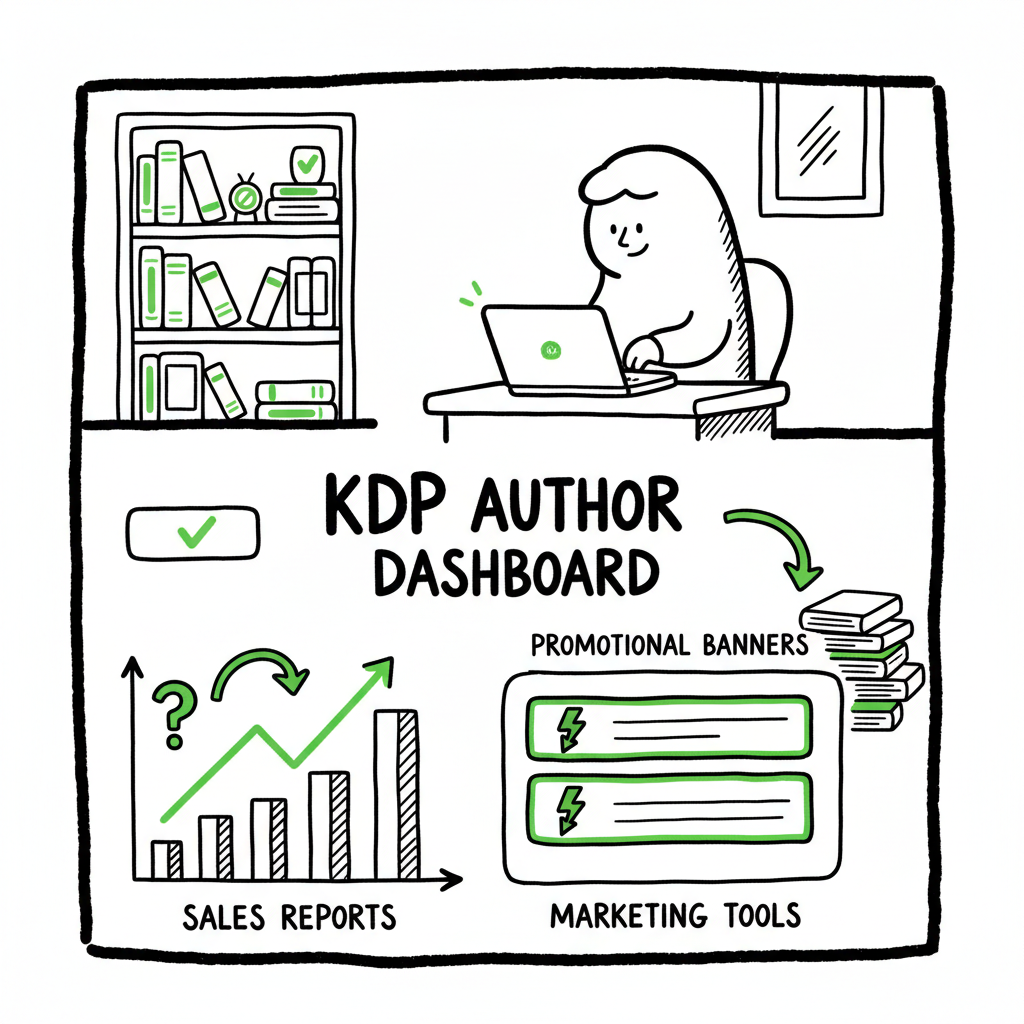
KDP Author Dashboard Explained for Bookshelf and Reports
kdp author dashboard
Estimated reading time: 14 minutes
Key takeaways
- The kdp author dashboard is your control center for published books, drafts, pricing, and basic marketing on Amazon.
- Focus on three areas: Bookshelf (manage titles), Reports (sales and royalties), and Marketing (author pages and promotions).
- When you publish at scale, automated multi-platform uploads save time and reduce errors—BookUploadPro handles CSV batch uploads and platform-specific settings.
Table of Contents
- Overview: What the kdp author dashboard does
- Bookshelf: Manage titles, files, and metadata
- Reports and Marketing: Read sales, plan promotions
- Scale publishing: When to automate and how BookUploadPro helps
- FAQ
- Sources
Overview: What the kdp author dashboard does
The kdp author dashboard is the web interface you use at kdp.amazon.com to manage everything you publish through Kindle Direct Publishing. Log in and you’ll land on a snapshot that shows recent sales, your top titles, and quick links to the Bookshelf and Reports. For a new author, the dashboard is the place to upload a manuscript, set a price, and publish. For a steady author, it’s where you check daily sales, adjust pricing, and edit book details.
If you’re switching between platforms or publishing many titles, it helps to know what the dashboard does well and what it doesn’t. The dashboard is strong at hosting live content: it shows book status (live, draft, pre-order), pricing, KENP reads, and quick access to enroll in KDP Select or run promotions. It is not designed for batch uploads across stores—this is where multi-platform tools earn their keep. If you’d like a focused guide on publishing to Amazon, see Amazon Kdp For Authors for step-by-step help.
The rest of this article walks through the parts of the dashboard you’ll use most, how to navigate KDP dashboard features quickly, and practical steps for scaling without repeating manual uploads.
Bookshelf: Manage titles, files, and metadata
Bookshelf is the main area of the kdp author dashboard. Think of it as your library management screen. Each row is one title and the right-side menu gives actions: edit book details, upload new files, change price, order author copies, or take a title down.
Key items to check on the Bookshelf
- Status: live, draft, or pre-order.
- Title page: click the title to edit description, keywords, categories, and contributors.
- Pricing: set list price by marketplace; see royalty estimates for 35% vs 70% options.
- Kindle edition vs paperback: manage formats separately from the same Bookshelf entry.
- Enrollments: use the “…” menu to enroll in KDP Select or create promotions.
Practical workflow for a single title
Start here when you want to update anything about a book. If you need to change the manuscript or cover, choose “Edit ebook content” or “Edit paperback content.” If you’re fixing a typo in the description, click the title and update the product details.
Preparing files and covers
Before uploading, check your files against KDP’s technical requirements: cover dimensions, interior margins, and EPUB or MOBI formatting for the ebook. If you create your cover externally, keep a high-resolution source. If you want an automated option for cover work, consider using a cover generator that outputs correctly sized art for both Kindle and trade paperback. A simple, fast option is a cover generator that handles Amazon sizes and spine calculations.
Ebook and paperback formats
KDP accepts EPUB for ebooks, and several formats for paperback interiors (PDF is common for print-ready files). If you’re converting a manuscript to EPUB, use a reliable converter that preserves styles, images, and chapter breaks. If you create a paperback or ebook regularly, adopting consistent templates saves time and reduces upload errors. There are EPUB converter to assist you.
KDP Bookshelf management tips
– Keep a single canonical file for each format and name versions clearly (title_v1, title_v2).
– Use consistent metadata across platforms: same title case, author name format, and primary keywords.
– For backlist updates, export a CSV of your inventory locally so you can track changes.
– Use the “Preview” feature every time—KDP’s previewer will catch layout and image issues before you publish.
There are book creation tools that can standardize your process across formats and platforms.
A note about international pricing
When you set a list price in one marketplace, Amazon may auto-convert prices in other marketplaces. Review converted prices to ensure they align with your sales strategy.
Reports and Marketing: Read sales, royalties, and use author tools
Reports give you numbers. The kdp author dashboard provides a Reports area where you can see estimated royalties, KENP reads, ROYALTY summaries, and orders by marketplace. There’s a snapshot view on the dashboard and deeper reports you can filter by date and title.
Understanding the main reports
- – Sales vs royalties: Sales numbers show units sold; royalty estimates show your expected payout after marketplace fees.
- – KENP reads: Kindle Unlimited and Kindle Owners’ Lending Library reads are reported separately; payments are from the KDP Select fund and calculated per page read.
- – Payments: Amazon shows payment history for royalties and deposit methods.
- – Orders: If you sell author copies, orders appear in the Orders view.
How to use reports to make decisions
Use the Reports area for quick checks and bookkeeping. For month-end accounting, pull a report filtered to the exact date range. For title-level decisions—like whether to price a book at $2.99 for 70% royalty or $9.99 for lower promo needs—look at historical sales per price point and royalty totals.
Marketing tools inside the dashboard
The dashboard links to Amazon’s marketing tools: Author Central to manage your author page, A+ Content for enriched product pages, and Amazon Ads for paid campaigns. Use A+ Content for long-form descriptions and enhanced images; use Author Central to consolidate your bio and bibliography. Promotions like Kindle Countdown Deals or free promotions (if enrolled in KDP Select) appear in the Marketing area.
Track ROI
Track ROI: use reports to see if a promotion moved units and improved rank. Compare short-term spikes with long-term sales to evaluate whether ads and promotions were effective.
Practical checks before launching a promotion
- – Confirm the Bookshelf entry has the final book file and correct price.
- – Verify the KDP product page shows your A+ Content and author name correctly.
- – Make a note of baseline sales for the period before promotion so you can measure lift.
When reporting gets heavy
If you regularly publish many titles, KDP’s built-in reports can become cumbersome. Export reports and use a spreadsheet or reporting tool to aggregate royalties across titles and marketplaces. That’s when most authors consider automation or third-party dashboard tools that complement the kdp author dashboard.
Scale publishing: When to automate and how BookUploadPro helps
The kdp author dashboard is efficient for one-off uploads and edits. It becomes a time sink when you publish dozens or hundreds of titles, or when you want the same book distributed across multiple stores. At scale, repetitive manual uploads increase the risk of mistakes: mismatched metadata, wrong formats, or missed marketplace-specific options.
What automation solves
Automation centralizes the repetitive parts: map a CSV row to a book record, let a system process EPUBs and cover files to the right specs, and push to each platform with platform-specific intelligence. Automation saves time and reduces errors. For many authors, it moves publishing from a full-time task to a few focused checks.
Automation also reduces manual management overhead. We’ll stay focused on quality control and content updates rather than repetitive uploads—BookUploadPro can handle the heavy lifting.
How BookUploadPro addresses scale
BookUploadPro automates repetitive uploads across Amazon KDP, Kobo, Apple Books, Draft2Digital, and Ingram. Important benefits:
- Unified multi-platform publishing so you can manage releases from one place.
- CSV batch uploads that push hundreds of titles using a single spreadsheet.
- Platform-specific intelligence that applies the right settings for each store.
- Error reduction by validating required fields before upload.
- ~90% time savings on routine uploads and updates.
- Affordable pricing with a free trial to test a typical workflow.
Practical workflow with BookUploadPro
1. Prepare a CSV of titles and metadata.
2. Upload manuscripts and covers once and map them to CSV rows.
3. Let BookUploadPro process files to the right format and push to stores.
4. Approve or fix flagged issues, then publish.
This makes wide distribution practical. For authors who want to own distribution without learning every store’s quirks, BookUploadPro is an obvious upgrade once you start publishing seriously. Automate the upload. Own the distribution.
Where to keep the kdp author dashboard in your workflow
Even with automation, keep the kdp author dashboard in your toolkit. Use it for:
– Fine-grained edits or one-off fixes on Amazon.
– Checking Amazon-specific features like KDP Select or Kindle Countdown Deals.
– Monitoring Amazon-native metrics and KENP reads.
A note on formatting and conversion tools
When you automate uploads, you still need consistent inputs. For ebook files, a clean EPUB is the best starting point. If you need conversion help, try an EPUB converter that preserves formatting and images. For covers, use a cover generator that outputs both ebook and print-ready art with proper bleed and spine settings. If you produce paperbacks and ebooks regularly, applying a standard workflow reduces errors at upload. Book creation tools can further help standardize outputs across formats and platforms.
Final thoughts
The kdp author dashboard is an efficient control center for individual titles and Amazon-specific features. It covers the essentials: bookshelf management, reports overview, and marketing links. For authors who want to publish more than a handful of titles or distribute widely, adding an automation layer reduces manual effort, cuts errors, and makes multi-store distribution practical.
If you need tools for specific file tasks mentioned here: use a cover generator to produce print-ready and ebook covers, rely on an EPUB converter when you need a clean ebook file, and consider book creation tools to standardize paperback and ebook outputs before upload.
Automate the repetitive parts, keep the dashboard for Amazon-specific checks, and use consistent templates for files and metadata. When you’re ready to move past one-off uploads, automation is the clear next step. BookUploadPro to test CSV batch uploads, unified multi-platform publishing, and platform-aware validation with a free trial. Visit BookUploadPro.com to start.
FAQ
Q: Where do I log in to access the kdp author dashboard?
A: Go to kdp.amazon.com and sign in with your Amazon account. If you have multiple Amazon accounts, use the one tied to your KDP profile.
Q: How do I edit metadata after publishing?
A: Open the Bookshelf, click the title you want to edit, and use the “Edit” options for book details, content, or pricing. Some changes propagate quickly; others can take up to 72 hours to appear in the store.
Q: What reports should I check weekly?
A: Monthly royalty summaries and daily sales snapshots are useful. Check KENP reads if you’re enrolled in KDP Select. Export a CSV for bookkeeping if you have multiple titles.
Q: Can I upload multiple books at once in the kdp author dashboard?
A: Not directly. KDP is optimized for individual uploads. If you need batch uploads across stores, use a tool that supports CSV batch processing and multi-platform distribution.
Q: Do I need separate files for ebook and paperback?
A: Yes. Ebooks typically use EPUB; print books require print-ready PDF files (or properly formatted interior files) and a cover with spine. Use consistent templates to simplify updates.
Q: How do I order author copies?
A: From the Bookshelf, choose the paperback edition and select “Order author copies.” Shipping and pricing follow Amazon’s author-copy rules.
Q: If I update a manuscript, how long until the store reflects the change?
A: Changes can take up to 72 hours, sometimes longer for international marketplaces. The previewer shows your updates immediately but public availability varies.
Sources
- https://help.selfpublishing.com/en/5-things-to-know-about-your-kindle-direct-publishing-kdp-dashboard
- https://kdp.amazon.com/help/topic/GX7EGDFGS9CZCA2F
- https://kdp.amazon.com/help/topic/GVTTXHKHVPAPBEDQ
- https://kdp.amazon.com/help/topic/G200644310
- https://www.writtenwordmedia.com/what-is-kdp-amazon-kindle-direct-publishing-explained/
- Amazon KDP for Authors
- cover generator
- EPUB converter
- book creation tools
kdp author dashboard Estimated reading time: 14 minutes Key takeaways The kdp author dashboard is your control center for published books, drafts, pricing, and basic marketing on Amazon. Focus on three areas: Bookshelf (manage titles), Reports (sales and royalties), and Marketing (author pages and promotions). When you publish at scale, automated multi-platform uploads save time…