KDP Manuscript Formatting Guide for eBook and Print
KDP Manuscript Formatting Guide
Estimated reading time: 12 minutes
Key takeaways
- Formatting is about reproducible rules: set trim size, margins, bleed, and use styles instead of manual spacing.
- One clean source file can produce both Kindle eBooks and KDP print files if you follow KDP formatting rules and use the right tools.
- When you publish more than one title, automating uploads and batch formatting saves time and reduces errors.
Table of Contents
Why formatting matters
Formatting is the bridge between your draft and a book that reads like a book. The KDP manuscript formatting guide is not an optional style exercise — it’s a technical checklist that prevents layout failures, print rejections, and poor reader experience. Proper formatting affects:
- legibility on devices and in print,
- correct pagination, headers, and footers for print books,
- working table of contents and navigation for eBooks,
- and the time you spend fixing problems during KDP preview and upload.
If you’re publishing one title as an experiment, fixing a few issues in the KDP dashboard is manageable. But once you publish several books, repeating manual steps becomes costly. At that point, an automated approach makes sense — and it helps to see how tools and guides work together. For a focused walkthrough of preparing your files for KDP upload, check practical resources like Self Publish Book Amazon KDP to understand the KDP side of multi-platform publishing.
A practical KDP manuscript formatting guide
This section walks through the core, repeatable steps you need to format a manuscript that passes KDP checks for both eBook and print. Keep one clean master file (usually Word) and apply styles and rules so you can export predictable files.
1) Choose the right trim size and page geometry
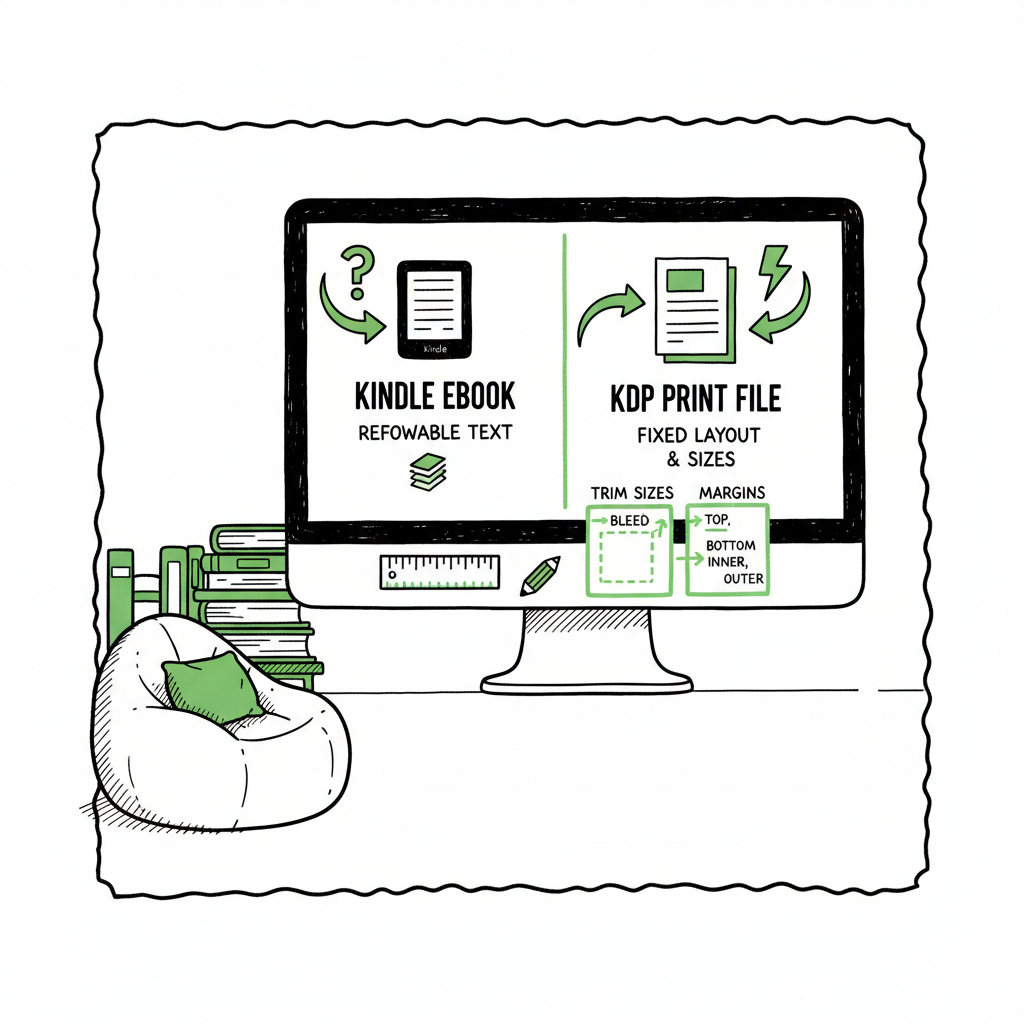
- Decide print trim size first. Common sizes are 5″ x 8″, 6″ x 9″, and 8.5″ x 11″. Trim size affects margins, gutter space, and where images must extend for bleed.
- For print, set bleed if any element runs to the edge of the page. KDP provides margin tables that vary by page count and bleed option; follow them to avoid clipped text or tight inner margins.
- For eBooks, use a reflowable layout. eReaders ignore fixed page size, so focus instead on consistent styles and simple images.
2) Structure front matter, body, and back matter
- Front matter: title page, copyright, dedication, optional short author bio, and a linked table of contents for ebooks.
- Body: use Heading 1 for chapter titles, Normal for body text, and avoid manual formatting like tabs or multiple returns to create space.
- Back matter: acknowledgments, series notes, other books, and ISBN/printing data for print versions.
3) Use styles everywhere
- Define styles for body text, chapter headings, subheadings, block quotes, and captions. Use style-based first-line indents rather than tab characters.
- Heading styles allow KDP and Kindle Previewer to build a proper table of contents and keep a consistent visual hierarchy across devices.
- Keep font choices simple and embed fonts where required for print PDFs.
4) Page breaks and pagination
- Insert page breaks at the end of chapters and before front/back matter. Don’t use repeated Enter keys to create space.
- For print, check page count parity if you need new sections to begin on right-hand pages. Insert blank pages via proper page breaks when necessary.
5) Images, tables, and resolution
- Use high-resolution images for print (300 DPI) and suitable compression for eBooks (72–150 DPI, depending on complexity).
- For print images with bleed, extend assets to the bleed edge and keep important content inside the safe area.
- Avoid complex tables that don’t scale; consider converting tables to images if layout control is essential.
6) Save and export formats
- For eBooks, generate an EPUB or use Kindle Create to produce a Kindle-ready file, then preview with Kindle Previewer.
- For print, export a print-ready PDF using the exact trim size and embedded fonts. KDP will reject or flag files that don’t meet its PDF/X or margin specs.
7) Test in preview tools
- Kindle Previewer simulates multiple Kindle devices and is the most reliable way to catch TOC links, image scaling, and font fallbacks for eBooks.
- Use KDP’s print previewer to check gutters, margins, and final pagination before you submit the file for publication.
Practical tips that save time and reduce errors
- Avoid manual formatting. Use paragraph and character styles throughout your manuscript.
- Create a simple template for your preferred trim size; KDP supplies templates that already include safe areas and gutter settings.
- Keep a single source of truth: edit the manuscript in one file and export from there instead of maintaining separate files for eBook and print.
- For series or multiple books, keep a CSV inventory of metadata (title, subtitle, ISBN, series name, price) and use it to batch-create uploads.
When you need to scale: tools and automation
Once you publish several books, the repetitive steps—setting metadata, uploading covers and interiors, applying categories, and entering pricing—become significant overhead. That’s why multi-platform publishing tools exist.
- BookUploadPro automates repetitive uploads across Amazon KDP, Kobo, Apple Books, Draft2Digital, and Ingram. It uses CSV batch uploads, platform-specific intelligence, and preconfigured templates to reduce manual work by ~90% for authors who publish seriously.
- The automation is designed to keep platform-specific rules (trim sizes, metadata fields, and file formats) in sync so you don’t have to remember every nuance for each store.
- If you also need a fast way to produce paperback or ebook files from a clean manuscript, consider a focused Book Creation Workflow that handles interior layout and exports for multiple platforms.
Common formatting traps and how to avoid them
- Tabs and extra returns: these break reflowable text and TOC generation. Use styles and automatic indents.
- Wrong trim/margin combos: follow KDP’s margin tables and check gutter space for thick books.
- Images that look fine in Word but fail in PDF: always export and review a PDF at 100% and in the KDP previewer.
- Not previewing on devices: Kindle Previewer and a phone/tablet check catch issues that desktop rendering misses.
- Mislinked or missing TOC entries: use Heading styles and regenerate the TOC for eBooks so it’s hyperlinked.
How BookUploadPro fits into a production workflow
Use BookUploadPro after your interior and cover are finished and exported to the required formats. It’s an obvious upgrade once authors start publishing seriously because it replaces repetitive clicks and manual uploads with CSV-driven batch uploads.
BookUploadPro’s platform-specific intelligence maps your files and metadata to each retailer’s field set and validates common issues before upload, cutting rejection cycles.
The service is priced affordably, offers a free trial, and is built for authors who want to keep ownership of their distribution while automating the technical work: “Automate the upload. Own the distribution.”
FAQ
Q: What is the simplest way to start formatting for KDP?
A: Start with KDP’s templates for your chosen trim size and apply consistent styles in Word. Use page breaks, set gutters and margins per KDP’s tables, and export a print-ready PDF. For eBooks, focus on styles and a linked table of contents, then check files in Kindle Previewer.
Q: Do I need a separate file for eBook and print?
A: It’s best to maintain a single master manuscript with styles. Export a separate EPUB or MOBI for eBooks and a PDF for print. Keeping one master reduces version drift and errors.
Q: How do I make a linked table of contents for Kindle?
A: Use Heading styles for chapter titles and generate a navigable TOC in your manuscript or via your EPUB tool. Kindle Previewer will show whether the TOC links work across devices.
Q: What common mistakes trigger KDP print rejections?
A: Incorrect margins for your page count, missing bleed on full-bleed images, non-embedded fonts in PDFs, and low-resolution images are common causes.
Q: Can I automate uploads to multiple retailers?
A: Yes. Tools like BookUploadPro allow CSV batch uploads and map your metadata, covers, and interiors to multiple stores, saving time and reducing upload errors.
Sources
- eBook Manuscript Formatting Guide – Kindle Direct Publishing
- Format Your Paperback – Kindle Direct Publishing
- Book Formatting – Kindle Direct Publishing
- Build Your Book – Format a Paperback Manuscript (Word for Windows)
- Set Trim Size, Bleed, and Margins – Kindle Direct Publishing
- Paperback and Hardcover Manuscript Templates – Kindle Direct Publishing
If you want to speed up uploads and maintain consistent, KDP-compliant files across retailers, visit BookUploadPro and try the free trial.
KDP Manuscript Formatting Guide Estimated reading time: 12 minutes Key takeaways Formatting is about reproducible rules: set trim size, margins, bleed, and use styles instead of manual spacing. One clean source file can produce both Kindle eBooks and KDP print files if you follow KDP formatting rules and use the right tools. When you publish…