Amazon KDP File Requirements Explained for Authors
Amazon KDP file requirements
Estimated reading time: 11 minutes
Key takeaways
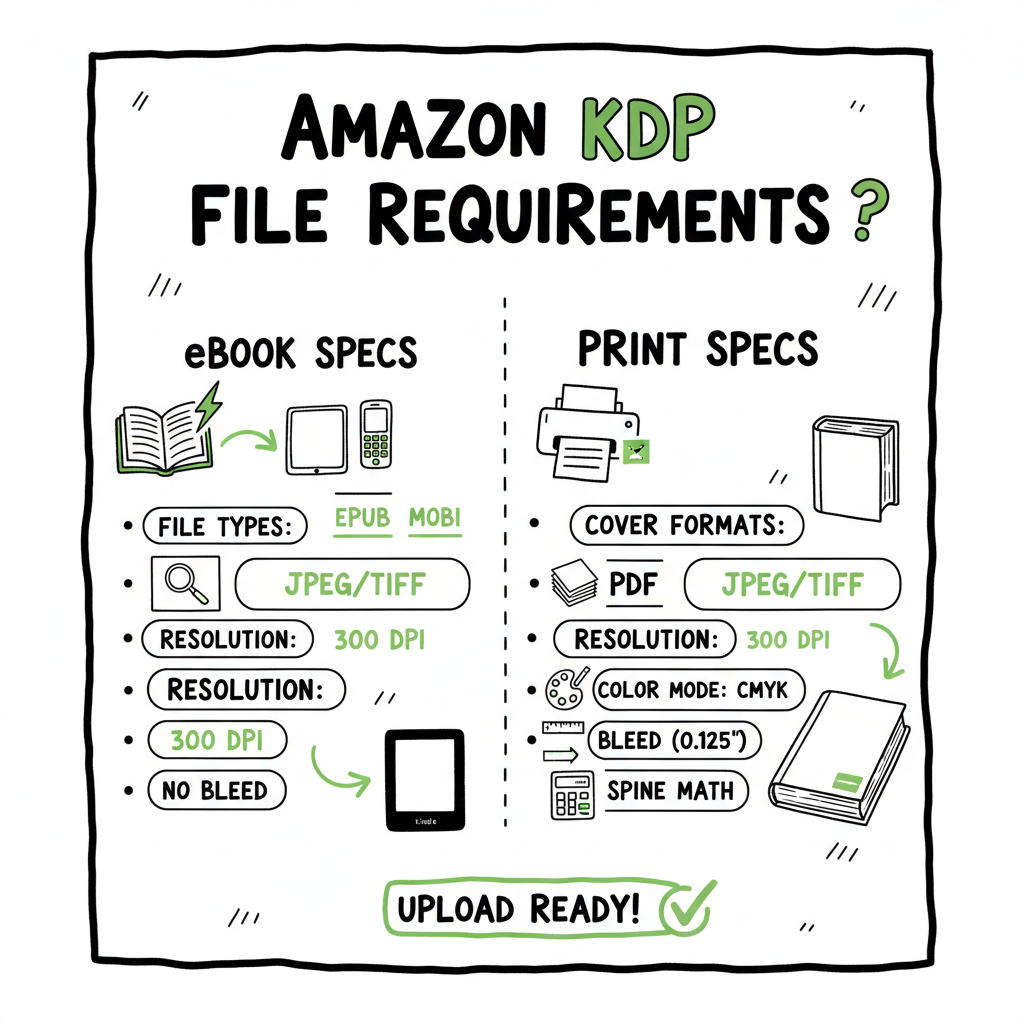
- Know the right file types: EPUB or MOBI/EPUB for eBooks, PDF (print-ready) for paperbacks and hardcovers, JPEG/TIFF for eBook covers, and single PDFs for print covers.
- Pay attention to resolution, color mode, bleed, and spine math for print; use 300 DPI and CMYK for interiors and covers destined for print.
- Automate repetitive uploads and template creation to save time across platforms; BookUploadPro can cut upload time by ~90% and reduce errors.
Table of Contents
- Why file requirements matter
- File requirements by format
- eBook manuscript: file types and formatting
- eBook cover requirements
- Print interior files (paperback, hardcover)
- Print cover (paperback and hardcover)
- Common mistakes and simple fixes
- Mistake: Wrong color mode
- Mistake: Incorrect spine calculation
- Mistake: Missing bleed or wrong trim size
- Mistake: Non-embedded fonts
- Mistake: Large, unoptimized images
- Mistake: Invalid EPUB structure
- Scaling publishing across platforms
- Unified multi-platform publishing
- FAQ
- Sources
Why file requirements matter
The phrase amazon kdp file requirements shows up on every self-publisher’s checklist because format mistakes block publication or create poor print results. KDP accepts specific file types and expects particular image sizes, color modes, and embedded fonts so the final product looks professional on screen and on paper. Get these specs right once, and you avoid delays, extra proofs, and refund headaches.
If you plan to publish multiple titles or distribute widely, it helps to follow a repeatable process. For a practical starter, see the Self Publish Book Amazon KDP guide for an operational perspective on preparing and uploading files. Automating repetitive steps—file naming, metadata, and repeated uploads—moves a small publisher into an efficient operation.
File requirements by format
This section breaks down the main KDP file specs you’ll hit for eBooks, paperback and hardcover covers, and interior files. Stick to these basics and use the KDP cover calculator or templates for final sizing.
eBook manuscript: file types and formatting
- Accepted types: EPUB is the preferred standard. KDP also accepts MOBI and reflowable HTML, but EPUB gives you consistent results across devices.
- Formatting tips: Use simple styles, avoid complex floats and absolute positioning, and keep fonts embedded in the source file when possible. Validate the EPUB with an EPUB checker before upload.
- Images: Use RGB color and 300 DPI source images where possible. KDP displays images at 72 DPI, but high-resolution source images avoid pixelation on high-density screens.
- File size: Keep eBook files lean. Large images blow up EPUB size and can slow downloads.
If you need reliable EPUB conversion, use a tested tool that preserves structure and images; a dedicated EPUB converter streamlines the process and reduces validation errors.
eBook cover requirements
- Preferred formats: JPEG or TIFF, RGB color.
- Ideal size: 2560 x 1600 pixels (1.6:1 ratio) for best display across devices. Minimum often quoted is 1000 x 625; maximum 10,000 x 10,000.
- File size: Under 50 MB is safe.
- Resolution: 300 PPI source recommended even though display is lower.
- Color: RGB for eBook covers.
If you’re generating multiple covers or experimenting with layouts, a book cover generator speeds up iteration and batch exports for different platforms.
Print interior files (paperback, hardcover)
- File type: PDF (print-ready) is the required format for print interiors.
- Resolution: 300 DPI for all images and graphical elements.
- Fonts: Embed all fonts and avoid system-dependent fonts.
- Color mode: CMYK for any color interiors; convert images to CMYK and proof color shifts before upload.
- File size: KDP accepts large PDFs but recommend keeping them under 40 MB when possible to minimize processing delays.
- Margins and gutters: Use recommended inner margin (gutter) allowances for binding. For thick books, increase the gutter so text doesn’t disappear into the spine.
Print cover (paperback and hardcover)
- File type: Single PDF that includes front cover, spine, and back cover in one file.
- Bleed: 0.125 inch bleed on each side is standard; KDP may require additional safety area depending on trim size.
- Spine width: Calculated based on page count and paper type. Example formulas: for white paper use 0.002252 inch per page; for cream paper around 0.0025 inch per page. Use KDP’s calculator for exact spine width.
- Height and width: Height equals trim height plus bleed allowance; width equals back + spine + front + bleed on both sides. Exact values vary by trim size and page count.
- Resolution: 300 DPI and CMYK color mode.
- File prep: Flatten layers, embed fonts, remove crop/trim marks, and save as PDF/X-1a or PDF/A when possible.
Common mistakes and simple fixes
Mistake: Wrong color mode (RGB for print)
Fix: Convert images and cover files to CMYK before exporting the print-ready PDF. Photographic images often shift slightly; always proof a printed sample.
Mistake: Incorrect spine calculation
Fix: Use KDP’s cover calculator and check the page count and paper type. Remember that books under a certain page count won’t have spine text; check KDP rules for the minimum pages.
Mistake: Missing bleed or wrong trim size
Fix: Start with a template sized for your trim. Include 0.125 inch bleed on all sides and keep critical text at least 0.25 inch from the trim edge.
Mistake: Non-embedded fonts or font licensing issues
Fix: Embed fonts when exporting PDF and confirm licensing for commercial printing. If font embedding fails, outline type before export.
Mistake: Large, unoptimized images
Fix: Resize and compress images to 300 DPI at final print size. For eBooks, resize images to appropriate pixel dimensions and switch to JPEG for photos to save file size.
Mistake: Invalid EPUB structure
Fix: Run the EPUB through a validator. Many conversion tools create extra XHTML wrappers or mis-nested tags—use a converter that preserves a clean, semantic structure.
Scaling publishing across platforms
Once you publish one title, the manual process becomes the bottleneck. For authors serious about volume or reaching readers everywhere, a repeatable workflow and automation help unlock scale.
Unified multi-platform publishing: Manage one set of source files and generate platform-specific exports. That means a master interior PDF for print, an EPUB for digital stores, a separate high-res JPEG/TIFF for ebook covers, and a single PDF for print covers sized with the right spine calculation.
CSV batch uploads and platform intelligence: When you’re publishing 10, 50, or 100 books, repetitive metadata entry and file uploads are the real time sinks. CSV batch uploads feed consistent metadata and pricing across stores and reduce human error.
Why automation matters: Repeated manual uploads multiply small mistakes. Automating exports and uploads saves time—BookUploadPro clients often see about 90% time savings for routine uploads—and reduces errors that cause rejections or print proofs.
Platform-specific notes
– Amazon KDP wants PDF for print and EPUB for eBooks; Apple Books prefers EPUB and has its own validation quirks; Ingram and Draft2Digital accept different submission packages. A unified pipeline produces correctly formatted files for each.
– Use per-platform intelligence to adjust color profiles and image sizes where needed, and keep a single source of truth for metadata and ISBNs.
Tooling and helpers
– Cover templates and calculators: Use KDP’s cover calculator for exact spine and bleed dimensions.
– EPUB conversion: A good EPUB converter preserves structure, images, and table of contents. Automating EPUB conversion from your manuscript cuts repeated formatting work.
– Cover generation: For rapid covers and A/B testing, a cover generator lets you produce multiple sizes and formats quickly.
Final thoughts
Amazon kdp file requirements are precise for a reason: printers and devices expect predictable inputs to produce predictable outputs. Learn the specs once, automate the repetitive tasks, and you’ll avoid the small errors that cause big delays. For authors moving from one-off projects to regular publishing, a tool that handles CSV batch uploads, platform-specific exports, and repeatable templates becomes an obvious upgrade. Automate the upload. Own the distribution.
FAQ
What is the preferred file format for KDP eBooks?
EPUB is preferred and gives the most consistent results across devices. KDP accepts other formats in some cases, but EPUB is the industry standard.
Do I need a separate file for the print cover?
KDP requires a single, print-ready PDF for the full cover (front, spine, back) for paperbacks and hardcovers.
What resolution should images be for print?
Use 300 DPI for all print images and cover artwork to ensure sharp output.
Can I use RGB images for print interiors?
Convert images to CMYK for print to avoid unexpected color shifts; RGB is fine for eBooks.
How do I calculate spine width?
Spine width is based on page count and paper type. Use KDP’s cover calculator or the published formulas to compute the exact width.
Sources
- Cover Image Guidelines – Kindle Direct Publishing
- What criteria does my eBook’s cover image need to meet?
- Create a Paperback Cover – Kindle Direct Publishing
- Paperback Submission Guidelines – Kindle Direct Publishing
- Cover Creator – Kindle Direct Publishing
- KDP Cover Calculator – Amazon.com
Amazon KDP file requirements Estimated reading time: 11 minutes Key takeaways Know the right file types: EPUB or MOBI/EPUB for eBooks, PDF (print-ready) for paperbacks and hardcovers, JPEG/TIFF for eBook covers, and single PDFs for print covers. Pay attention to resolution, color mode, bleed, and spine math for print; use 300 DPI and CMYK for…