Amazon KDP Dashboard Explained for Self-Publishing Authors
Amazon KDP Dashboard Explained
Estimated reading time: 12 minutes
Key takeaways
- The Amazon KDP dashboard is your central control panel for published books, reports, and account settings — learn the core areas quickly to act on sales data.
- Learn how the Bookshelf, Reports, and Account sections connect to publishing and distribution, and which metrics matter for decisions.
- When you move beyond single-book publishing, multi-platform automation and CSV batch uploads save time and reduce errors, making services like BookUploadPro an obvious upgrade.
Table of Contents
- Overview: what the dashboard shows
- Managing your Bookshelf, reports, and publishing steps
- Scaling publishing: multi-platform process and tools
- FAQ
What follows is a practical, hands-on explanation of the KDP interface guide and how to use the dashboard to make better publishing choices.
Overview: what the dashboard shows
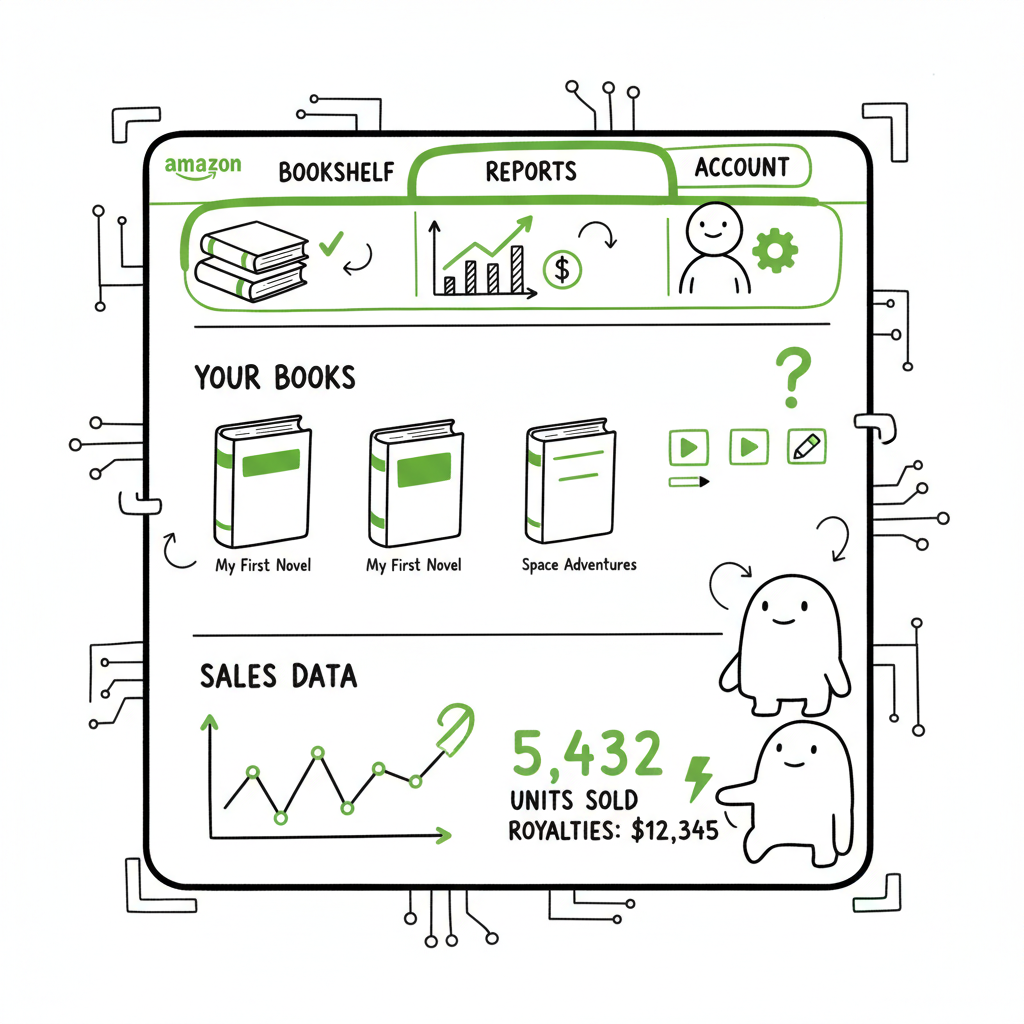
The Amazon KDP dashboard explained starts with a simple idea: it collects everything you need to manage books and shows key performance signals in one place. After you sign in to kdp.amazon.com and finish the onboarding steps (tax, payment, identity), the dashboard becomes the central screen for daily work.
At a glance you’ll see:
– A summary of recent activity and estimated royalties.
– Quick links to the Bookshelf, Reports, and account settings.
– Graphs showing daily sales trends, KENP reads, and marketplace splits.
– Shortcuts for promotions and marketing tools, when applicable.
For authors who have a handful of titles, the dashboard is a quick check-in. For authors publishing at scale, it’s how you pick the next task. If you’re ready to move from single-title uploads to a batch workflow, see Self Publish Book Amazon KDP for a practical guide on taking those next steps with fewer mistakes.
Think of the dashboard as both a status board and a traffic light: green for steady income, yellow for titles that need attention, and red for technical or account issues. The interface is deliberately simple, but the value comes from understanding each section and how to act on the data.
For authors looking to scale publishing, BookUploadPro can help automate the upload and distribution.
Managing your Bookshelf, reports, and publishing steps
Bookshelf: where the actual books live
The Bookshelf is the part of the dashboard where you add, edit, or remove titles. Each row shows the title, format (ebook, paperback, paperback expanded distribution), publication status, and direct action buttons for editing content, pricing, and rights.
When you open a book’s edit view, you manage:
– Manuscript and interior files
– Cover files and the cover preview
– Metadata (title, subtitle, series, description, keywords, categories)
– Pricing and royalty options
– Distribution choices and territory rights
Make sure to keep metadata consistent across formats — inconsistent metadata is a common cause of listing or delivery problems.
Reports: reading the numbers that matter
The Reports section gives you downloadable, filterable views of sales, royalties, and KENP reads. Use the date filters to compare periods and the marketplace filters to see where books are selling best. Key report types:
- Sales Dashboard: quick totals and trends
- Payments report: payment dates, amounts, and bank details
- KENP (Kindle Edition Normalized Pages) reads: vital for KDP Select authors
A simple routine: check the Reports tab weekly to spot dips, spikes, or zeroes. A sudden drop could mean a pricing error, a metadata change, or a listing problem that needs fast correction.
KDP interface guide: common items to check
New users often miss a few controls on the top navigation: language settings, help, and account switches. If your account shows limited data, remember that a new account won’t show historical sales until you publish and start getting orders.
Publishing workflow and file prep (ebook, paperback, EPUB, covers)
Most of the work in the Bookshelf is upload and verification. That means having clean files ready:
– Interior manuscript compliant with trim size and margins for paperbacks
– Properly formatted EPUB for ebooks
– A print-ready PDF for paperbacks if you choose PDF workflow
– A cover file that meets KDP dimensions and bleed requirements
If you need tools for converting your manuscript to the right ebook format, an EPUB converter can speed the process and remove formatting headaches. If you’re producing covers, a reliable Book cover generator helps keep dimensions and spine calculations correct. And if you plan to create a paperback or ebook in bulk, consider a streamlined book creation workflow to standardize outputs.
These tools reduce errors that block publication and help your listings go live faster:
– EPUB converter — converts manuscripts to production-ready EPUB files
– Book cover generator — creates covers with correct spine and bleed
– Book creation — helpful for producing paperback and ebook outputs consistently
Make these steps part of a checklist you run before every upload: metadata, interior, cover, pricing, distribution. That way, the Bookshelf becomes a predictable queue instead of a source of surprises.
Scaling publishing: multi-platform process and tools
When you publish more than a few titles, the manual process becomes the bottleneck. That’s where multi-platform publishing and automation matter. You want to do three things reliably and faster: prepare files, upload to multiple stores, and monitor performance.
Why multi-platform publishing?
Amazon is often the biggest channel, but it’s not the only one. Kobo, Apple Books, Draft2Digital, and Ingram reach different readers and geographies. Distributing more widely increases visibility and reduces reliance on a single marketplace’s algorithm or policy.
- File generation: create EPUB, MOBI if needed, and print-ready PDFs automatically from a master manuscript.
- Metadata propagation: push a single canonical set of metadata to each platform to avoid mismatched titles or descriptions.
- Pricing and royalty settings: apply consistent pricing strategies and currency conversions across stores.
- Uploads: batch uploads save hours compared to manual, single-title uploads.
- Reports aggregation: centralize sales and royalty reports from all platforms to make decisions from one dataset.
How BookUploadPro fits
At scale, BookUploadPro removes repetitive, error-prone steps:
– Unified multi-platform publishing: one upload to reach Amazon KDP, Kobo, Apple Books, Draft2Digital, and Ingram.
– CSV batch uploads: bulk-create listings from spreadsheet rows instead of form-by-form entry.
– Platform-specific intelligence: the system knows each marketplace’s required fields and validates them before upload.
– Error reduction: automated checks catch common issues like missing ISBNs, incorrect file types, or cover dimension mismatches.
– Time savings: authors report ~90% time savings on uploads once the catalog is set up.
For authors publishing seriously, BookUploadPro becomes an obvious upgrade: automate the upload. Own the distribution.
Practical tips for a scaled workflow
– Standardize templates: have a master spreadsheet with columns for title, subtitle, description, keywords, categories, price, ISBN, and file paths.
– Validate early: use converters and cover templates to test files before they reach the upload stage.
– Keep a version history: capture CSV versions of each batch so you can re-run a batch if something needs correction.
– Monitor across platforms: build a weekly routine to check combined performance, focusing on topline metrics rather than individual daily noise.
FAQ
Q: How do I find my daily sales chart on the KDP dashboard?
A: Open the main dashboard after signing in. The chart appears in the royalty estimate area. Use the date filters to change the range and the marketplace dropdown to focus on a single store.
Q: What is the Bookshelf used for?
A: The Bookshelf holds all your titles and their current statuses. From there you edit metadata, upload new files, change pricing, or take a book down. Think of it as the control panel for each product listing.
Q: How do KENP reads appear in reports?
A: KENP reads are shown in Reports and can be filtered by date and marketplace. They are specific to KDP Select programs and show page reads by Kindle Unlimited or Kindle Owners’ Lending Library.
Q: My account shows no sales yet — is that normal for a new account?
A: Yes. New accounts show limited data until you publish and receive sales or KENP reads. Ensure tax and payment settings are complete; without them Amazon may limit certain payment-related views.
Q: Do I need to produce separate files for each platform?
A: Often one well-formed EPUB will work across platforms, but some stores have specific requirements. Using a reliable EPUB converter and a consistent book creation process reduces the need for manual fixes.
Q: What should I do if an upload fails on KDP?
A: Check the error message in the upload flow, confirm file types and sizes, validate metadata fields (no forbidden characters), and retry. If you’re running batches, fix the source in your CSV and re-run the single title rather than the entire batch.
Next steps
Visit BookUploadPro.com to try the free trial and see how much time you can save.
Wrap-up
The Amazon KDP dashboard is straightforward once you know where to look and what to do with the numbers. Start by mastering the Bookshelf and Reports, standardize your file prep (manuscript, EPUB, cover), and build a simple weekly routine to act on sales signals. When your catalog grows, moving to a multi-platform, automated workflow is the practical step to keep pace without burning time on repetitive uploads.
Final thoughts
Transition from manual uploads when the time you spend publishing is greater than the cost of a tool that automates uploads and manages distribution. For authors who publish regularly, the productivity gains and error reduction make automation a practical investment.
Sources
- https://kdp.amazon.com/help/topic/GX7EGDFGS9CZCA2F
- https://kdp.amazon.com/help/topic/GVTTXHKHVPAPBEDQ
- https://www.smartscout.com/amazon-selling-guides/the-ultimate-guide-to-kdp-amazon
- https://daily.dev/blog/understanding-amazon-kdp-sales-reports-guide
- https://indieauthorblueprint.substack.com/p/kdp-reports-dashboard
Amazon KDP Dashboard Explained Estimated reading time: 12 minutes Key takeaways The Amazon KDP dashboard is your central control panel for published books, reports, and account settings — learn the core areas quickly to act on sales data. Learn how the Bookshelf, Reports, and Account sections connect to publishing and distribution, and which metrics matter…