KDP Author Dashboard Practical Guide for Busy Authors
kdp author dashboard: a practical guide for busy self-publishing authors
Estimated reading time: 9 minutes
Key takeaways
- The KDP Author Dashboard is your single-page hub for managing books, tracking royalties, and launching promotions.
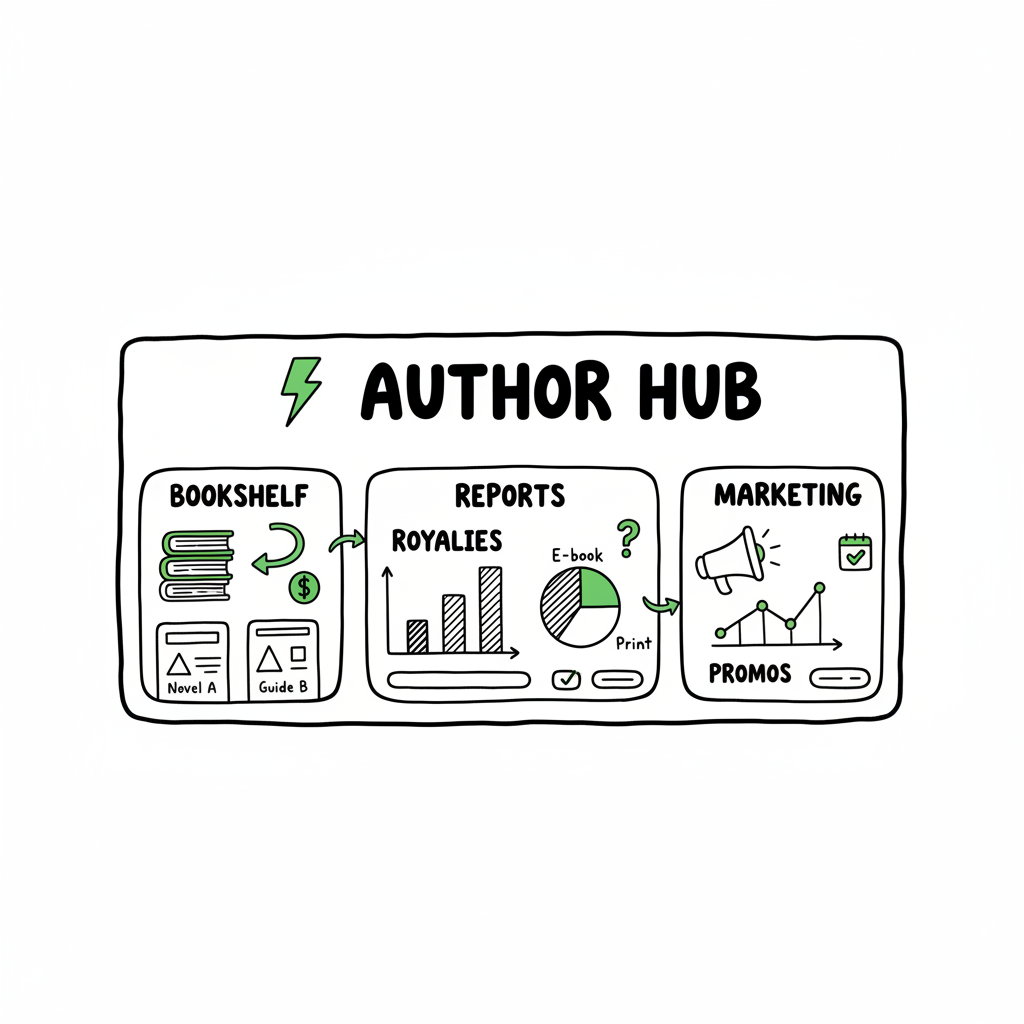
- Learn where Bookshelf, Reports, and Marketing live and how to use each section without wasting time.
- For authors publishing at scale, automation tools that batch-upload and handle platform quirks make wide distribution practical.
- Small workflows—consistent metadata, quick cover checks, and weekly report reviews—keep mistakes and delays to a minimum.
Table of Contents
- Overview of the KDP Author Dashboard
- Manage your Bookshelf efficiently
- Reading KDP Reports and using performance data
- Marketing, distribution, and publishing at scale
- Frequently asked questions
Overview of the KDP Author Dashboard
The kdp author dashboard is the control center at kdp.amazon.com where you manage published books, drafts, and promotions. If you log in regularly, it becomes the place you check for status changes, recent sales, and action items—no digging through email or ad accounts. The main areas you’ll use every week are Bookshelf for edits and uploads, Reports for sales and royalty snapshots, and Marketing for enrollments, A+ content, and advertising.
A quick step-by-step walkthrough is available in Amazon Kdp For Authors.
When you’re ready to dig into a step-by-step walkthrough or need a refresher on common tasks, a focused guide like Amazon Kdp For Authors is a helpful companion to this article. That reference sits alongside KDP’s help pages and short tutorials as a quick way to confirm navigation and options.
Why this matters: the dashboard is designed for individual authors and small presses. It’s not a full enterprise publishing system. For anyone publishing several titles a year, the dashboard handles the essentials but becomes repetitive—metadata entry, file uploads, pricing by territory. That repetition is where automation and batch tools save time and reduce errors once you outgrow single-title workflows.
What you’ll find on the dashboard
- Bookshelf — Lists all books (live, draft, pre-order) and gives quick access to edit content, pricing, and promotions.
- Reports — Shows estimated royalties, KENP reads, and orders, with filters for date and marketplace.
- Community/Resources — Links to help pages, author forums, and tutorials.
- Marketing — Controls for KDP Select enrollment, Kindle Countdown Deals, A+ Content, and ad shortcuts.
This article focuses on practical steps and decisions you can use daily. It assumes you’re already comfortable logging into KDP and uploading a single title. If you are moving from single-title publishing to multiple books per year, the sections on Bookshelf and Reports will be most useful.
Manage your Bookshelf efficiently
Bookshelf is where you spend most of your time. It’s a simple list, but the actions behind the three-dot menu are the workhorses: edit eBook content, edit paperback content, view reports, enroll in KDP Select, and order author copies. A disciplined Bookshelf routine keeps your catalog tidy and reduces time lost to preventable mistakes.
Keep a short, consistent checklist for every change
When you update a title or upload a new edition, follow the same steps each time. A short checklist reduces rework:
- Confirm manuscript file format and convert to EPUB converter when needed.
- Check cover dimensions and spine calculation for paperbacks.
- Verify front and back matter, especially metadata like series name and ASINs.
- Set territories and pricing deliberately, then double-check the listed retail price.
If you convert manuscripts to EPUB often, having a reliable converter saves hours. Many authors use automated EPUB conversion services to ensure consistent output and fewer rejections from ebook stores; a ready option is an EPUB converter that handles common layout issues and preserves chapter structure.
Focusing on formats: ebook, paperback, and hardcover
KDP supports multiple formats, and each has its own checklist. For ebooks, the main issues are table of contents, image handling, and front matter. For print, trim size, gutter, and margins matter. If you’re producing both ebook and paperback, structure your files so the ebook is exported directly from a cleaned manuscript and the paperback receives only print-specific adjustments like margins and page numbering.
When you need to create a paperback or ebook quickly for wide distribution, consider a tool that automates the generation and formatting steps across formats. That reduces manual layout work and prevents mistakes that commonly cause proofs to be rejected.
Covers: fast checks and consistent delivery
A good cover prevents customer confusion and reduces rework. Keep a simple set of cover rules: readable title at thumbnail size, consistent spine and back blurb, and correct trim size. If you’re creating covers yourself or with a designer, use a dedicated cover-processing tool to get print-ready PDFs and image exports. A reliable book cover generator can speed iterations and produce consistent results for both ebook thumbnails and print-ready files.
Batch edits and series management
Bookshelf lets you edit each book manually, which is fine for a few titles. If you have many books in a series or a backlist to refresh, plan batch updates. Batch updates are where multi-platform upload tools add value: change a series title, update a publisher imprint, or correct a repeated metadata error across 10–50 files in minutes rather than hours.
Practical tips you can apply now
- Always preview the file in KDP’s previewer before publishing; it catches the common formatting issues.
- Keep an archive of the exact files you uploaded (manuscript, cover, metadata) so you can trace what changed if you need to roll back.
- Use descriptive file names that include date and version, e.g., MyBook_v1_2026-01-05.epub.
- For cover generation, keep a master PSD or layered file for quick changes; using a processing tool ensures the exports are correct for all platforms.
In this area you’ll also benefit from a multi-platform uploader to streamline wide distribution.
Reading KDP Reports and using performance data
Reports is where you answer the question “How did that book do?” The dashboard provides a snapshot of estimated royalties, orders, and KENP reads. For many authors, weekly or monthly checks are enough. For others running ads or multiple launches, daily monitoring makes sense.
What the main report types show
- Royalties/Estimated earnings — A running estimate of what you’ve earned for a period across marketplaces.
- Orders — Shows print orders and digital orders, with print updates typically within 24 hours.
- KENP reads and pages — For Kindle Unlimited titles, you’ll see pages read, which feed into your KDP Select earnings.
- Book-by-book breakdown — See which titles are earning and which need promotional attention.
How to read a report without overreacting
Your reports will fluctuate. When a title drops or spikes, look for the cause before making changes. Common causes:
- Price changes or promotions (including Kindle Countdown Deals).
- Ad budget adjustments or pauses.
- Seasonal effects or category shifts.
- Listing changes—an altered description, new keywords, or A+ content.
A pragmatic evaluation process
- Check the timeline: is the change sudden or gradual?
- Cross-reference with recent marketing activity and promotions.
- If you run ads, isolate ad spend and conversions.
- For print books, confirm vendor fulfillment or proof status if orders stop.
Automating report pulls for speed
If you publish multiple books, pulling reports manually becomes a time sink. Many publishers automate data pulls into a simple dashboard or spreadsheet with date, title, marketplace, and revenue columns. That gives you the ability to:
- Compare timing across titles.
- Spot long-term trends rather than daily noise.
- Export data for tax accounting or payout reconciliation.
Use reports to prioritize actions
- If a backlist title is suddenly earning, consider re-promoting or running ads.
- If a recently launched book is underperforming, check metadata and discoverability before throwing money at ads.
- If KENP reads are low, examine chapter hooks or series sequencing.
Practical weekly routine
- Quick scan of Royalties and Orders — look for anomalies.
- Export a monthly summary and archive it — consistent records beat memory.
- Note titles that need updates and schedule them in a single batch session.
Marketing, distribution, and publishing at scale
Marketing tools in the dashboard live next to the books they affect. KDP Select, A+ Content, and ad links are tied into each ASIN and SKU. Use the dashboard to enroll in select programs, but treat automation as your friend once you publish several titles.
KDP Select and promotional options
KDP Select enrollment requires choosing exclusivity for ebooks in exchange for Kindle Unlimited participation and promotional tools. It can work well for a focused series or a promotional window, but it’s a strategic choice when you distribute to other retailers.
A+ Content and Author Central
A+ Content helps your book pages look richer and more professional. Author Central is separate but linked; it’s where you manage the author page, bio, and aggregated reviews. Use consistent branding across product pages and your author page to reduce buyer confusion.
Advertising basics from the dashboard
The KDP dashboard provides entry points to Amazon Ads. Use small, controlled campaigns to test keywords and ASIN targets. Don’t assume large spend equals large returns—test, measure, and scale what works.
Making wide distribution practical
Publishing across Amazon, Kobo, Apple Books, Draft2Digital, and Ingram is the pragmatic way to reach readers. The challenge is the repeated data entry and format conversions. That’s where multi-platform publishing tools matter: they automate uploads, convert files to the right formats, and reduce manual steps.
Why automation helps once you publish seriously
- ~90% time savings on repetitive uploads when you batch files and metadata.
- CSV batch uploads let you treat your catalog as data, not a set of web forms.
- Platform-specific intelligence prevents common errors and reduces rejections.
- Error reduction and centralized control make wide distribution practical and affordable.
If you publish more than a few books a year, automating the upload is an obvious upgrade. Services that handle CSV batch uploads and platform quirks cut the busywork, letting you spend time on writing, promotion, and reader engagement. Put another way: automate the upload. Own the distribution.
Integrating format and cover tools into the workflow
Before you upload, validate your files. For ebooks, run an EPUB converter through a validator and fix any issues. For print, generate a print-ready PDF and check gutter, margins, and spine. If you need help generating a cover quickly, a book cover generator can produce consistent results for both eBook thumbnails and print-ready files.
Practical launch workflow for one book (repeatable)
- Finalize manuscript. Convert to EPUB and build print files.
- Generate or confirm cover assets for ebook and print.
- Create product metadata: title, subtitle, keywords, categories, description.
- Upload to Bookshelf and preview files; set publish date.
- Enroll in promotions if appropriate; schedule ads and monitor Reports.
- After launch week, review Reports, tweak ads, and plan batch tasks for other titles.
Frequency and sizing of batches
Batch tasks don’t have to be huge. Start with groups of 2–5 titles for metadata cleanups. When you’re comfortable, move to larger CSV batches for uploads or wide distribution submissions. The point is consistent, repeatable steps that save time and reduce mistakes.
Automated EPUB, cover, and format tools mentioned earlier
A complete publishing workflow uses three building blocks: a reliable EPUB converter for ebook formatting, a cover tool for consistent thumbnails and print-ready covers, and a multi-platform uploader for distribution. Each tool reduces a human error point and speeds the path from manuscript to marketplace.
Frequently asked questions
Q: Where do I find Bookshelf and Reports on the dashboard?
A: After you log in at kdp.amazon.com, Bookshelf is the default landing list. Reports are in the top navigation; click Reports to see earnings, KENP, and order details.
Q: How often do report numbers update?
A: Digital orders and estimated royalties update frequently but are estimates. Print orders and author copies generally update within 24 hours. Payouts follow Amazon’s payment schedule and thresholds.
Q: Can I publish everywhere and still use KDP Select?
A: KDP Select requires exclusivity for the ebook format while enrolled. If you want distribution to other retailers at the same time, do not enroll the ebook in Select; you can still publish print versions through KDP.
Q: What file formats does KDP accept?
A: For ebooks, EPUB is the preferred format. For print, upload a high-resolution PDF for the interior and a print-ready PDF for the cover (or use KDP’s cover creator). If you aren’t comfortable converting files, a dedicated EPUB converter and cover processing tools remove much of the friction.
Q: How do I correct prices or territories after publishing?
A: Use the Bookshelf three-dot menu to edit pricing and territories. Changes propagate but allow time for the marketplace to update. If you plan many price changes, schedule them to avoid frequent updates that confuse readers.
Q: I have many books. Should I use a multi-platform uploader?
A: If you publish multiple titles per year or have a backlist, multi-platform uploading saves time and reduces errors. Look for tools that support CSV batch uploads, platform-specific checks, and clear previews for each store.
Final thoughts and next steps
The KDP Author Dashboard is straightforward in design but repeated tasks quickly add up. A tight Bookshelf habit plus a clear reports process will keep your publishing engine running without surprises. When you reach the point where manual uploads and single-title edits take more time than writing, consider tools that automate EPUB conversion, cover processing, and batch distribution. These tools make wide distribution practical, reduce errors, and let you focus on the parts of publishing that matter most: content and audience.
To revisit the most relevant resources in this article:
- Use a reliable EPUB converter to reduce formatting rejections.
- Use a book cover generator or cover processing tool to ensure print-ready and thumbnail-ready assets.
- Consider batch CSV uploads and a multi-platform uploader to scale your publishing without multiplying the manual work.
If you’re ready to speed up uploads, reduce mistakes, and distribute widely, visit BookUploadPro.com to learn more and try the free trial.
Sources
- 5 Things To Know About Your Kindle Direct Publishing (KDP Dashboard)
- Author Central – Kindle Direct Publishing
- Dashboard – Kindle Direct Publishing
- KDP Reports – Amazon.com
- EPUB converter
- Book cover generator
- Create a paperback or ebook
kdp author dashboard: a practical guide for busy self-publishing authors Estimated reading time: 9 minutes Key takeaways The KDP Author Dashboard is your single-page hub for managing books, tracking royalties, and launching promotions. Learn where Bookshelf, Reports, and Marketing live and how to use each section without wasting time. For authors publishing at scale, automation…