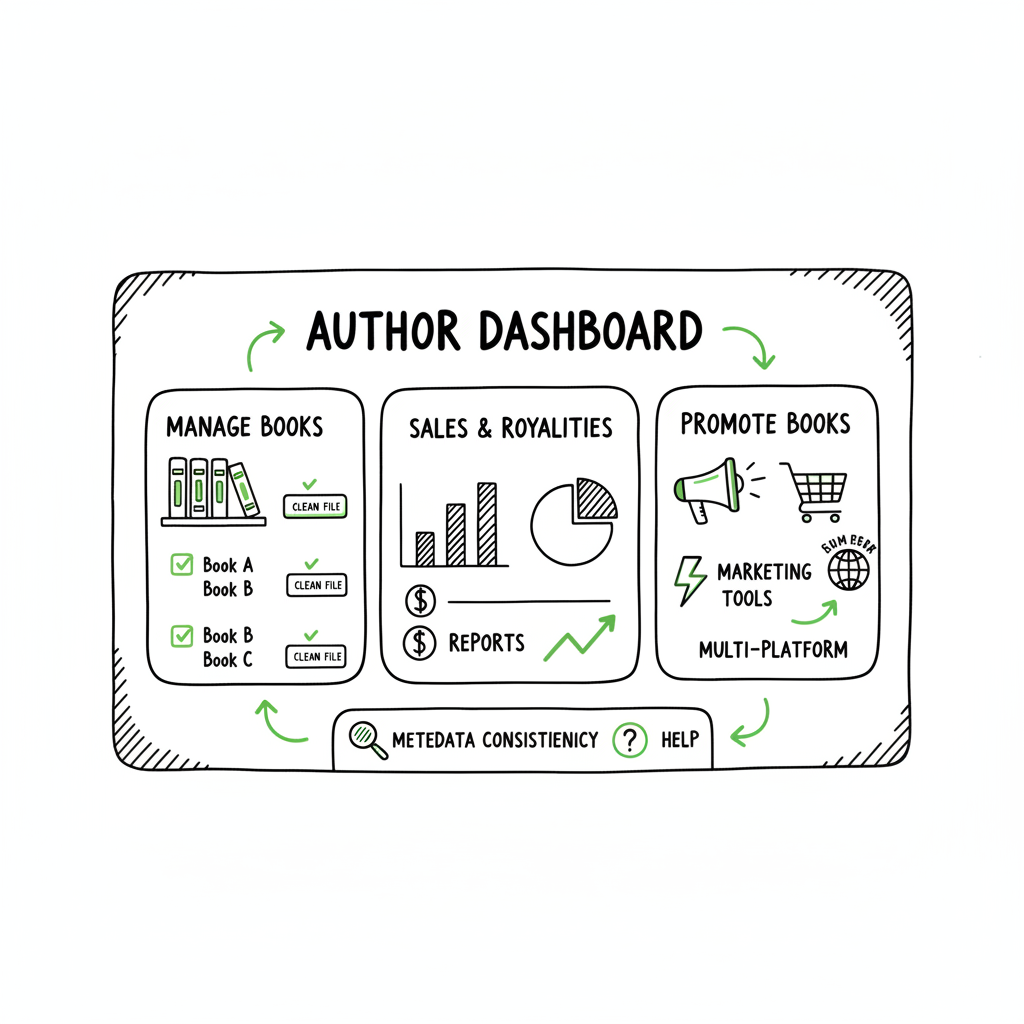
KDP Author Dashboard Navigate Bookshelf and Reports
kdp author dashboard: A practical guide for self-published authors
Estimated reading time: 8 minutes
Key takeaways
- The kdp author dashboard is your control center: manage books on the Bookshelf, check sales and royalties in Reports, and run promotions from Marketing.
- Use structured workflows—clean files, consistent metadata, and platform-aware exports—to reduce rework when publishing across stores.
- When you start publishing seriously, unified multi-platform publishing tools save time, cut errors, and make wide distribution practical.
Table of Contents
- How to navigate the kdp author dashboard
- Manage books and track performance (Bookshelf + Reports)
- Using KDP with multi-platform publishing tools
- FAQ
- Sources
- Final thoughts
How to navigate the kdp author dashboard
The kdp author dashboard is the first page you see after signing in at kdp.amazon.com. It puts the parts you use most within a few clicks: Bookshelf, Reports, Marketing, and Community. That simple layout makes it easy to find a live book, edit a draft, or check estimated royalties without hunting through menus.
If you want a short walkthrough focused on publishing basics, see Amazon KDP for Authors. This guide picks up where that walkthrough leaves off and shows practical ways to use the Bookshelf and Reports, and how to bring KDP into a wider publishing workflow.
What you’ll find right away
- Bookshelf: A list of your ebooks and paperbacks. Click the “…” next to a title to edit content, pricing, enroll in KDP Select, or order author copies.
- Reports: Sales, royalties, KENP (Kindle Edition Normalized Pages) reads, and print orders. The dashboard highlights top performers and recent activity.
- Marketing: Tools and links to Author Central, advertising, and KDP Select promotions.
- Community and Help: Links to guides, FAQs, and the author forum for tips and policy notes.
A few navigation tips
- Use the search and filter on the Bookshelf if you have many titles. Filters save time more than once.
- Click the book title to open the main editing flow. Use the “…” menu for quick tasks like ordering copies or checking enrollment.
- Open Reports from the top bar to get a snapshot of royalties and a more detailed breakdown when you need it.
Manage books and track performance (Bookshelf + Reports)
The Bookshelf and Reports areas are where you spend most of your time. They handle the daily operational work of publishing: keeping metadata clean, updating book files, and reading sales data to plan the next move.
Bookshelf: manage titles and editions
Think of the Bookshelf as a live inventory list. Each row shows title, language, marketplace settings, and status. Key actions are available from the “…” menu or from the editing screens.
Common tasks on the Bookshelf
- Edit eBook/Paperback Content: Upload a new manuscript or cover, update the interior, or change trim and paper options for print.
- Edit Pricing: Set prices by marketplace and currency. Use pricing tools or enter manual prices for strategic control.
- KDP Select: Enroll or remove a title from Select. Enrolling gives promotional options but requires digital exclusivity.
- Order Author Copies: Order at cost for proofs, events, or direct sales. Print order status usually updates within 24 hours.
Practical tips for bookshelf management
- Keep a metadata master file with ISBNs, ASINs, keywords, description variants, and territory pricing. It saves time when you update multiple formats.
- Version your manuscript and cover files with clear names and dates. That reduces accidental uploads of older drafts.
- Use consistent category choices across formats to avoid confusing readers and algorithms.
Covers, formats, and file prep
Covers and format conversions are frequent sources of rework. Generate print-ready covers and EPUB files before you begin a KDP upload to cut repeated fixes. If you need a fast, production-grade cover process, consider a dedicated cover pipeline; for example, a book cover generator can produce print- and ebook-ready artwork quickly. For EPUB conversion, use a reliable converter to ensure clean navigation and image handling.
Reports overview: sales, royalties, and KENP reads
Reports show what matters: how many books sold, which formats, estimated royalties, and page reads for Kindle Select. The Reports landing page gives a quick snapshot; the detailed panes let you export numbers, filter by marketplace, and drill into trends.
Key report elements
- Sales Dashboard: Snapshot of units sold across formats and marketplaces.
- Royalties: Estimated earnings by period and marketplace; final payments follow Amazon’s payout schedule.
- KENP Reads: For KDP Select titles, shows pages read across the Kindle Unlimited and Kindle Owners’ Lending Library programs.
- Print Orders: Status and fulfillment of paperback print orders; Amazon updates print order data quickly, often within a day.
How to use reports in practice
- Monitor high-velocity titles daily during promotions; check royalties weekly for ongoing trends.
- Export CSVs for deeper analysis or to feed into an external dashboard. If you publish at scale, batch reporting and centralized analytics reduce time spent comparing platforms.
- Use KENP trends to see if content hooks readers. High KENP per borrow suggests solid engagement; low reads after the first few chapters signal possible content or thumbnail issues.
Using KDP with multi-platform publishing tools
KDP covers Amazon. If you want your book in Apple Books, Kobo, Draft2Digital, or Ingram, you face repeated uploads and format checks. That’s where multi-platform publishing tools matter: reduce repetitive steps, keep metadata consistent, and avoid manual mistakes.
Why authors choose publishing tools
- Time savings: Leveraging uploads and metadata updates typically saves authors around 90% of the time it takes to do each platform by hand.
- CSV batch uploads: Upload metadata and files in bulk instead of filling web forms one book at a time.
- Platform-specific intelligence: Tools apply the right file types, metadata formats, and cover specs for each store, reducing rejections.
- Error reduction: Automated validation checks catch missing fonts, bad margins, or wrong image modes before you upload.
- Wide distribution becomes practical: When distribution is easy, authors publish more titles and test markets faster.
BookUploadPro is built for authors who publish more than one book.
A practical approach uses platform-aware validation to catch issues before you publish. For cover work, cover generator processing can produce print- and ebook-ready artwork quickly, and EPUB converter helps ensure clean navigation across stores. For the overall book creation workflow, BookAutoAI offers useful tooling.
BookAutoAI tools—cover generator, EPUB converter, and a general book creation workflow—assist in multi-platform publishing.
A practical example: releasing a new title
- Prepare files: final manuscript, polished cover, and EPUB/print-ready files. If you need clean EPUBs, an EPUB converter can handle formats reliably and save hours. For covers that need both ebook and print-ready variants, use a cover generator to produce the correct sizes and bleeds.
- Metadata and CSV: create a metadata sheet with title, subtitle, contributors, description, keywords, categories, ISBNs, territories, and pricing.
- Batch upload: use a publishing tool to push the EPUB, paperback files, cover, and metadata to each platform. The tool applies platform-specific rules and reports issues back for quick fixes.
- Validate and publish: the tool flags problems before you hit publish. Fix any flagged items, re-run the validation, and then send the final request.
Why this reduces risk
Manual uploads mean repeated copy-and-paste, inconsistent metadata, and the risk of missing required fields. Using the same steps with publishing tools removes human error and creates repeatable, auditable processes. That matters most when you publish series or many backlist titles.
Practical file-handling pointers
- Master your interior once. Convert a well-checked manuscript into EPUB and print PDFs, and store those as production masters.
- If you need reliable EPUB processing, use an EPUB conversion service to produce consistent ebooks across stores.
- Generate separate covers for ebook and print with correct bleed and spine calculation. A dedicated cover generator or template system speeds this work and reduces last-minute fixes.
Where tools still need care
Tools are powerful, but they do not replace editorial judgment or marketing strategy. Validate your metadata for discoverability—good keywords, categories, and descriptions still matter. Use these tools to reduce busywork so you can focus on writing, editing, and promotion.
When to adopt tools
- If you publish more than a few titles a year, publishing tools are a clear upgrade.
- When you want consistent releases across multiple stores with minimal overhead.
- If you need to update metadata or pricing across platforms quickly.
Integrating manual checks with the tools
- Spot-check one title after batch upload to make sure covers, metadata, and formatting look correct.
- Check landing pages on each store for pricing, descriptions, and sample content.
- Monitor reports in each store for the first weeks after release to catch issues early.
Practical checklist (not a step-by-step)
- Finalize manuscript and cover.
- Produce production files: EPUB and print-ready PDF.
- Prepare a metadata CSV with consistent fields.
- Run an automated upload; fix flagged items.
- Validate live pages on each store.
- Monitor sales and reports.
FAQ
Q: What is the difference between Bookshelf and Reports?
Bookshelf is the place where you manage titles, upload content, and set pricing. Reports show performance: sales, royalties, and reader engagement across formats and marketplaces.
Q: How quickly do print orders and royalties appear in Reports?
Print order status usually updates within 24 hours. Royalties are estimated in Reports and follow Amazon’s schedule for final payments. Use Reports for trends; do not expect final, banked numbers until Amazon closes the payout period.
Q: Can I update a live book without losing sales history or reviews?
Yes. You can update content, covers, and metadata without losing sales history or reviews. Avoid frequent, trivial updates that may confuse readers. When you update files, keep version notes and dates for tracking.
Q: Do I have to enroll in KDP Select to use promotions?
KDP Select gives access to Kindle Unlimited and certain promotional tools, but it requires exclusivity for the ebook. If you want to publish on other stores simultaneously, do not enroll in Select for that title.
Q: How does publishing handle different cover and format requirements?
A good publishing tool applies platform-specific rules—image sizes, bleed, spine calculations, and file types—so you deliver the right file to each store. That minimizes platform rejections and rework.
Sources
- 5 Things To Know About Your Kindle Direct Publishing (KDP Dashboard)
- Author Central – Kindle Direct Publishing
- Dashboard – Kindle Direct Publishing
- KDP Reports – Amazon.com
Final thoughts
The kdp author dashboard is where day-to-day publishing work happens. Learn the Bookshelf and Reports well, keep tidy files and metadata, and use publishing tools when your workload becomes repetitive. Tools like BookUploadPro help you scale across multiple stores: unified multi-platform publishing, CSV batch uploads, platform-specific intelligence, and time savings make wide distribution practical. Automate the upload. Own the distribution.
Visit BookUploadPro.com to explore the platform and try the free trial.
kdp author dashboard: A practical guide for self-published authors Estimated reading time: 8 minutes Key takeaways The kdp author dashboard is your control center: manage books on the Bookshelf, check sales and royalties in Reports, and run promotions from Marketing. Use structured workflows—clean files, consistent metadata, and platform-aware exports—to reduce rework when publishing across stores.…