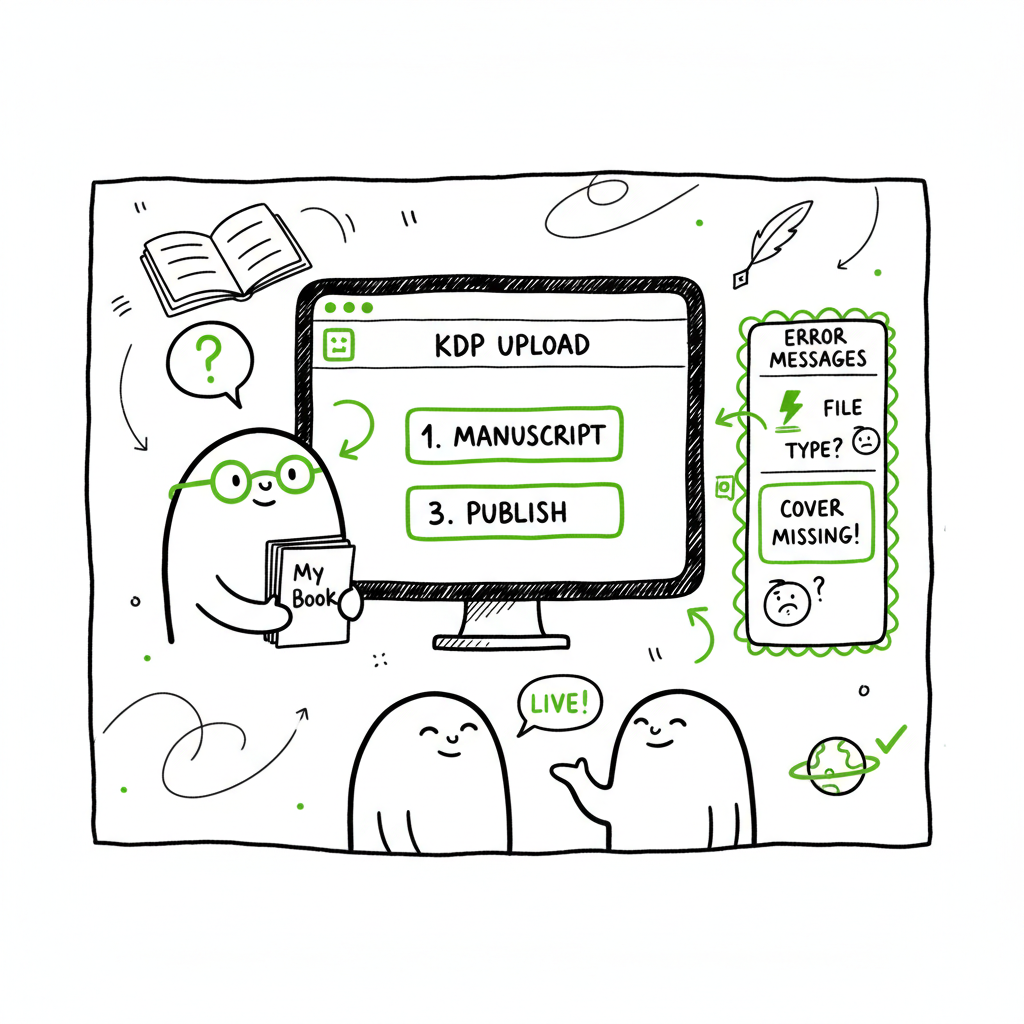
How to Upload a Manuscript to KDP Step by Step Guide
How to Upload a Manuscript to KDP
Estimated reading time: 9 minutes
Table of Contents
- Why the manuscript upload matters
- Step-by-step: how to upload a manuscript to KDP
- Common upload errors and how to fix them
- How BookUploadPro helps with KDP manuscript upload steps
- Final thoughts and next steps
- FAQ
- Sources
Why the manuscript upload matters
If you want your book to read well on Kindle devices and look right in print, the manuscript upload is the gate between your words and real readers. The process you follow when you upload a manuscript to KDP determines whether chapters break cleanly, images stay in place, and page numbers and margins match the chosen trim size. If you’re planning more than one title or multiple formats, the upload step is where small mistakes multiply into time-consuming fixes.
When you start publishing seriously, tidying the upload workflow is an obvious productivity move. For authors ready to scale beyond a single title, see Self Publish Book Amazon KDP — it’s the kind of resource that helps you move confidently from a finished manuscript to live listing without repeated trial and error. For a detailed, step-by-step guide, How to Upload to KDP.
For authors who want to optimize the process, consider tools and resources that help you standardize formats across ebook and print. In practice, a clean, validated interior file reduces back-and-forth and keeps the focus on publishing rather than troubleshooting. BookUploadPro is designed to support that aim, delivering consistent interiors and smoother uploads.
Step-by-step: how to upload a manuscript to KDP
This section walks through the KDP manuscript upload steps in plain language. Follow the order and check the preview tools carefully. If you plan to produce both ebook and print files, prepare each interior separately.
- 1. Sign in and open your book project
– Go to your KDP Bookshelf and click Create a New Title or select an existing title and choose Edit content. KDP organizes content by format (Paperback, Hardcover, Kindle eBook). Each format gets its own manuscript file. - 2. Choose format and print options (for print)
– For paperbacks and hardcovers you must choose trim size, bleed or no-bleed, and paper color before uploading the interior. These choices determine the required margins and whether images extend to the edge. - 3. Pick the right file type
– For ebooks, Amazon recommends a properly formatted EPUB. That file preserves layout and is more reliable than letting raw Word convert automatically. If you need to convert a Word or other file to EPUB first, consider using a dedicated converter to reduce formatting surprises. If you convert to EPUB, you can use tools or services that handle the conversion cleanly; for a direct option, try a dedicated EPUB converter to generate a validated file.
– For print, KDP accepts PDF, DOC, DOCX, RTF, HTML, and TXT. Most authors upload a print-ready PDF to preserve layout and pagination. - 4. Upload the manuscript
– In the Manuscript or Manuscript upload section, click Upload manuscript (or Upload eBook manuscript). Select your file and wait for KDP to receive and convert it. Do not navigate away while the conversion is running; let the system finish. - 5. Launch the Previewer
– After KDP shows the upload as complete, click Launch Previewer (Kindle Previewer for ebooks; the print previewer for paperbacks/hardcovers). Inspect page breaks, chapter headings, images, and page count. For paperbacks, simulate the final trim and verify gutters and margins. - 6. Fix issues and re-upload if needed
– If you find problems, edit your source file or regenerate a corrected EPUB/PDF, then re-upload. You can update a live title by re-uploading the interior from the same Manuscript area; KDP handles revisions but large structural changes may require a new edition. - 7. Save and continue
– When the preview looks right, click Save and Continue to proceed to cover, pricing, and distribution settings.
Notes on cover and ebook creation
– If you still need a cover, plan for a print-ready cover that matches trim size and includes the spine text when appropriate. Covers often need iteration to meet KDP trim and spine rules.
For additional context on how to prepare interior files and previews, you can explore related resources that discuss best practices for ebook and print formats, including guidance on ensuring layout consistency across formats. BookUploadPro can help streamline the upload and formatting steps across platforms.
Common upload errors and how to fix them
KDP’s conversion and preview tools are helpful, but a few problems occur frequently. Knowing them saves time.
- Strange page breaks and extra blank pages
Cause: Word styles or manual page breaks. Fix: Remove manual page breaks; use consistent heading styles and export to PDF with proper page size for print. For ebooks, use a clean export to EPUB rather than relying on Word conversion. - Images shift or disappear
Cause: Incorrect image sizing or unsupported formats. Fix: Embed images at the correct resolution (300 DPI for print) and use stable formats like JPEG or PNG. For ebooks, place images inline and avoid absolute positioning. - Incorrect margins or cut-off content in print
Cause: Trim size mismatch or missing bleed. Fix: Ensure your interior PDF is exported at the exact trim size and includes bleed if your design extends to the page edge. - Table of Contents not linked (ebooks)
Cause: Missing internal links. Fix: Generate a linked TOC in your EPUB or use your manuscript-to-EPUB tool to create anchor links for each chapter. - Upload fails or conversion times out
Cause: File corruption or unsupported elements. Fix: Re-export the file, simplify complex formatting, and confirm the file opens locally. If uploads repeatedly fail, try saving as a different accepted format (e.g., DOCX → export to EPUB with a converter).
When you encounter these issues, step back and treat the manuscript as a delivery file: the cleaner and more standardized it is before upload, the fewer surprises KDP will produce.
How BookUploadPro helps with KDP manuscript upload steps
Many independent authors reach a point where manual uploads and fixes slow publishing. BookUploadPro automates repetitive parts of multi-platform publishing so you can move faster without more mistakes.
What BookUploadPro does
– Produces KDP-ready interiors: A completed, formatted interior file sized for KDP ebook or print requirements (EPUB for ebook, print-ready PDF or DOCX for paperback). That reduces back-and-forth fixes after previewing. BookUploadPro helps ensure a smoother submission.
Handles platform-specific rules: The system packages files to match KDP’s bleed, margin, and trim expectations and uses platform intelligence so you don’t guess which format to upload.
Automates batch uploads: When you publish multiple titles or formats, CSV batch uploads and automation cut the hands-on time dramatically, saving roughly 90% of manual effort.
Reduces errors: By validating files against platform rules before upload, BookUploadPro lowers the chance of rejected uploads or broken previews.
Makes wide distribution practical: The same workflow adapts files for Amazon KDP, Kobo, Apple Books, Draft2Digital, and Ingram, so one prepared manuscript turns into multiple store-ready assets.
Why this matters in practice
– Faster time to market: Less rework after previewing means you hit publish sooner.
– Cleaner reader experience: Properly formatted chapters, consistent margins, and reliable TOCs improve readability and reduce negative feedback.
– Scale without overhead: If you plan a series or multiple titles per year, automation plus human checking is an obvious upgrade once authors start publishing seriously. Automate the upload. Own the distribution.
BookUploadPro is focused on the upload and formatting pipeline—not on ghostwriting. Pricing is project-based and tied to manuscript length and complexity. If your project includes both ebook and paperback, BookUploadPro delivers both interiors matched to KDP’s rules.
Cover, EPUB, and book creation resources
– If you need a print-ready or ebook cover, services exist that generate compliant covers sized for KDP’s trim options; a properly made cover prevents last-minute rework and keeps spine text aligned. For example, a dedicated tool like a cover generator available through a reliable provider can help, and you can explore a cover generator processing for streamlined results.
– If you want to convert a Word file to an EPUB you can upload directly, use a trusted EPUB converter that creates validated, linked EPUBs to avoid layout issues in the Kindle Previewer.
– When you’re creating both ebook and paperback versions, it helps to think of them as separate deliverables: a pixel-perfect PDF for print and a flowable EPUB for ebook stores. For tools that handle EPUB conversion and general book creation, consider dedicated services that specialize in those outputs and reference a book creation workflow for broader process improvements.
By preparing the right files and handling uploads to KDP and other stores, BookUploadPro reduces the technical friction that trips up many first-time authors.
Final thoughts and next steps
Uploading a manuscript to KDP is a repeatable, rule-driven task once you know the required formats and the preview checks to run. The most common slowdowns come from source files that haven’t been exported to the right specs and from skipping the preview step. A good workflow separates writing from delivery: write in your preferred tool, then prepare a delivery file that matches KDP’s requirements.
If you want to streamline this work:
– Standardize your manuscript source and style usage.
– Export clean EPUBs for ebooks and print-ready PDFs for paperbacks.
– Use a preview tool (Kindle Previewer or KDP Print Preview) before you hit Save and Continue.
– When publishing multiple titles or formats, consider automation to manage repeated uploads and metadata entry.
BookUploadPro focuses on turning your finished manuscript into platform-ready files and automating the repetitive parts of multi-platform publishing. If you’re ready to spend less time wrestling with uploads and more time on writing or marketing, visit BookUploadPro.com and try the free trial. BookUploadPro can help speed your path to market.
FAQ
Q: What file should I upload to KDP for an ebook?
A: KDP recommends a well-formatted EPUB for ebooks. You can also upload DOCX, but EPUB gives more consistent results in conversion.
Q: Can I update my manuscript after the book is live?
A: Yes. You can edit your book from the KDP Bookshelf and re-upload a revised interior. Small updates are straightforward; structural or large page-count changes may be treated as a new edition.
Q: What if my print book prints with cut-off text?
A: Check trim size, bleed settings, and inside margins (gutter). Export the interior PDF at exact trim dimensions with the required bleed and margin settings, then preview in KDP’s print previewer.
Q: Do I need separate files for ebook and paperback?
A: Yes. A reflowable EPUB works for ebooks; a fixed-layout PDF sized to the trim works for print. Each format has different requirements.
Q: How do I make sure my table of contents links work in Kindle?
A: Create a linked TOC in your EPUB with anchor tags for each chapter. Test links in the Kindle Previewer.
Sources
- https://kdp.amazon.com/help/topic/G202176900
- https://kdp.amazon.com/help/topic/G202172740
- https://kdp.amazon.com/help/topic/G202145060
- https://reedsy.com/blog/guide/kdp/how-to-publish-a-book-on-amazon/
- https://www.youtube.com/watch?v=sOLMODU6fis
- https://www.youtube.com/watch?v=H4x8fH-vd1g
How to Upload a Manuscript to KDP Estimated reading time: 9 minutes Table of Contents Why the manuscript upload matters Step-by-step: how to upload a manuscript to KDP Common upload errors and how to fix them How BookUploadPro helps with KDP manuscript upload steps Final thoughts and next steps FAQ Sources Why the manuscript upload…