KDP Author Dashboard Practical Guide for Self-Publishing
kdp author dashboard: A practical guide for self-publishing authors
Estimated reading time: 15 minutes
Key takeaways
- The kdp author dashboard is the central place to manage titles, pricing, and promotions for Kindle books.
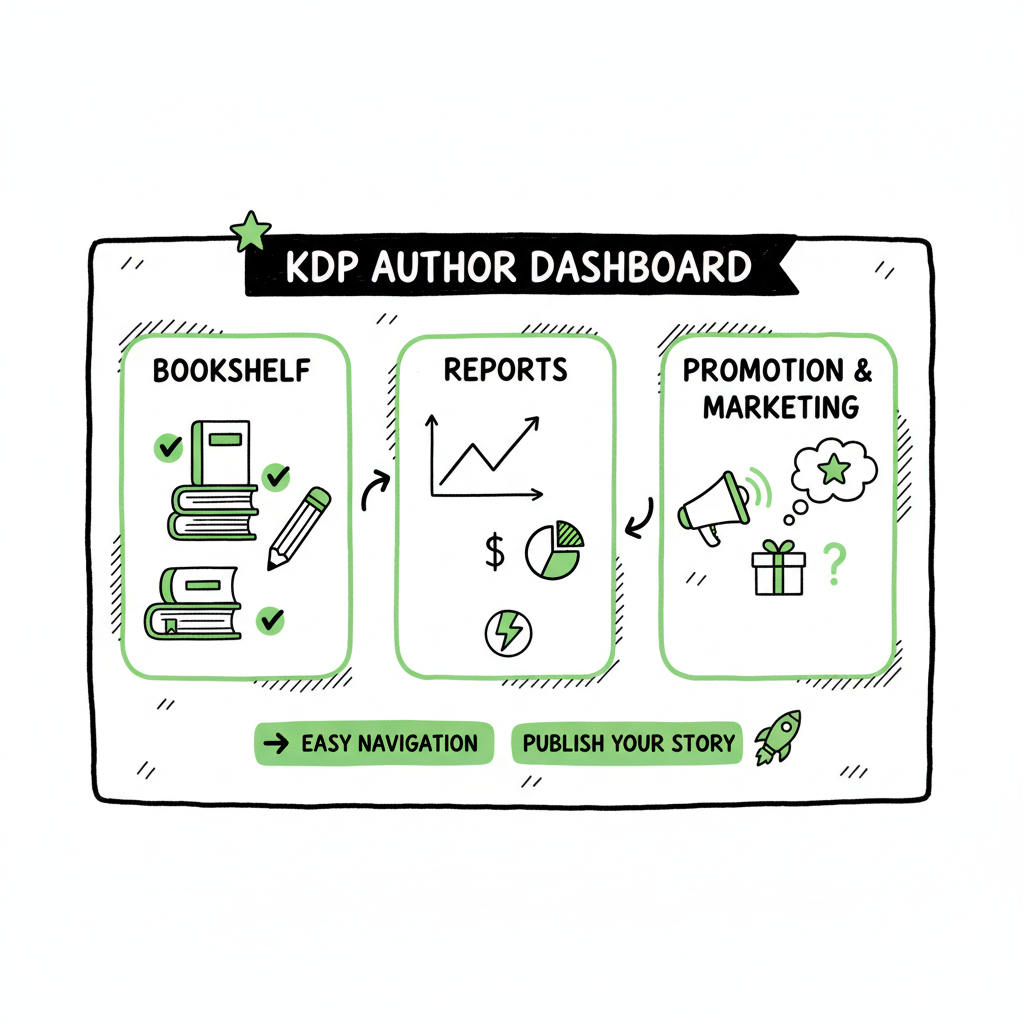
- Use the Bookshelf for edits and distribution tasks, and the Reports area to track royalties, sales, and KENP reads.
- When you publish at scale, a multi-platform uploader like BookUploadPro saves time, reduces errors, and makes wide distribution practical.
Table of Contents
- Overview — what the KDP Author Dashboard does
- Bookshelf management — edits, pricing, and formats
- Reports and marketing — reading the numbers, promotions, and integrations
- Scaling publishing and automation with BookUploadPro
- Frequently Asked Questions
KDP Author Dashboard — what it does and why it matters
If you publish on Amazon, the kdp author dashboard is where most day-to-day work happens. For a practical walkthrough and author-focused tips, see Amazon KDP for Authors.
Log in at kdp.amazon.com and you’ll see the Bookshelf, Reports, and tools for marketing and community. The dashboard ties title-level settings (like price and description) to live sales data and promotional controls. For anyone getting beyond one or two books, it becomes the operations hub.
For a practical walkthrough and author-focused tips, see our guide Amazon KDP for Authors — it pulls together the dashboard basics and points you to the items that authors check most often. Treat the dashboard like a small control room: quick edits happen on the Bookshelf, performance checks happen in Reports, and marketing tools link to your author presence on Amazon.
Bookshelf management — edits, pricing, and formats
What lives on the Bookshelf
The Bookshelf lists every title tied to your account: drafts, live Kindle ebooks, paperbacks, and preorders. Each line has a quick menu (the three dots) that gets you to the most common tasks: edit book details, change pricing, order author copies, and view content files.
Common tasks and where to find them
- Edit book details: Title, subtitle, description, and contributor names are all editable from the Bookshelf. Small edits don’t require re-uploading files unless you change the manuscript or cover.
- Pricing and territories: Price and distribution territories are managed per title. If you sell internationally, confirm royalty settings and pricing tiers for each market.
- Author copies and proofs: For paperbacks, use the menu to order author copies and digital proofs. Paperback proofing is a separate step from ebook publishing.
- Version control: Keep track of which file set is live. If you re-upload a corrected manuscript or cover, use a clear naming convention and note the upload date in your records.
Formats: ebook, paperback, and file prep
Many authors publish both Kindle ebooks and paperbacks. KDP handles both, but the inputs differ. Ebooks require a clean manuscript and a valid EPUB or formatted Word file. If you need a fast conversion tool, a reliable epub converter can simplify the process and reduce rejections. For paperbacks, KDP expects a print-ready PDF with correct trim size, bleeds, and embedded fonts.
Cover files and production
A store-ready cover needs correct spine sizing and bleed for print. If you create covers in-house or with a designer, export them per KDP specs. If you’re experimenting or want fast mockups, a book cover generator can speed design iterations and create print-ready assets for paperbacks and ebooks.
Practical tips for Bookshelf management
- Make edits during low-traffic hours when possible. Title changes can trigger caching delays on Amazon product pages.
- Keep one spreadsheet that tracks ASIN/ISBN, publication date, price, and where each file is stored. This avoids duplicate uploads and prevents mismatched editions.
- If you change price, allow up to 72 hours for all marketplaces to reflect the update.
- Use descriptive version notes when updating a live file. That helps if you need to roll back or explain changes to a distributor or designer.
When to re-upload files versus metadata changes
Only re-upload manuscript or cover files when the content itself changes. If the update is limited to pricing, description, or keywords, edit metadata only. Re-uploads can trigger checks and delays in availability.
Distribution choices on the Bookshelf
KDP offers expanded distribution and the option to enroll in KDP Select. Expanded distribution affects paperback availability through retailers and libraries; KDP Select gives you Kindle-only promotional tools in exchange for exclusivity for the ebook. Choose based on your goals: maximum reach or Kindle promotional benefits.
Reports and marketing — reading the numbers, promotions, and integrations
Understanding Reports
The Reports section is where you verify sales, track estimated royalties, and watch KENP (Kindle Edition Normalized Pages) reads for books in Kindle Unlimited. The interface shows top-earning books, royalty estimates, and order numbers, and it lets you filter by date range and marketplace.
Key report elements
- Estimated Royalties: These are pre-payroll estimates of what you earned by marketplace and format.
- Units Sold: Count of orders by marketplace. Watch for spikes—sudden changes can indicate promotion effects or reporting delays.
- KENP Reads: For enrolled KDP Select titles, this metric shows page reads attributed to your book. It matters if you rely on KU readership.
- Payments and transaction history: Track when royalties move from “estimated” to “paid.” Payout timing varies by bank and region.
How to read fluctuations
- Promotions: Free promotions or price drops show quick spikes in units. Pair promotional activity with a review of conversion (page reads, follow-on purchases).
- Returns and refunds: High returns can affect net royalties. Monitor returns after bulk promotions or giveaways.
- Reporting delays: Amazon sometimes updates reports retroactively. If numbers look wrong, wait 48–72 hours before opening a ticket.
Marketing tools connected to the dashboard
The dashboard links to promotional tools: KDP Select enrollment, Kindle Countdown Deals, and the ability to create free-book promotions. The Marketing area also points to Author Central, where you set your author page and link books to your profile.
Author Central and enhanced content
Author Central is separate from KDP but integrates closely. Use it to claim your author page, add a bio, and link blog feeds. A+ Content (enhanced content) is available for paperbacks and some product pages; it’s not managed entirely through the KDP dashboard but the dashboard points you toward those options.
Practical promotional steps
- Time promotions: Align price drops with email announcements, newsletter pushes, or ad campaigns. The dashboard shows the effect in Reports.
- Track ROI: If you run Amazon Ads, cross-check ad spend against incremental units sold. Use the Reports export for deeper analysis.
- Keep a promotion calendar: Note start and end dates, price, and channels used. That makes correlation between promotions and sales spikes simple.
When numbers don’t match expectations
If a report seems off, first confirm the time range and marketplace filters. If the problem persists, gather screenshots and transaction IDs before contacting KDP support. Having clean records speeds resolution.
Scaling publishing and automation with BookUploadPro
Why authors reach for automation
Publishing one book manually is simple; publishing dozens gets repetitive and error-prone. Manual uploads require filling metadata, selecting distribution options, and uploading files for every title and every platform. That’s where a multi-platform uploader saves time.
What BookUploadPro does
BookUploadPro automates repetitive uploads across major stores: Amazon KDP, Kobo, Apple Books, Draft2Digital, and Ingram. It uses CSV batch uploads and platform-specific intelligence to map a single data source to different storefront requirements. The result: roughly 90% time savings on uploads, fewer manual errors, and consistent metadata across platforms.
Practical benefits
- Unified multi-platform publishing: Single source of truth for metadata and files reduces mismatches and listing errors.
- CSV batch uploads: Update or create hundreds of titles with structured CSVs. That’s faster than repeating forms and menus.
- Platform-specific intelligence: BookUploadPro adapts fields, image sizes, and file formats to each store’s rules, reducing rejections.
- Error reduction: Automated checks catch common problems before submission.
- Affordable pricing and a free trial: The platform is designed for authors who publish seriously and want an obvious upgrade from one-off manual uploads.
How BookUploadPro fits with the KDP Author Dashboard
Think of BookUploadPro as the upstream system that prepares and pushes titles, while the kdp author dashboard remains the place to view live sales and tweak promotions on Amazon. Even when you automate uploads, you’ll return to KDP for reports and some marketing tasks. Automation doesn’t replace KDP; it reduces the painful work of getting data and files right on every store.
A practical workflow
- Prepare a CSV with title-level metadata, pricing, and distribution choices.
- Point BookUploadPro to the files you want to publish: manuscript, cover, and any supplementary assets.
- Let BookUploadPro validate and upload to each store. The system alerts you to mismatches or required changes.
- Use the KDP Author Dashboard to monitor sales, enroll titles in KDP Select if desired, and run promotions.
Format and cover prep — tools that speed the job
If you convert manuscripts to EPUBs for multiple stores, using a reliable epub converter reduces bugs and rejections. For covers, a processing tool can generate the right sizes and layouts for paperback spines and ebook thumbnails. Both steps reduce manual troubleshooting and keep listings consistent as you scale.
When to choose automation
If you plan to publish regularly or distribute across multiple stores, automation is the obvious next step. It’s especially useful for series releases, multi-language editions, or backlist updates. Automate the upload. Own the distribution.
Frequently Asked Questions
Q: What is the kdp author dashboard URL?
A: The dashboard is at kdp.amazon.com. Sign in with the account that holds the rights and titles you manage.
Q: How do I edit a live book?
A: Use the Bookshelf, find the title, and choose “Edit book details” or “Edit paperback content” depending on the change. Minor metadata edits are immediate; content file changes require a new upload and review.
Q: Where do I find royalty reports?
A: Open Reports in the dashboard. You’ll see estimated royalties, units sold, and KENP reads for the selected date range and marketplace.
Q: Can I publish the same book as an ebook and paperback?
A: Yes. KDP supports both. Upload the ebook manuscript and cover, then create the paperback and use a print-ready PDF for the interior and cover.
Q: I want to distribute beyond Amazon. What should I do?
A: Use KDP for Amazon distribution and a multi-platform service to reach Apple Books, Kobo, Ingram, and other stores. Automating uploads with a tool that supports CSV batch jobs makes multi-store publishing manageable at scale.
Q: What causes KDP report delays?
A: Reporting can update retroactively. Delays often result from processing returns, corrections, or cross-marketplace settlements. Wait 48–72 hours for many reporting issues to resolve before escalating.
Q: How do I handle cover design for paperback spines?
A: Calculate the spine width based on page count and trim size, then export a print-ready cover with proper bleeds. If you need faster cover generation or automation, a book cover generator can prepare print-ready assets.
Q: Do I need EPUB files for other stores?
A: Yes. Stores like Apple Books and Kobo prefer EPUB. Use a reliable epub converter to produce valid files and avoid rejections during upload.
Q: Can BookUploadPro help with EPUB conversion or covers?
A: BookUploadPro focuses on automated uploads and mapping metadata across platforms. For the file prep steps—cover processing and EPUB conversion—use dedicated tools that produce print-ready PDFs and validated EPUBs before triggering batch uploads.
Final thoughts
Publishing at scale changes the work from one-off tasks to repeatable operations. The kdp author dashboard remains essential for Amazon-specific controls and sales tracking. For multi-platform distribution and bulk uploads, automation tools that handle CSV batch uploads, platform-specific rules, and error checks let you focus on writing and marketing instead of repetitive form-filling. Automate the upload. Own the distribution.
Visit BookUploadPro.com to explore the platform and try the free trial.
Sources
- https://help.selfpublishing.com/en/5-things-to-know-about-your-kindle-direct-publishing-kdp-dashboard
- https://kdp.amazon.com/help/topic/G200644310
- https://kdp.amazon.com/help/topic/GX7EGDFGS9CZCA2F
- https://kdp.amazon.com/help/topic/GVTTXHKHVPAPBEDQ
- https://www.youtube.com/watch?v=N7d8Dci_KVs
kdp author dashboard: A practical guide for self-publishing authors Estimated reading time: 15 minutes Key takeaways The kdp author dashboard is the central place to manage titles, pricing, and promotions for Kindle books. Use the Bookshelf for edits and distribution tasks, and the Reports area to track royalties, sales, and KENP reads. When you publish…