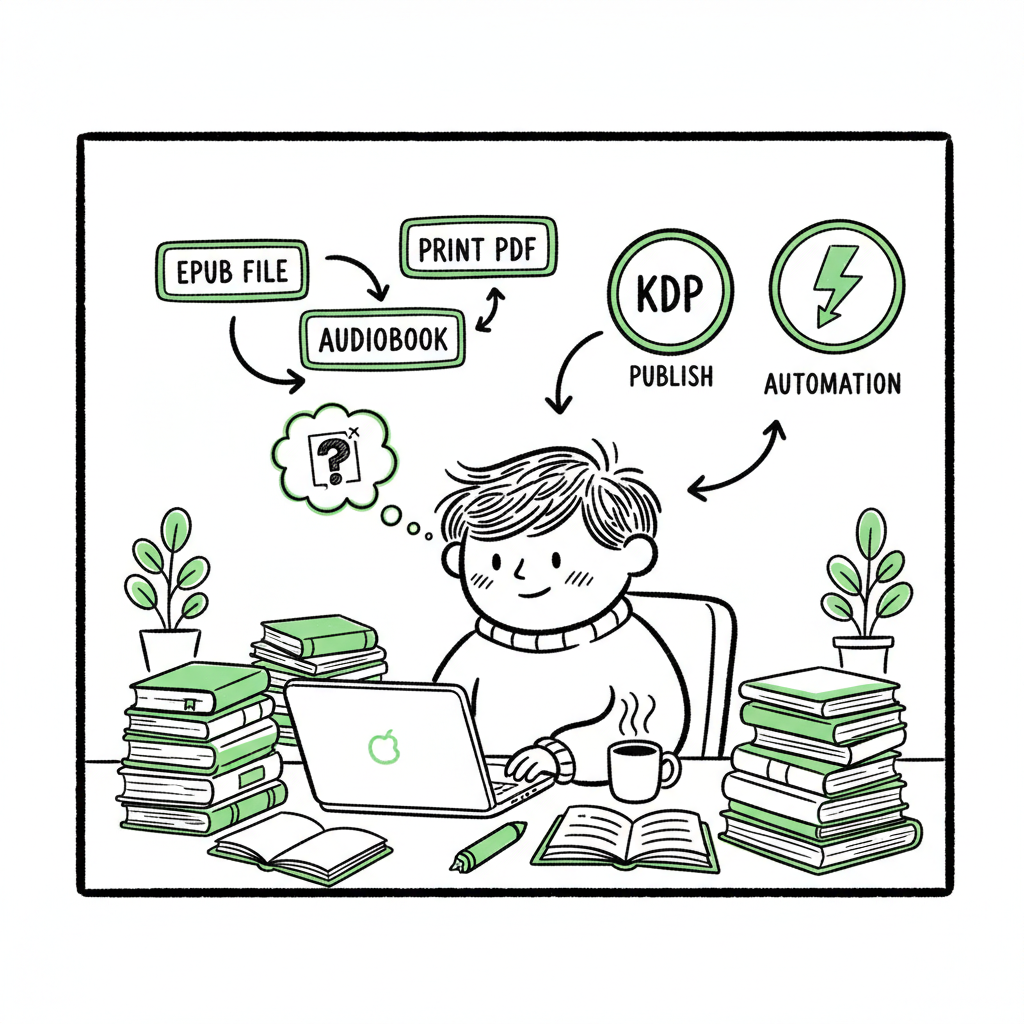
Beginner KDP Author Practical Guide to Your First Book
Beginner KDP Author: A Practical Guide to Your First Book and Beyond
Estimated reading time: 18 minutes
Key takeaways
- Start with clean metadata and a simple, correct file set to avoid common KDP errors.
- Format once, publish everywhere: convert to EPUB, prepare print files, and automate distribution to save time.
- When you begin publishing seriously, unified multi-platform tools that handle uploads cut work and errors by ~90%.
Table of Contents
- Getting started as a beginner KDP author
- Formatting, covers, and file prep
- Multi-platform publishing and scaling
- FAQ
Getting started as a beginner KDP author
If you are a beginner kdp author, the first thing to understand is that publishing is a sequence of small, repeatable steps. Some authors treat publishing like a one-time launch. That works for a single book. If you plan to publish multiple titles, a systematic approach saves time and reduces costly mistakes.
Begin with the basics: decide your book type (ebook, paperback, hardcover), pick a clear title and author name, and prepare a short description. These items are metadata—data that describe your book. Metadata drives discoverability on Amazon and other stores. Enter it consistently across editions so Amazon links your ebook, paperback, and hardcover together.
A practical tip for new authors: read a short guide focused on Amazon’s submission requirements so you know what file formats and sizes they accept. If you want a step-by-step KDP walkthrough tailored to authors, review Amazon KDP for Authors for the uploader’s expectations and common issues early. That will prevent delays when you click Publish.
First KDP book steps in order
- Set up your KDP account and payment/tax details. KDP won’t publish without those completed.
- Prepare your manuscript and cover files. Save them in the formats KDP recommends.
- Enter your book’s metadata accurately: title, subtitle, author, series, edition, and keywords.
- Upload manuscript and cover, preview on KDP’s online previewer, fix issues, and publish.
Focus on the sequence, not the tools. Pieces that are done correctly once—clean metadata, a reliable file naming system, and a tested interior template—let you repeat the process quickly for the next book.
Rights, ISBNs, and pricing basics
Rights: When you publish on KDP, you declare whether you hold worldwide rights or only specific territories. Be honest. The choice affects distribution and other platforms.
ISBNs: You can use a free KDP ISBN for print books, or provide your own. If you plan to publish wide (outside Amazon), owning your ISBN is cleaner for supply chains and library distribution.
Pricing: Test pricing but be conservative for your first release. Use Amazon’s royalty options (35% or 70%) depending on price and territories. Keep records of your chosen price points and royalty settings so you can reuse them as you scale.
Mental model for a beginner
Think like an operator: map the task (account, files, metadata, publish), then build a checklist that you can run through in ten minutes once your files are ready. The checklist reduces stress and keeps launches predictable.
Formatting, covers, and file prep
A common stumbling block for first kdp book steps is file formatting. KDP accepts several file types, but the most reliable approach is to produce proper EPUB files for ebooks and print-ready PDFs for paperbacks. EPUB is the modern, flexible ebook format that converts cleanly across stores.
Manuscript formatting
Start with a clean manuscript file. Use a consistent font, remove excessive manual formatting, and rely on styles (Heading 1, Heading 2, Body Text) in your editor. Export to EPUB from a dedicated tool or convert your final Word file carefully.
If you don’t want to wrestle with conversion, an EPUB converter can handle common layout and tagging issues for you. It turns a manuscript into a store-ready ebook file while preserving headings, table of contents, and inline images.
Covers: design and technical specs
A professional cover is non-negotiable. Covers are the first thing readers see, and low-quality covers reduce clicks and sales. For ebooks, the cover is a single image (typically a JPG). For print, you need a full wrap (front, spine, back) sized exactly to the page count, bleed, and trim.
If you want to speed cover creation without starting from scratch, use a book cover generator that produces print- and ebook-ready files and respects bleed and spine measurements. A good cover generator will export images at the correct DPI and dimensions for both KDP and other retailers.
Print files and interior
For paperbacks, KDP prefers PDF files with embedded fonts and the correct trim size. Your interior should include proper margins, gutters, and page numbers. Use a template for your chosen trim size so pagination and spacing work correctly. For complex layouts (tables, charts, images), test a proof copy before wide release.
EPUB, MOBI, and distribution
Amazon accepts EPUB files now; older formats like MOBI are less relevant. When you convert to EPUB, verify the internal table of contents, chapter breaks, and image placement. Some stores require slightly different EPUB variants—automating conversions reduces the need to learn every store’s quirks.
Creating multiple editions
When you create an ebook and a paperback, make sure the title and author fields match exactly across files and platforms. That allows retailers and bibliographic services to link editions and present a clean catalog entry for readers. If you plan to produce multiple print sizes, keep one master interior and generate variants from it.
Helpful tools (short list)
- Clean manuscript templates in Word or InDesign
- EPUB converter services for reliable conversion
- A book cover generator for both ebook and print covers
- PDF tools for print-ready interiors and proofs
When you mention cover and EPUB needs in your workflow, you’ll find tools that automate those steps. For example, a professional book cover generator can output the exact images you need for submission, while an EPUB converter handles conversion and cleanup. If you create paperbacks or ebooks regularly, consider a book creation tool that bundles conversion and cover outputs so you get one consistent package for every upload.
Multi-platform publishing and scaling
Publishing to Amazon is the center of many authors’ strategies. But selling only on Amazon leaves readers elsewhere unreachable. Distributing widely—to Apple Books, Kobo, Ingram, and other channels—makes your work available where readers prefer to buy. The practical challenge is that each store has slightly different file requirements and metadata fields. That is where automation pays off.
Why publish wide? Reach readers on other dominant stores and devices. Make print widely available to bookstores and libraries through Ingram. Reduce dependency on one store’s algorithm and promotions.
Manual uploads vs. automated uploads Many authors start by uploading separately to each retailer. That works for one book. The moment you publish multiple titles, manual uploads become a slog. Each store’s dashboard asks similar information—metadata, categories, pricing, and files. Repeating that process increases human error and wastes time.
A unified tool automates the repetitive tasks: it fills metadata across stores, formats files per platform rules, and uploads multiple books using CSV batch uploads. This approach reduces errors and lets you publish dozens of titles without repeating the same form filling.
What to expect from automation
- CSV batch uploads for many titles at once.
- Platform-specific intelligence that adjusts file and metadata mappings.
- Error reduction through validation checks before uploading.
- Time savings—authors report ~90% reduction in upload time when using automated tools for multiple titles.
Brand and role When authors start publishing seriously, a platform that handles multi-platform uploads becomes an obvious upgrade. BookUploadPro automates repetitive uploads across Amazon KDP, Kobo, Apple Books, Draft2Digital, and Ingram. It supports CSV batch uploads, applies platform-specific intelligence, and flags issues before they cause rejections. That makes wide distribution practical for independent authors.
How this approach changes your process
Build a single canonical record for each book: master metadata, one interior file, a set of covers. Use the platform to generate or adapt files for each store. Upload to all stores with one action or a single CSV import. Monitor live listings and fixes from one dashboard.
Practical scaling tips
- Standardize titles, subtitles, author names, and series values before batch uploading.
- Keep a single folder per title with named files: title-ebook.epub, title-print.pdf, title-cover.jpg.
- Track ISBNs and ASINs in a simple spreadsheet; automation platforms often export these for you.
- Use consistent pricing rules across stores but plan small tests to find the best price points.
Platform differences you need to know
- Amazon: wide audience, specific royalty bands, KDP Select option for exclusive ebook promotions.
- Apple Books: good discoverability for certain genres; uses different file ingestion rules.
- Kobo: strong in several international markets.
- Ingram: critical for wide print distribution into bookstores and libraries.
Automation handles the details so you focus on marketing and writing.
Error prevention
Automated checks validate your files and metadata against store rules before upload. That catches mismatched interior trim sizes, low-resolution covers, or missing mandatory fields. Fixing these issues in batch is faster than correcting them per platform. That reduction in back-and-forth is one of the largest time savers.
Ownership and control
Automating uploads does not take rights from you. It simply replicates the same information across stores. You retain control of pricing, territories, and account access. The idea is practical: automate the upload. Own the distribution.
Affordable pricing and trial
When you reach a point where manual uploads slow you down, a cost-effective automation service pays for itself. Many platforms offer affordable plans and a free trial so you can test the workflow with a single title and see immediate time savings.
Final publisher checklist before uploading
- Metadata verified and consistent.
- Ebook EPUB validated and previewed.
- Print PDF proofed and checked for margins/bleed.
- Covers created for both ebook and print.
- Pricing set and royalty options selected.
- Backup of all files and metadata exports saved.
FAQ
Q: How long does it take to publish my first book on KDP?
A: If your files are ready, the ebook can appear on Amazon within a few hours. Paperbacks may take longer due to review times. Expect a day or two for the listing to become stable.
Q: Do I need my own ISBN?
A: No. KDP can provide a free ISBN for print books. If you plan to distribute widely through Ingram or want to be listed under your own imprint, buy your own ISBNs.
Q: What file types should I use?
A: Use EPUB for ebooks and print-ready PDFs for paperbacks. Keep source files (Word, InDesign) for future edits.
Q: Should I use KDP Select?
A: KDP Select requires exclusivity for the ebook but offers promotional tools and access to Kindle Unlimited revenue. Choose it only if you are comfortable limiting ebook distribution to Amazon for the enrollment period.
Q: Can I publish the same book on multiple platforms?
A: Yes. You can publish widely unless you’re enrolled in an exclusivity program (like KDP Select). Using automated tools makes wide distribution practical.
Q: How can I reduce mistakes when uploading multiple books?
A: Standardize your metadata, use templates for interiors and covers, and consider a batch uploader that validates files before submission.
Q: How does pricing work across platforms?
A: Each platform has its pricing and royalty rules. Automation tools let you apply pricing rules and convert currency equivalents, but always check platform-specific royalty thresholds and delivery costs.
Q: What if my cover or file is rejected?
A: Review the rejection message, fix the specified issue (image resolution, trim size, embedded fonts), and upload the corrected file. Automated checks often catch these issues before you submit.
Sources
- https://kdp.amazon.com/help/topic/GHKDSCW2KQ3K4UU4
- https://kdp.amazon.com/help/topic/G202172740
- https://reedsy.com/blog/guide/kdp/
- https://www.bookautoai.com/book-cover-generator-processing
- https://www.bookautoai.com/epub-converter
- https://www.bookautoai.com
Beginner KDP Author: A Practical Guide to Your First Book and Beyond Estimated reading time: 18 minutes Key takeaways Start with clean metadata and a simple, correct file set to avoid common KDP errors. Format once, publish everywhere: convert to EPUB, prepare print files, and automate distribution to save time. When you begin publishing seriously,…