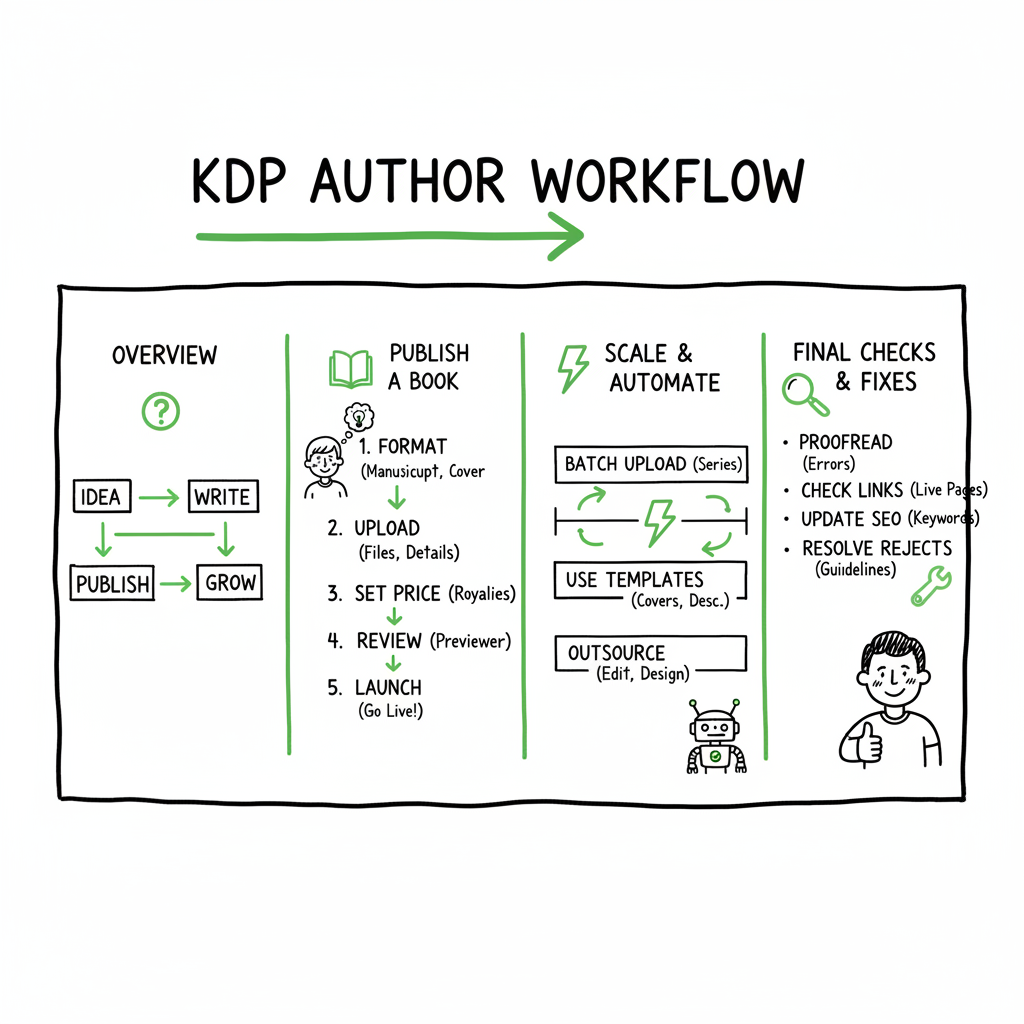
KDP Author Workflow Practical Steps to Publish Faster
kdp author workflow: Practical steps to publish faster and scale across platforms
Estimated reading time: 16 minutes
Table of Contents
Table of Contents
- Overview — Why standardize your kdp author workflow
- Step-by-step workflow for a single book
- Scale and automation: batch uploads and multi-platform publishing
- Final checks, tracking, and common fixes
- FAQ
Overview — Why standardize your kdp author workflow
If you publish more than one book, the manual way stops working. Repeating the same manual steps for manuscript files, cover images, metadata, and uploads costs time and invites errors. A deliberate kdp author workflow turns ad-hoc effort into a reliable sequence: prepare, format, package, preview, and publish. When you treat those steps as a system, you reduce missteps like wrong ISBNs, mismatched covers, or files that fail the previewer.
Early in the process you also make choices that affect discoverability and sales: titles, subtitles, descriptions, keywords, and categories. These belong in the workflow, not left to the last minute. For authors working to scale, a good system makes each book faster to produce and easier to maintain across platforms.
If you’re new to KDP, a helpful starting point is an overview for authors using Amazon’s publishing tools. For a practical guide to account setup and what Amazon expects, see Amazon Kdp For Authors which walks through the basic KDP publishing experience and the fields you must fill. That guide is a useful reference when you map each KDP step into your workflow.
What a solid workflow gives you:
- Predictable timings so you know how long each book will take.
- Fewer rejections and previewer errors.
- Consistent metadata that helps automatic linking across ebook and paperback formats on Amazon and other platforms.
- The ability to batch new titles without repeating the same manual configuration.
A practical step-by-step kdp author workflow
This section lays out a simple, repeatable sequence you can follow for every title. The goal is clarity: each step produces a deliverable you can reuse for other books.
Step 1
1. Plan and name assets
- Final manuscript file name (e.g., Title_Full_FINAL.docx)
- Cover file name (Title_Cover_FINAL.png or .pdf as required)
- Metadata sheet with title, subtitle, contributors, description, keywords, categories, price, and territories
Store these files in a single folder and keep one CSV that lists the same metadata for every book. That CSV will be essential if you later batch-upload multiple titles.
2. Format the interior
- Choose a single source file for edits (DOCX or Markdown). Use a tool that exports KDP-compatible formats.
- If you need EPUB for ebook distribution, convert once from the same clean source so your ebook and paperback content match.
- If you want an automated EPUB conversion, use a reliable converter to avoid reflow problems and table-of-contents errors; an automated EPUB tool can save time and eliminate manual fixes.
3. Create and verify the cover
- Covers must match the specifications for each format. For paperbacks you need a full-cover PDF (front, spine, back) sized to trim dimensions plus bleed. For ebooks you need a clean front cover JPEG or PNG.
- If you don’t have a designer, use a cover generator that creates print-ready and ebook-ready files. That cuts back-and-forth and ensures the cover dimensions match your interior trim size.
4. Assemble metadata
- Write your description in a few variations: short, medium, and long. Decide your keywords and categories deliberately.
- Use the same title and contributor fields exactly as you plan to publish them to avoid catalog mismatches.
5. Run final checks locally
- Open the printed PDF in a viewer and scan: page numbers in order, consistent fonts and spacing, no placeholder text or editor notes, images at proper resolution.
- For ebooks, load the EPUB into a reader and check the table of contents, paragraph breaks, and image placement. Fix in the source, re-export, and keep iteration logs so you know which version passed checks.
6. Upload and preview
- Use the platform previewers to verify layout and metadata one last time. On KDP, confirm that the uploaded files pass the previewer without warnings. Keep screenshots of the preview steps and the ISBN assigned (if KDP assigns one).
7. Publish and monitor
- Once published, check the live product page for correct metadata, cover, and available formats. For Amazon, verify that paperback and ebook versions are linked. Track sales and reviews, and keep a maintenance schedule for price and promotional changes.
Practical notes on files and formats
- Keep a single master manuscript that exports to DOCX for print and EPUB for ebook. Avoid editing the same content in multiple formats.
- For paperbacks use PDF with embedded fonts at the correct trim size.
- For ebooks use reflowable EPUB unless your book needs fixed layout.
- Standardize file names and dates. Your upload system should expect consistent patterns.
If you create covers and EPUBs as part of your workflow, using specialized tools will reduce rework. For automated cover generation that outputs print-ready files, a single link makes the process smoother. And for EPUB conversion that produces clean EPUBs from a master manuscript, a proven converter will save hours. When you create paperbacks or ebooks repeatedly, automated processing becomes a clear productivity win.
Scale and automation: batch uploads and multi-platform publishing
When you move from one book to many, the challenge shifts from creative work to reliable operations. The biggest time sinks are repeating uploads, re-entering metadata, and fixing platform-specific errors. A focused approach combines standardized inputs, batch processing, and platform-aware checks.
Standardize your inputs
- Keep one CSV or spreadsheet for all titles. Each row should include: Internal ID, Title / Subtitle, Author / Contributors, Short and long description, Keyword list, Categories / BISAC codes, ISBN (if preassigned), Price by marketplace, File paths to interior and cover files.
When every field is consistent, you can validate the CSV for missing fields before any upload attempt. That removes the most common cause of failed uploads.
Batch upload strategy
- Batch upload systems take a CSV and a set of files, then create listings across multiple stores. For multi-platform reach, a batch approach should target at least: Amazon KDP (ebook and paperback), Apple Books (epub), Kobo, Draft2Digital or aggregators, Ingram for wide print distribution.
Batch uploads reduce repetitive clicks and maintain identical metadata across stores. They also let you schedule releases and push many titles at once. For authors publishing seriously, batch uploads are an obvious upgrade.
Platform-specific intelligence
- Each platform has quirks. A good multi-platform process does platform checks like EPUB validation for Apple and Kobo, cover spine width calculation for different trim sizes, pricing conversion for different marketplaces, and ISBN vs ASIN handling and how platforms link ebook and paperback formats.
A platform-aware uploader will adjust files as needed or flag platform-specific warnings before upload. That saves time because you fix problems once in the source, not after the book is live.
Automation tools and what to expect
- Automation should do the repetitive work: map CSV fields into platform fields, upload files, and return an upload report with errors and live links. Expect automation to cut manual time by roughly 70–90% on routine tasks such as uploading or updating titles. It won’t replace editorial work or book design, but it will remove the busywork and reduce mistakes that happen when you copy-paste metadata between sites.
Practical capabilities to look for:
- CSV batch uploads that accept file paths and metadata.
- Platform-specific presets (paperback trim, ebook pricing rules).
- Error reporting that points to the exact field or file that failed.
- Scheduling and re-upload abilities for updates.
BookUploadPro and your workflow
- When you reach steady publishing output, a tool that automates uploads across Amazon, Kobo, Apple Books, Draft2Digital, and Ingram makes wide distribution practical. A unified workflow with CSV batch uploads, platform-specific intelligence, and error reduction protects your time and reputation. At scale, automation isn’t a gimmick — it’s an obvious upgrade once authors start publishing seriously. Automate the upload. Own the distribution.
Final checks, tracking, and common fixes
Before you press publish, run a short verification list. The final checks are simple and catch most problems.
Metadata sanity check
- Author name consistent across ebook and paperback.
- Subtitle exactly the same where required.
- Keywords are relevant and within platform limits.
- Categories match the book’s genre and audience.
File validation
- EPUB passes an EPUB validator.
- PDF for paperback has embedded fonts and proper trim.
- Cover resolution meets minimum DPI for print.
Preview and catalogue checks
- Ensure paperback and ebook are linked on Amazon.
- Verify sample pages look right in the ebook preview.
- Confirm the book appears in the right storefronts after publishing.
Common fixes
- Wrong page count: re-export PDF with correct settings and re-upload.
- Missing images: check image folder links in source manuscript and re-export.
- Cover alignment issues for paperbacks: recalculate spine width using final page count and regenerate the cover.
Tracking and maintenance
- After publishing, keep a short log for each title listing: Upload date, Platforms published to, ISBNs and platform IDs, Screenshots of live pages, Next scheduled price/promotion check.
Review this log whenever you make a metadata update. Tracking lets you undo changes if something breaks.
When things go wrong: If a platform rejects a file, the error message often points to the offending field. Fix the source file, regenerate the export, and re-upload. If a problem is unclear, use your validation tools to isolate the issue and keep a private checklist of typical platform errors and their fixes — over time this reduces troubleshooting from hours to minutes.
Practical habits to save time
- Keep one clean master manuscript and one master metadata CSV.
- Store cover and interior final files in a versioned folder.
- Use templates for descriptions and author bios that you can tweak.
- Automate what you can: batch uploads, pricing updates, and scheduled releases.
Note: For automated cover generation, EPUB conversion, or creating paperback and ebook files, consider tools that produce print-ready covers, validated EPUBs, and packaged files ready for multi-platform upload.
For more detail, see Amazon Kdp For Authors.
FAQ
Q: What are the essential files for a KDP upload?
A: For KDP you typically need the interior file (PDF for paperback, EPUB or DOCX for ebook), a cover file (PDF for paperback wrap or JPG/PNG for ebook cover), and metadata (title, author, description, keywords, categories, price, and territory settings).
Q: How can I reduce previewer errors before uploading?
A: Use validators and previewers locally. Export from a single, clean source file. Validate EPUBs and check PDFs for embedded fonts and correct trim size. Run automated checks where possible and keep a fix list for recurring issues.
Q: Should I use KDP Select?
A: KDP Select can increase visibility via Kindle Unlimited but requires exclusivity for the ebook. Consider it for specific titles and timeframes rather than as a blanket rule for everything you publish.
Q: Do I need different covers for ebook and paperback?
A: Yes. Ebooks use a single front-cover image with no spine or back. Paperbacks need a full-cover file sized for trim plus bleed with the spine calculated from page count. A single cover generator can produce both versions reliably.
Q: How do batch uploads handle platform differences?
A: A robust batch uploader maps your CSV fields to each platform’s required fields and flags platform-specific constraints. It prepares platform-ready files and reports errors so you fix the source once.
Q: What metadata mistakes should I watch for?
A: Inconsistent author names, mismatched titles, wrong ISBN entries, and improperly formatted keywords are common. Keep metadata consistent and validate it before uploads.
Q: Can automation handle pricing in multiple currencies?
A: Yes. Better systems calculate local prices based on your base price and platform rules. Confirm the converted prices match your goals and be ready to adjust for marketplace differences.
Final thoughts
A disciplined kdp author workflow is the backbone of efficient publishing. At first, the process feels like overhead. After a few books, the workflow becomes the way you protect time and quality. Use tools to handle repetitive tasks — formatting, cover generation, EPUB conversion, and batch uploads — and keep editorial work where it belongs: with you.
If you create covers often, a cover generator that outputs print-ready and ebook-ready files will save time and avoid rework. For EPUBs, an automated converter helps you produce clean, store-ready files from a single manuscript. And if you produce paperbacks or ebooks consistently, using a processing service that handles file generation and validation will shorten your release cycle.
A small investment in process and tools pays back quickly as volume increases. Unified multi-platform publishing, CSV batch uploads, platform-specific intelligence, and reliable error reporting make wide distribution practical. Expect ~90% time savings on routine upload tasks once you automate the boring parts. Affordable pricing and a free trial make automation accessible for authors who want to scale without hiring extra help.
Call to action
Try BookUploadPro for a streamlined, multi-platform publishing workflow. Visit BookUploadPro and start the free trial.
Sources
- https://livingwriter.com/blog/how-to-publish-a-book-on-amazon-2025-kdp-guide/
- https://jackrighteous.com/en-us/blogs/ai-writing/ai-assisted-kdp-publishing-guide
- https://kdp.amazon.com/help/topic/G202172740
- https://kdp.amazon.com/help/topic/GHKDSCW2KQ3K4UU4
- https://www.automateed.com/kdp-author-central
kdp author workflow: Practical steps to publish faster and scale across platforms Estimated reading time: 16 minutes Table of Contents Table of Contents Overview — Why standardize your kdp author workflow Step-by-step workflow for a single book Scale and automation: batch uploads and multi-platform publishing Final checks, tracking, and common fixes FAQ Overview — Why…