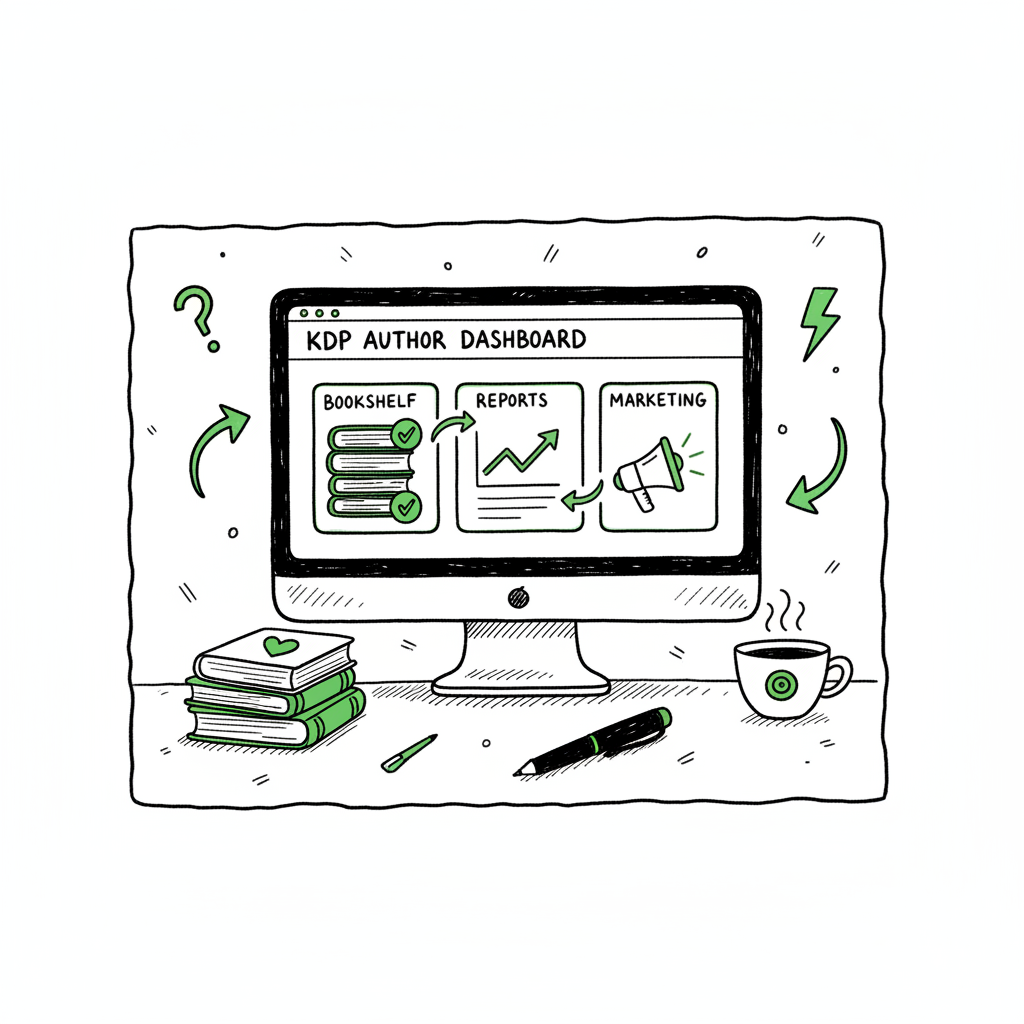
KDP Author Dashboard Practical Guide for Self-Publishing
kdp author dashboard: Practical guidance for self-publishing authors
Estimated reading time: 14 minutes
Key takeaways
- The KDP author dashboard is the control center for your Amazon publishing: manage files on the Bookshelf, track income in Reports, and access marketing tools.
- Routine tasks—price changes, content edits, preorder setup, and author copies—are fastest when you know where to click; automation makes multi-platform distribution practical at scale.
- Once you publish several books, a multi-platform batch uploader like BookUploadPro saves roughly 90% of repetitive work and reduces errors.
- Convert files properly (EPUBs and covers) before upload to avoid delays; tools exist to speed those steps without manual formatting.
- Organized metadata and a simple review routine keep your live titles healthy and your royalty reports clear.
Table of Contents
- What the KDP author dashboard does
- Bookshelf: manage and update your titles
- Reports: understand sales, royalties, and KENP
- Scaling beyond KDP: multi-platform publishing and automation
- FAQ
- Sources
What the KDP author dashboard does
The kdp author dashboard is where you run the day-to-day work of publishing on Amazon. Log in at kdp.amazon.com and you’ll see the major areas: Bookshelf, Reports, Community, and Marketing. Each area has a clear purpose. The Bookshelf holds your titles and drafts. Reports shows sales, royalties, and KENP reads. Marketing links to KDP Select, ads, and Author Central. Community has help and forums.
If you are new to publishing, start with the Bookshelf and make small edits so you get comfortable with the flow. For a broader, step-by-step overview of publishing on Amazon, see Amazon KDP for Authors which walks through the first uploads and common settings for new books.
Why this matters: the dashboard is both the view and the control panel. Mistakes here affect pricing, distribution, and whether readers can find your book. Knowing where to look saves time and prevents simple errors.
Bookshelf: manage and update your titles
The Bookshelf is the most-used part of the KDP author dashboard. It lists every title you have on Amazon: live books, preorders, and drafts. For most authors the Bookshelf is where you’ll spend the majority of your time.
What you can do in the Bookshelf
- Edit book details: Click the action menu (the “…” button) next to a title to edit metadata, pricing, and content. You can change descriptions, categories, and keywords without re-uploading everything.
- Update files: Choose Edit eBook Content to swap a cover or upload a new interior file. Small corrections are straightforward. Larger rewrites may require reformatting and a fresh EPUB or interior PDF for print.
- Manage formats: The Bookshelf shows separate entries for Kindle eBook and paperback (and hardcover where supported). Use the status column to check whether a format is Live, In Review, or Draft.
- Set preorders and release dates: You can set a title to Preorder and upload final files closer to release. KDP processes preorders as soon as the book goes live.
- Order author copies: For paperbacks, order author copies to check print quality or to sell direct. The Bookshelf has a direct link to place those orders.
Best practices for Bookshelf management
- Make small edits during low-traffic hours. Amazon can take time to propagate changes; avoid last-minute changes before promotions.
- Keep a versioned backup of your files. Name your EPUB and cover files with clear version numbers so you can revert if needed.
- Use a checklist for each edit: metadata, keywords, categories, cover, interior, pricing, and territories. A short checklist reduces missed items.
- For paperback interiors, download a print proof before wide distribution. On the Bookshelf you can order author copies to check gutter, margins, and paper stock.
- If you create both ebook and paperback, confirm that metadata and ISBN (when used) align across formats.
Tools that save time before you upload
- A handful of automated tools reduce manual formatting work. If you convert manuscripts to EPUB frequently, use an EPUB converter to produce clean files that meet KDP standards. If you still need professional cover files, try a reliable book cover generator to match Amazon’s size and bleed requirements. For authors producing multiple titles, consider centralized book creation tools to keep templates, covers, and interior styles consistent across a series.
Reports: understand sales, royalties, and KENP
Reports is where the numbers live. The Reports area of the KDP author dashboard gives you both a snapshot and the data you need to verify sales and track trends.
What the Reports section shows
- Dashboard snapshot: A quick view of top-earning books, estimated royalties, and recent orders. It’s useful for a daily check-in.
- Sales and royalties: Detailed reports break down units sold by date and marketplace, and show the royalty owed for each territory.
- KENP (Kindle Edition Normalized Pages) reads: If you enroll in KDP Select, Reports shows the KENP reads that factor into your monthly Select payout.
- Orders and print status: Print orders update within about 24 hours; paperbacks are tracked separately from Kindle sales.
How to read the numbers
- Look at rolling periods: Compare last 30 days to the previous 30 to spot trends rather than focusing on daily swings.
- Check units and royalties: Units sold tell one story; royalties reveal whether price changes or discounts affected income.
- Use filters: Reports let you filter by title and marketplace—use that to see which stores are performing and whether pricing differences matter.
- Export when needed: For bookkeeping, export CSVs from Reports. The export gives you raw numbers you can import into accounting or sales-tracking spreadsheets.
Scaling beyond KDP: multi-platform publishing and automation
Growing from one or two books to a catalog of dozens requires process changes. The KDP author dashboard is efficient for Amazon-only work, but it was not built to handle bulk uploads across multiple retailers. That’s where multi-platform automation becomes an obvious upgrade.
Why expand beyond KDP
- Reach: Kobo, Apple Books, Draft2Digital, and Ingram reach readers that Amazon does not.
- Diversification: Different platforms have different discovery models and audience niches.
- Control: Distributing wide ensures you own access to multiple storefronts and reduce dependence on a single marketplace.
Where automation helps
- Batch uploads: Upload multiple books at once using CSVs rather than repeating manual steps.
- Platform-specific intelligence: Automated systems map metadata to each store’s required fields and handle differences in cover dimensions, price formatting, and territory rules.
- Error reduction: Automation reduces typos and mismatches that happen when copying and pasting across dashboards.
How automation integrates with KDP workflow
Start with a clean, validated source pack for each title: final manuscript, formatted EPUB for ebook stores, print-ready PDF for print-on-demand, and a cover file per spec. Many authors keep a single folder per book with a small manifest file listing metadata. From that package you can:
- Upload to Amazon via the KDP author dashboard for features that only KDP supports (KDP Select enrollment, Author Central linking).
- Push the same assets to other platforms using a batch uploader to avoid re-entering data.
If you publish multiple books, a service that automates the upload can save about 90% of the manual time. BookUploadPro automates repetitive uploads across Amazon KDP, Kobo, Apple Books, Draft2Digital, and Ingram with CSV batch uploads and platform-specific intelligence. The system reduces errors, keeps a record of each upload, and makes wide distribution practical and repeatable. Automate the upload. Own the distribution.
Practical steps to scale safely
- Standardize metadata: Use a consistent format for titles, subtitles, author name variants, and series data. This prevents duplicates and improves discoverability.
- Build a template: Create a reusable template for descriptions, back matter, and author bios. Minor adjustments per marketplace are normal, but a template speeds the process.
- Validate files before upload: Run EPUBs through a validator and check print PDFs on the required trim size. If you need a quick conversion, an EPUB converter helps produce files that meet KDP and other storefront checks.
- Keep a single source for covers and interiors: Generate covers in the right dimensions up front—tools like a book cover generator make this faster and keep your brand consistent.
- Use a staging routine: Upload drafts to each platform’s draft area first. Review how the listing looks on each storefront and only then set live dates.
When to choose automation
- Automation becomes cost-effective when you publish several titles or plan to reformat and republish old works. If you regularly update metadata, pricing, or run coordinated promotions across stores, a batch system saves time and reduces mistakes. For most authors, automation moves from “nice to have” to “obvious upgrade” once publishing reaches a steady cadence.
Practical example: updating price across platforms
- Manual path: Open each dashboard, find the title, update price, and save. Repeat per store.
- Automated path: Edit a single row in a CSV and push it to all platforms. The tool applies platform-specific rounding and territory rules. That change takes minutes, not hours.
Files and formats to prepare before automation
- Final manuscript formatted as EPUB for ebook channels and a print-ready PDF for paperback/hardcover.
- A high-resolution cover file, and optionally separate front and back files for some print workflows.
- A metadata CSV with title, subtitle, author name, series info, description, keywords, categories, ISBNs, territories, and pricing.
Tools to consider before you automate
- EPUBs: Use an EPUB converter to standardize the ebook file across stores.
- Covers: Use a book cover generator to produce the right sizes and bleeds for each print trim.
- Catalog storage: Keep all final files in a predictable folder structure so a batch uploader can find them.
FAQ
Q: How do I find the Bookshelf in the KDP author dashboard?
A: After logging in at kdp.amazon.com, the Bookshelf is the default landing page. It lists your titles with columns for format, status, and actions. Use the three-dot action menu to edit or update files.
Q: Where are my royalties shown?
A: In Reports. The Reports area shows an overview and lets you drill into detailed sales and royalty numbers. You can filter by title, marketplace, and date range. Exports are available as CSVs for accounting.
Q: How long do content changes take to appear?
A: Small metadata edits can take hours to propagate; file updates (new EPUB or cover) can take up to 72 hours in some cases. Plan edits ahead during promotions.
Q: Can I publish to Kobo and Apple Books from the KDP author dashboard?
A: No. KDP is Amazon-only. To publish wide, you must use each platform’s dashboard or a distribution service. For many authors, a batch uploader makes the process faster and more reliable.
Q: I have many titles—should I automate?
A: If you’re publishing multiple books or updating metadata often, automation saves time and reduces errors. BookUploadPro offers batch CSV uploads and platform-specific mapping that make wide distribution practical at scale.
Sources
- https://help.selfpublishing.com/en/5-things-to-know-about-your-kindle-direct-publishing-kdp-dashboard
- https://rubenstomdesign.com/blogs/news/getting-started-with-self-publishing-a-comprehensive-guide-to-kindle-direct-publishing-kdp
- https://www.writtenwordmedia.com/what-is-kdp-amazon-kindle-direct-publishing-explained/
- https://reedsy.com/blog/guide/kdp/how-to-publish-a-book-on-amazon/
- https://www.youtube.com/watch?v=N7d8Dci_KVs
kdp author dashboard: Practical guidance for self-publishing authors Estimated reading time: 14 minutes Key takeaways The KDP author dashboard is the control center for your Amazon publishing: manage files on the Bookshelf, track income in Reports, and access marketing tools. Routine tasks—price changes, content edits, preorder setup, and author copies—are fastest when you know where…