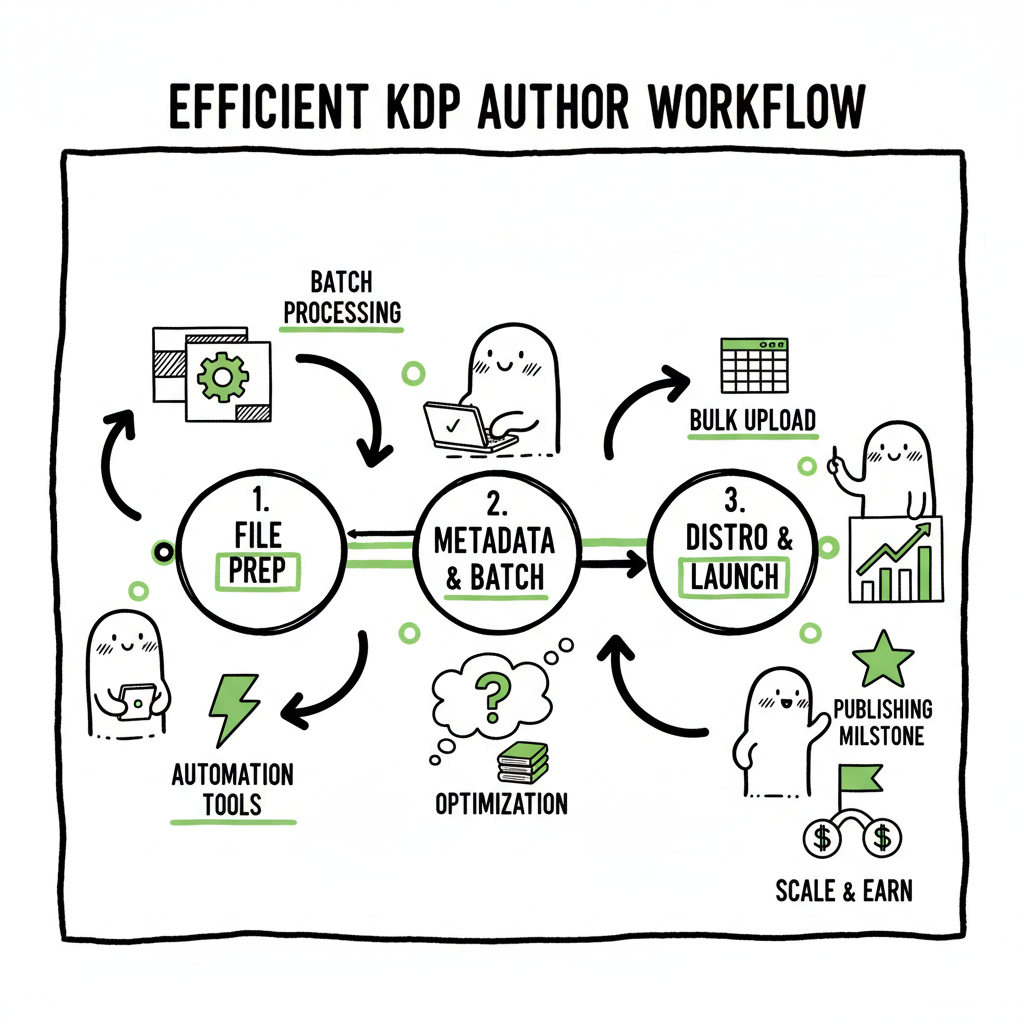
KDP Author Workflow Practical Guide to Efficient Publishing
kdp author workflow: a practical guide to efficient publishing and scaling
Estimated reading time: 12 minutes
Key takeaways
- A clear kdp author workflow saves time and prevents platform errors when you publish many books.
- Prepare files, metadata, and distribution plans in batches; use platform-aware tools to reduce manual steps.
- For scale, automate uploads and distribution across Amazon KDP and other stores—BookUploadPro turns that effort into repeatable CSV jobs.
Table of Contents
- What this guide covers
- The step-by-step kdp author workflow
- Scale and automate the kdp author workflow
- Final thoughts and next steps
- FAQ
- Sources
Why the kdp author workflow matters
If you publish a single title, the Amazon process feels small: fill in fields, upload a file, click publish. The problem starts when you publish multiple titles, different formats, or distribute beyond Amazon. A clean kdp author workflow keeps you from repeating the same manual edits, chasing formatting errors, or re-entering metadata across stores.
For authors seeking a focused KDP guide inside a broader publishing plan, Amazon KDP for Authors provides a concise reference.
Early in the process, it helps to have a central checklist and a single place to store finalized assets: manuscripts, covers, metadata, and pricing decisions. For authors who want a focused KDP guide inside a broader publishing plan, our Amazon KDP for Authors resource explains the platform-specific fields and choices. That reference pairs with a repeatable workflow so you don’t re-learn the same settings for every book.
This section explains why a standardized workflow pays off:
– Less time per title. Repeating tasks in the same order reduces friction.
– Fewer errors. Templates and checks catch common upload failures.
– Better visibility. You know which stage each title stands in: draft, ready, uploaded, or live.
A reliable kdp author workflow is not an academic checklist. It’s a living path you follow every time you release a title so you can scale without losing quality.
The step-by-step kdp author workflow
This section lays out the practical steps you should follow for each title. Think of it as an operator’s sequence that minimizes back-and-forth work. Keep files and metadata in a single folder or a CSV sheet so you can reuse them for batch uploads later.
1) Manuscript finalization
- Finish the content and run a last proofread. Use a simple style guide for spelling, punctuation, and consistent chapter breaks.
- Export a clean master file. For ebooks, an EPUB is preferred by most stores. If you need to convert, a reliable EPUB converter automates reflow and table of contents generation. EPUB converter.
- Produce a print-ready PDF for paperbacks with correct trim size and margins. Use templates from the print vendor.
2) Cover design and export
- Create a cover that matches the store requirements: full-wrap PDF for print, and a square or rectangular image for ebook thumbnail.
- Save separate files at the exact pixel or inch dimensions each platform needs. If you’re generating covers with tools, use a consistent naming convention.
- If you use a cover tool or generator, link the final assets into your book folder so the same file goes to KDP, Apple, Kobo, and Ingram. Book cover generator processing.
3) Metadata and assets
- Finalize title, subtitle, series name, author name, and contributor roles.
- Write a short blurb and a longer description. Keep the short blurb for catalog views and the long description for landing pages.
- Choose categories and keywords carefully. Track them in a spreadsheet so you can reuse or test variations across titles.
- Prepare ISBNs if you’re using your own. Otherwise, accept the platform’s ISBN and document which platform used which ISBN.
4) Formatting checks
- Validate the EPUB file on multiple readers or with an EPUB validator. Make sure internal links, images, and chapter headings work.
- Check the print PDF for bleeds, margins, and spine text alignment.
- Create a finalized sample (first 10–20%) to preview exactly how readers will see the book on devices.
5) Upload and review on KDP
- Move through KDP’s Details, Content, and Pricing pages in order. Use the same metadata from your spreadsheet to avoid typos.
- Upload your EPUB and cover files. KDP will run a quick validation—address any warnings before you proceed.
- Preview the book using KDP’s previewer. Spot-check on both ebook and print previews.
6) Price and territories
- Set royalty options and prices for each territory. Use a pricing sheet that translates local currencies to keep store pages consistent.
- Decide on enrollment options like KDP Select only if you understand exclusivity rules.
7) Publishing and post-publish checks
- After publishing, confirm the store page appears and the metadata displays correctly.
- Add the title to your author pages and retailer profiles.
- Use a short checklist to verify links in your sales copy, author bio, and series order.
8) Repeatability and batch preparation
- When you have multiple titles, store everything in a standardized folder structure and a CSV that records title, author, file names, categories, keywords, ISBNs, and prices.
- Batch-ready assets let you prepare uploads in bulk or hand them to a tool that automates distribution.
These steps are intentionally practical. The goal is to make uploads predictable and auditable so problems are easier to find and fix.
Scale and automate the kdp author workflow
Once you publish more than a handful of books, manual uploads become a bottleneck. That’s where automation and multi-platform publishing make a real difference. Automation is not a fancy add-on — it’s how you stop wasting time on repetitive tasks and focus on writing or growing channels.
1) What to automate first
- Metadata entry: Save repeated values to a CSV and map fields to each store.
- File uploads: Batch upload EPUBs, covers, and print PDFs instead of clicking through forms.
- Pricing updates: Change price tiers across multiple platforms with one operation.
- Territory and royalty settings: Apply consistent rules across stores.
2) How platform-aware automation helps
- Different platforms expect files and metadata in slightly different formats. A good automation layer applies platform-specific intelligence so the same source files work across KDP, Kobo, Apple Books, Draft2Digital, and Ingram.
- Error reduction comes from validation rules. The system flags problems and fixes straightforward issues automatically.
- CSV batch uploads let you prepare dozens or hundreds of titles in a single CSV and push them through a controlled pipeline.
3) Why BookUploadPro fits here
At scale, a tool that handles unified multi-platform publishing becomes essential. BookUploadPro is built to automate repetitive book uploads across Amazon KDP and other major stores. It uses CSV batch uploads and platform-specific intelligence to reduce manual work and cut error rates. For authors who publish seriously, it is an obvious upgrade: expect roughly ~90% time savings when you move from manual uploads to automated, repeatable jobs.
Practical workflow with automation
- Create your master CSV. Include columns for title, subtitle, series info, author, file names, categories, keywords, price, formats, and ISBNs.
- Link the CSV to your upload tool and map fields to platform names.
- Upload your manuscript files and covers once. The automation layer will repurpose them across stores where possible.
- Run a validation pass in a staging environment, fix flagged items, and then push to live stores.
- Maintain a publishing log with timestamps and store responses for auditing.
Common automation pitfalls and how to avoid them
- Blind bulk pushes. Always run a validation preview before sending changes live.
- Ignoring platform differences. Make sure your automation adjusts cover sizes and EPUB quirks for each retailer.
- Poor naming conventions. Standardize filenames so automated processes match files to CSV rows reliably.
Other practical gains from automation
- Faster updates. Change price or description across all platforms in a single step.
- Cleaner reporting. Track each title’s live status and sales channels from a single dashboard.
- Safer distribution. Automation reduces human error and the need to re-upload corrected files.
Automation is not a replacement for care. It is a force multiplier: once the master assets and CSVs are correct, the system does the heavy lifting and lets you focus on the parts that need human attention.
Final thoughts and next steps
A durable kdp author workflow blends careful preparation with automation. Start by tightening your file handling and metadata practices. Use templates and validators for EPUB and print PDFs to reduce surprises at upload time. When you’re ready to scale, move to CSV-based batch uploads and platform-aware automation to remove low-value work.
When you need help with repeated tasks like cover generation or EPUB conversion, use tools that plug into your workflow rather than separate it. If you generate covers with a tool, make sure final files are saved in your asset folder. For EPUBs, a dedicated EPUB converter produces consistent, validated files you can trust. And when you build print and ebook versions, keep both outputs linked in your master record so updates remain in sync.
Automate the upload. Own the distribution. For authors publishing multiple titles or operating a small press, the math is simple: time saved on repetitive uploads directly adds to the time you can spend on writing, promotion, and quality control. Tools that support unified multi-platform publishing, CSV batch uploads, and platform-specific intelligence reduce friction and the cost of going wide. That makes wide distribution practical, with fewer errors and more predictable launches.
FAQ
Q: How do I keep metadata consistent across stores?
Maintain a single master spreadsheet or CSV with every field you use. Use that CSV as the source of truth for every upload. When you update a title, change the CSV and push the update through your batch upload process.
Q: What format should I use for ebook files?
EPUB is the recommended, widely accepted format. Validate EPUB files on different readers and fix structural issues before upload.
Q: Do I need separate covers for print and ebook?
Yes. Print requires a full-wrap PDF sized to trim and spine width. Ebooks use front-cover images at specific pixel dimensions. Keep both in your asset folder and map them in your CSV.
Q: Can automation handle platform-specific fields like KDP Select?
Automation tools can map most platform-specific options, but some choices (like KDP Select exclusivity) require human decision. Include those choices in your CSV so they’re applied consistently.
Q: What are common upload errors and how do I fix them?
Common errors include mismatched metadata, invalid EPUB structure, incorrect PDF bleed settings, and cover size mismatches. Use validators and previewers to catch these before you push live.
Sources
kdp author workflow: a practical guide to efficient publishing and scaling Estimated reading time: 12 minutes Key takeaways A clear kdp author workflow saves time and prevents platform errors when you publish many books. Prepare files, metadata, and distribution plans in batches; use platform-aware tools to reduce manual steps. For scale, automate uploads and distribution…