KDP Author Workflow Explained for Faster Publishing
kdp author workflow: A practical system to publish faster and wider
Estimated reading time: 7 minutes
Key takeaways
- A reliable kdp author workflow starts with tidy files, exact metadata, and consistent previews to avoid reuploads.
- Batch preparation and platform-aware uploads save most time; multi-platform tools make wide distribution practical.
- Automating repetitive uploads with CSVs and platform intelligence reduces errors and frees time for writing.
Table of Contents
- What the kdp author workflow looks like
- Prepare assets, metadata, and previews
- Scale publishing: batching, platforms, and automation
- FAQ
- Sources
What the kdp author workflow looks like
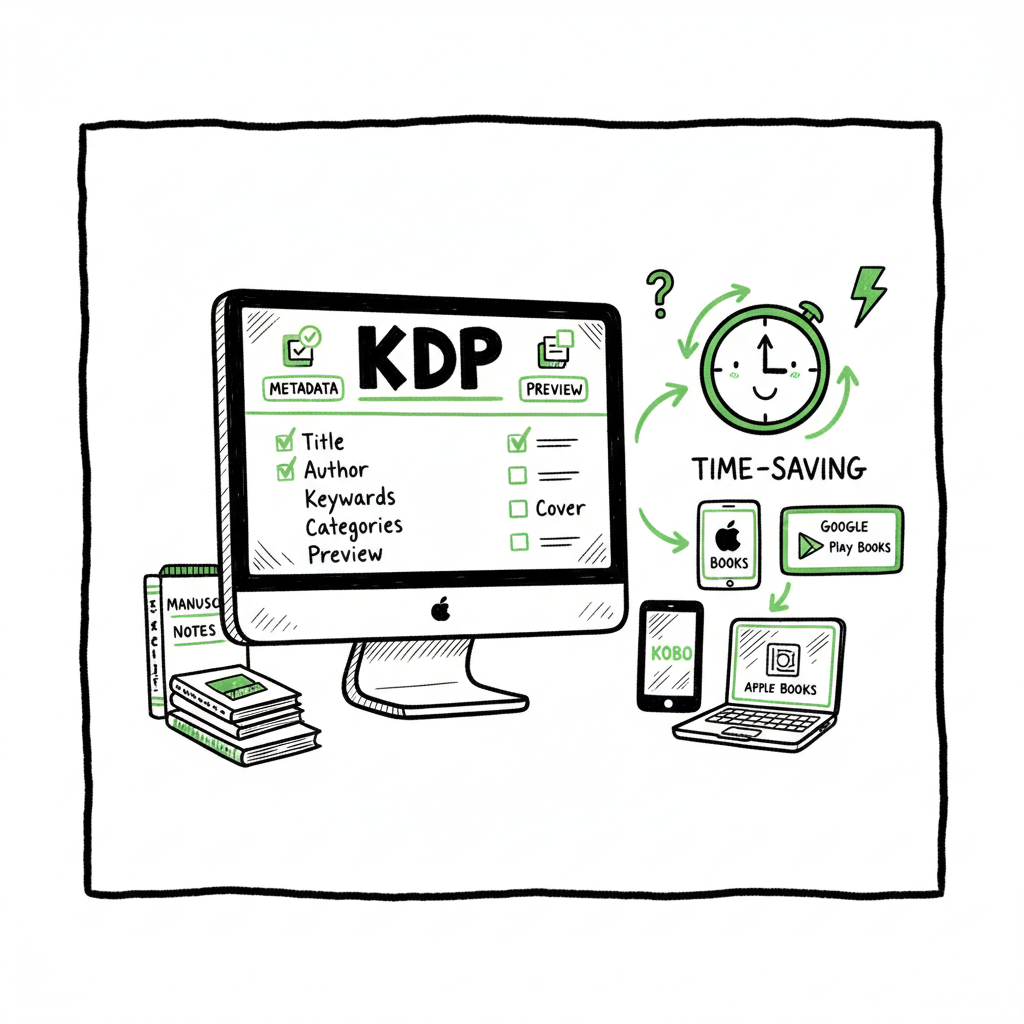
A clear kdp author workflow turns a messy set of tasks into a repeatable process. At its simplest, the sequence is: prepare manuscript, prepare cover, gather metadata, upload and preview, set pricing and rights, then publish. Doing these steps with care once saves hours later when you update or publish many books.
Begin with the manuscript. For ebooks, most authors use EPUB. For print, a well-formatted PDF or print-ready DOCX matters. Match the title and author inside the file exactly to your metadata fields. Small mismatches cause cataloging delays or broken series links.
Draft a short, clean description and a set of keywords before you touch the upload form. Keywords are not tags — they are search triggers. Keep them focused on reader intent. Make a habit of copying the same metadata into a single, reusable source file for every book.
When you work through the upload flow, use the preview tools. Preview the ebook on multiple device sizes and the paperback ruler view. Catch widows, orphaned lines, and image bleed before you click publish.
If you want a focused checklist for uploading to Amazon, see our Amazon Kdp for Authors guide.
Prepare assets, metadata, and previews
Manuscript and format
- Ebook format: EPUB is the recommended standard. Convert early and check it in an ebook reader or previewer. If you need a fast conversion, use a tested EPUB converter to avoid layout surprises.
- Print format: Use the print template recommended by the print service. Export to PDF with correct margins and embedded fonts.
- Internal consistency: Title, subtitle, and author name must match across files and metadata exactly. If you publish multiple formats, use the same title format so Amazon links editions correctly.
Covers
- Design for platform requirements. Ebook covers use RGB; print covers need CMYK and include spine and back if required.
- Keep key text in the safe zone. Avoid small text on the spine for thin paperbacks.
- If you do covers programmatically, a reliable book cover generator can speed batches and maintain consistent branding across series.
Metadata and ISBNs
- Create a single metadata master file (spreadsheet or database) with fields: title, subtitle, author, series name, series number, description, keywords, BISAC category, language, publication date, ISBN (if needed), retail price, and territories.
- ISBNs: KDP offers free ISBNs for paperbacks, but each format needs its own ISBN if you choose your own. Track them in your master file to avoid reuse mistakes.
Preview and test
- Preview every book on a device or in a simulator. Check images, tables, special characters, and chapter breaks.
- Test the download sample for the ebook. Make sure the first pages look and read as intended—these form the first impression for buyers.
Why this prep matters
Skipping careful prep forces repeated uploads, metadata edits, and angry emails. A reliable prep routine reduces rework and keeps your listing stable in stores.
Scale publishing: batching, platforms, and automation
When you publish one book, manual uploads are tolerable. When you publish a dozen or one hundred, manual becomes a bottleneck. Scaling comes down to two practical moves: batching and using tools designed to handle multiple platforms.
Batching the work
Group similar tasks together. Examples:
- Format five manuscripts for EPUB in one session.
- Generate covers for a whole series using the same template and only swap title text.
- Fill metadata for a batch of titles in your master spreadsheet.
Batching is where CSV batch uploads and platform-aware exports earn their keep. Organize your master file so each row equals one edition (ebook, paperback, audiobook), then export or map those rows to upload templates.
Multi-platform publishing: the reality
Publishing wide means different platforms expect different files and metadata details. Apple Books and Kobo like clean EPUBs. Ingram and some aggregators prefer print-ready PDFs. Amazon accepts EPUB for ebooks but has specific preview and series-linking behaviors.
A unifying approach is to store platform variants in a single project. One canonical manuscript, then export a platform-specific EPUB or PDF. That keeps content consistent while meeting each store’s rules.
Automation tools and platform intelligence
A lot of the heavy lifting can be automated without becoming fragile. The practical tools provide:
- CSV batch uploads that map spreadsheet columns to platform fields.
- Platform-specific intelligence that adjusts image color profiles, spine widths, or metadata syntax as needed.
- Error checking that flags missing fields or mismatched title text before upload.
EPUB converter and other automation tools can handle multiple stores.
book cover generator can speed batches and maintain branding across series.
Book creation tools that export both formats help maintain parity.
BookUploadPro is built to do this at scale. It handles Amazon KDP, Kobo, Apple Books, Draft2Digital, and Ingram from one interface. The platform reads your CSV, applies format rules, and uploads with platform-specific logic. The result is roughly ~90% time savings on repetitive upload steps for an active publisher.
How to think about error reduction
Errors come from format mismatches and metadata typos. Automation reduces manual copy-paste mistakes and enforces consistent rules. For example:
- The system can enforce exact title strings across edition rows.
- It can check that the EPUB contains the same author and title as your metadata.
- It can warn when spine width doesn’t match page count for printing.
Tools that combine CSV workflow and platform intelligence let you publish widely while keeping catalog quality high. When authors commit to publishing seriously, these tools are an obvious upgrade.
Integrating third-party steps
- If you need clean EPUB conversions, an EPUB converter will provide control over metadata and structure during conversion.
- For cover assets at scale, a book cover generator gives consistent results and saves designers’ time for complex bespoke covers.
- If you’re assembling paperbacks and ebooks in a single flow, Book creation tools that export both formats help maintain parity.
Practical checklist for each batch
- Prepare master spreadsheet: one row per edition, exact titles and authors.
- Convert manuscripts: export EPUB for ebook stores, PDF/DOCX for print where required.
- Generate covers: save source files and export platform-ready versions.
- Run automated checks: metadata present, ISBNs correct, price set, territories selected.
- Upload or queue: use a batch uploader to push files to each store.
- Preview and confirm: scan previews and postal/print proofs before approving.
Common errors and how to fix them
- Mistake: Title or author mismatch between file and metadata
- Fix: Update the file or metadata to match exactly. Use a script or a simple find-and-replace in your EPUB or DOCX if you have many files.
- Mistake: Wrong format for a platform
- Fix: Keep a platform matrix that lists required formats per store. Convert once, test, and save the converted file alongside the source.
- Mistake: Series not linking
- Fix: Ensure series name and author match across editions and formats. If automatic linking fails, check for stray spaces or characters.
- Mistake: Cover file color issues in print
- Fix: Export print covers in CMYK and check bleed. If you generate covers programmatically, make a print profile export step.
- Mistake: Repeated manual uploads for multiple markets
- Fix: Use batch upload mapping of territories and prices via CSV where supported, or choose a tool that applies prices and territories per platform rules.
When to bring in automation
If you publish more than a handful of titles per year, automation pays for itself. The ROI shows immediately when:
- You eliminate repetitive form entry.
- You reduce reuploads caused by metadata mismatches.
- You speed up multi-format releases.
BookUploadPro’s practical gains
BookUploadPro centralizes multi-platform publishing so you spend less time on uploads and more time on writing and marketing. The service emphasizes:
- Unified multi-platform publishing across Amazon KDP, Kobo, Apple Books, Draft2Digital, and Ingram.
- CSV batch uploads to push many editions at once.
- Platform-specific intelligence that reduces format errors.
- Automation that shrinks repetitive time by up to ~90%.
- Affordable pricing and a free trial so you can test it on real projects.
Automate the upload. Own the distribution.
FAQ
How does a kdp author workflow differ from general publishing?
A kdp author workflow focuses on KDP’s specific file and metadata needs: EPUB for ebooks, precise title/author matching, and the KDP previewer behavior. A general workflow adds steps for other stores, such as different EPUB checks and print proofs, but the core discipline—clean files and exact metadata—remains the same.
Do I need an ISBN for KDP ebooks?
No. KDP does not require ISBNs for Kindle ebooks. Paperbacks and hardcovers usually need a unique ISBN per format if you don’t use KDP’s free ISBN option. Track ISBNs in your master spreadsheet.
What file formats should I keep on hand?
Keep originals (DOCX or manuscript source), platform-ready EPUBs for ebooks, and print-ready PDFs for paperbacks if you use external printers. Store these alongside your metadata in a consistent project folder.
Can I publish the same book on Amazon and other stores?
Yes. Wide distribution is common. Each store may require a slightly different file or metadata formatting. Use a unified project and convert/export platform-specific files. Automation tools can push files and metadata in batches to multiple stores.
How does BookUploadPro handle covers and EPUBs?
BookUploadPro accepts platform-ready covers and EPUBs, and it supports batch delivery to platforms. For hands-on production tasks—like converting to EPUB or generating consistent covers—pairing BookUploadPro with tools that convert or generate assets will give the quickest, cleanest results.
Where can I find quick tools for covers and EPUBs?
If you need programmatic or batch processing for covers, a book cover generator speeds creation and maintains consistent branding. For batch EPUB creation and clean conversions, an EPUB converter provides control over metadata and structure. For general file exports and book assembly, Book creation tools can handle both ebooks and print-ready files.
Sources
- https://livingwriter.com/blog/how-to-publish-a-book-on-amazon-2025-kdp-guide/
- https://kdp.amazon.com/help/topic/G202172740
- https://reedsy.com/blog/guide/kdp/how-to-publish-a-book-on-amazon/
- https://damyantiwrites.com/kindle-direct-publishing/
- https://kdp.amazon.com/help/topic/G200641240
- https://kdp.amazon.com/help/topic/GUGQ4WDZ92F733GC
kdp author workflow: A practical system to publish faster and wider Estimated reading time: 7 minutes Key takeaways A reliable kdp author workflow starts with tidy files, exact metadata, and consistent previews to avoid reuploads. Batch preparation and platform-aware uploads save most time; multi-platform tools make wide distribution practical. Automating repetitive uploads with CSVs and…